Bewertung der Schweißnahtqualität
Zweck
Erfahren Sie, wie die Qualität des Schweißpfads analysiert und dargestellt wird.
Laden Sie das Projekt Arcwelding_BasicProgrammed.cendoc aus dem Ordner Projekte dieser Tutorial-Bibliothek.
Schritte
1. Qualität des Schweißpfads
1.1 Öffnen Sie die Bewertungskriterien
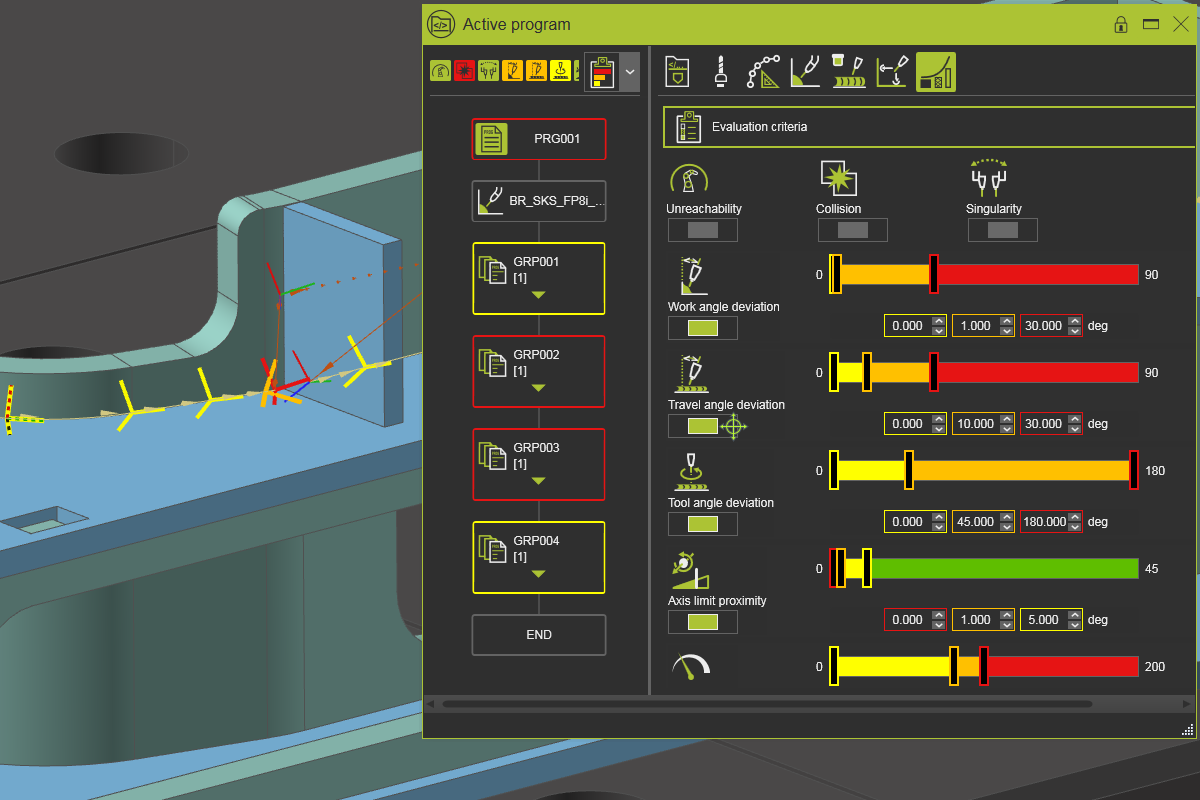
Öffnen Sie das Dashboard des aktiven Programms und wählen Sie die Registerkarte Werkzeugwegqualität. Öffnen Sie den Bewertungskriterien-Container. Hier finden Sie alle Kriterien, die zur Bewertung und Messung der Schweißnahtqualität angewendet werden.

Bewertungskriterien
![[link:Ref_OLP_Evaluation_Display]](/_next/static/media/help_32.a83448e5.png)
1.2 Anzeige von Schweißbahnvorfällen
Das Ergebnis der Analyse – im Falle der Nichterfüllung der Kriterien als Vorfälle bezeichnet – kann angezeigt werden. In der oberen Zeile für jedes Kriterium kann dies ein- oder ausgeschaltet werden. Bei einem Verstoß wird die Auswirkung sofort farblich am Vorfallsymbol und im Programmablaufdiagramm dargestellt.
Schweißbahnvorfälle
1.3 Kollisionsergebnisse anzeigen
Um Kollisionsergebnisse anzuzeigen, muss die Kollisionsanalyse in der Simulations-Symbolleiste aktiviert werden.

Schweißbahnvorfälle
1.4 Einzelne Kriterien aktivieren oder deaktivieren
Einzelne Kriterien können ein- oder ausgeschaltet werden, um Teil der Qualitätsanalyse des Schweißpfads zu sein. Nur die Erreichbarkeits- und Singularitätsanalyse sind standardmäßig aktiviert und werden immer ausgeführt – sie können nicht deaktiviert werden.
Qualitätsanalyse
1.5 Aktivieren der Qualitätsanzeige auf dem 3D-Schweißpfad
Öffnen Sie im Bedienfeld Anzeige-Filter den Container Werkzeugweg und Operationen. Aktivieren Sie die Qualitätsanzeige auf dem 3D-Schweißpfad. Dadurch werden die Elemente des Schweißpfads entsprechend ihrem Vorfallniveau eingefärbt.

Qualitätsanzeige in 3D
1.6 Ändern der Anzeigeebene für Vorfälle
Es gibt drei Stufen zur Anzeige von Vorfällen – von der Anzeige aller Vorfallstufen bis hin zur Anzeige nur von Fehler-Vorfällen. Wenn mehrere Vorfälle erkannt wurden, wird die Farbe der höchsten Stufe zur Kennzeichnung verwendet.
Anzeige des Vorfallniveaus
1.7 Dynamische Anpassung des Kriterienbereichs
Ändern Sie die Kriterienwerte der Abweichung des Arbeitswinkels mit den Schiebereglern oder durch Eingabe neuer Werte und beachten Sie, dass die Analyse dynamisch ausgeführt wird. Die Vorfälle werden sofort gemeldet.
Kriterienbereich ändern
1.8 Anzeigen von Vorfällen im Werkzeugbahn-Dashboard
Öffnen Sie das Toolpath-Dashboard. Beachten Sie, dass die Vorfälle hier ebenfalls angezeigt werden. Das Ein- oder Ausschalten eines Vorfalls wird in beiden Dashboards übernommen. Wenn Sie mit der Maus über einen Vorfall fahren, wird ein kleines Fenster mit den Vorfallsinformationen angezeigt – diese sind auch im 3D-Schweißpfadelement verfügbar.

Vorfälle