Kalibrieren der Schweißnaht
Zweck
Erlernen Sie die Kalibrierung der Schweißnaht mit den verschiedenen Methoden, die die Software anbietet.
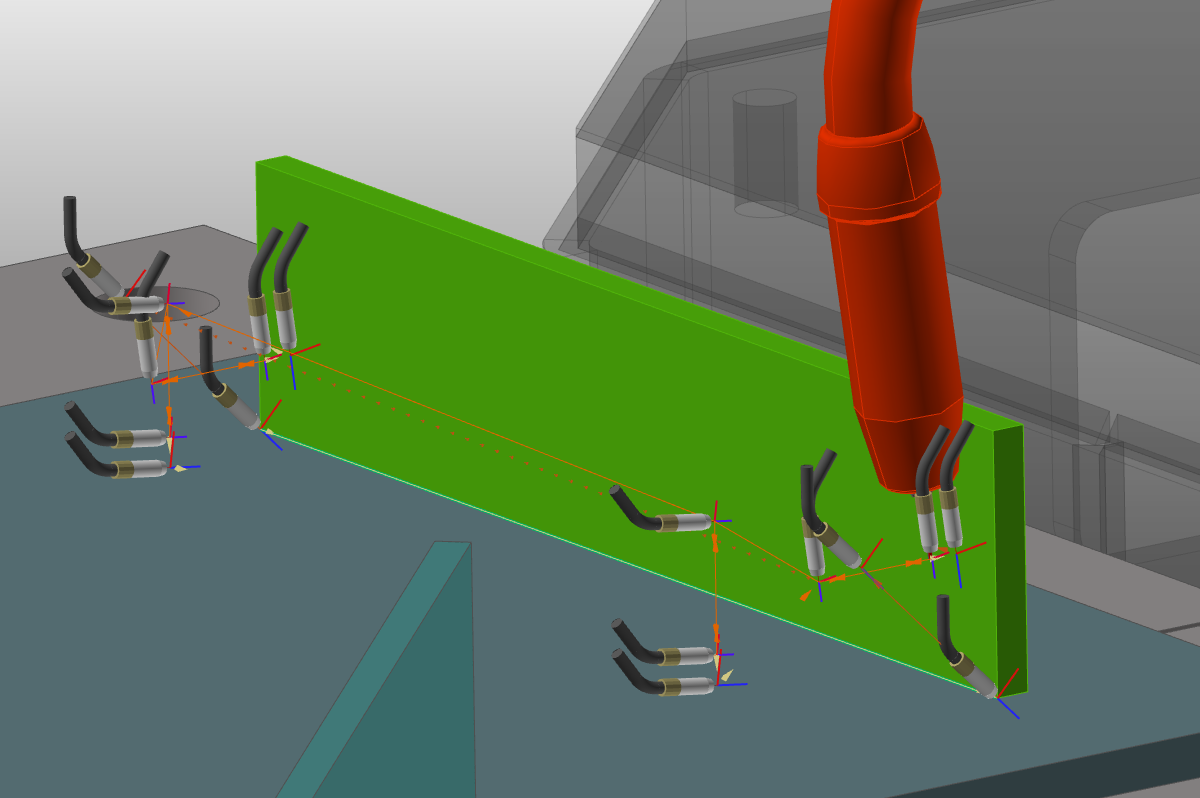
Laden Sie das Projekt Arcwelding_TouchSensing.cendoc aus dem Ordner Projekte dieser Tutorial-Bibliothek.
Schritte
1. Berührungserkennung
Erkennung des Werkstücks (Nahtposition) durch Berührung – d. h. durch Kollision zwischen der Schweißpistole und dem Werkstück.
1.1 Legen Sie die Kalibrierungsmethode in den Programmier-Standardeinstellungen fest
Öffnen Sie das Dashboard „Programming defaults“. Öffnen Sie den Container „Recipes“ und stellen Sie die Kalibrierungsmethode auf Touch by point indication ein. Wählen Sie dann die Registerkarte „Touch sensing“, um die Attribute der Berührungserkennung anzuzeigen. Stellen Sie den Typ auf Detection with nozzle ein, falls dieser noch nicht definiert ist. Dadurch wird die Schweißpistole als Erkennungsobjekt verwendet, wenn sie das Werkstück berührt.

Programmier-Standardeinstellungen
![[link:Ref_ArcWeld_TouchSense]](/_next/static/media/help_32.a83448e5.png)
1.2 Definieren der Schweißnaht
Definieren Sie die Schweißnaht, bestätigen Sie diese jedoch noch nicht.

Schweißnaht
1.3 Wählen Sie die Berührungskalibrierungspunkte aus
Wählen Sie die gewünschten Kalibrierpunkte am Werkstück aus. Ihre Position wird anhand der Mausklick-Position ermittelt, basierend auf WYSIWYG. An jeder Berührungsposition erscheint eine blaue Kugel. Nach Abschluss bestätigen Sie die Auswahl, um den Vorgang zu programmieren.
Berührungspositionen
1.4 Überprüfung der Operationsgruppe
Öffnen Sie das Dashboard des aktiven Programms. Erweitern Sie die Operationsgruppe, um festzustellen, dass die Berührungsoperationen vor der Nahtschweißoperation angeordnet wurden. Führen Sie eine Simulation durch, um das vollständige Programm zu sehen.

Operationsgruppe
1.5 Ändern der Berührungsbetriebsattribute
Wählen Sie die erste Touch-Operation aus. Öffnen Sie dann den Touch-Sense-Container im Tab Touch-Sensing. Ändern Sie einige Touch-Attribute und beobachten Sie die Wirkung.
Berührungsvorgang ändern
1.6 Wechsel zu Touch mit Drahtdetektion
Entfernen Sie das Programm. Öffnen Sie anschließend die Programmier-Standardeinstellungen und setzen Sie den Erkennungstyp auf Touch mit Draht.

Berührungserkennung mit Draht
1.7 Programmierung mit Touch-Draht-Positionen
Wählen Sie die vorhandene Nahtdefinition aus, um sie zu programmieren. Die Berührungspositionen werden angezeigt. Eine Position kann verschoben werden, indem die gelbe Kugel ausgewählt und gezogen wird. Neue Positionen können ebenfalls hinzugefügt werden. Programmieren Sie anschließend den Vorgang.

Berührungserkennung mit Draht
1.8 Programmieren einer zweiten Schweißnaht mit Berührungspositionen
Programmieren Sie eine zweite Schweißnaht mit Touch-Positionen. Öffnen Sie das Dashboard des aktiven Programms und erweitern Sie die Operationsgruppen, um zu sehen, dass jede Gruppe eine Schweißoperation mit ihren Touch-Positionen enthält.
Schweißvorgänge mit Berührungserkennung
1.9 Sortieren von Berührungs- und Schweißvorgängen in separate Gruppen
Entfernen Sie das Programm. Aktivieren Sie in den Programmier-Standardeinstellungen die Option Operation sorted. Programmieren Sie anschließend erneut zwei Schweißnähte und beachten Sie, dass die Vorgangsgruppen in eine Gruppe für Berührungsvorgänge und eine Gruppe für Schweißvorgänge sortiert wurden.

Vorgänge sortiert
2. Erkennung mit Punktlaser
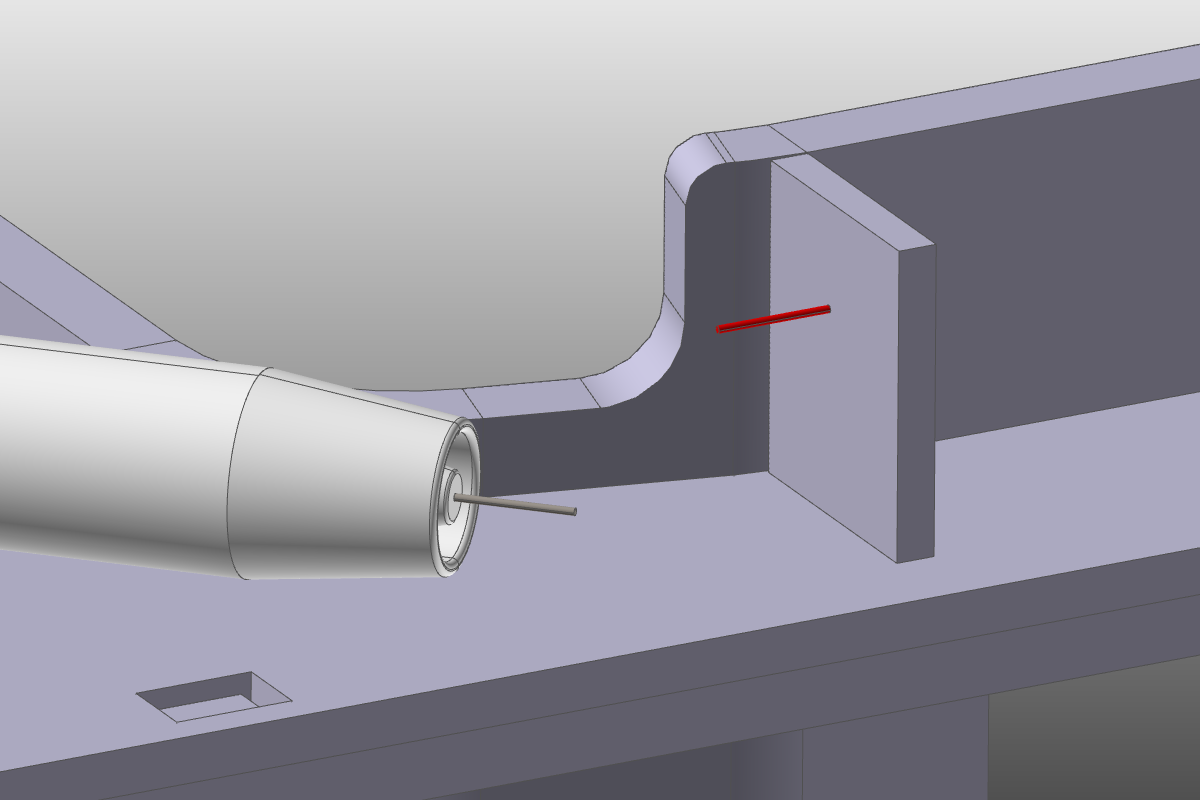
Erkennung des Werkstücks (Nahtposition) durch Messung der Werkstückposition mit einem Laser. Der Arbeitsablauf zur Kalibrierung der Schweißnaht ähnelt der oben beschriebenen Tastmethode.
3. Nahtfindung mit 2D/3D-Laser
Erkennung des Werkstücks (Nahtposition) durch Messen – d. h. Scannen der Start- und Endposition der Schweißnaht mit einem 2D/3D-Linienlaser.
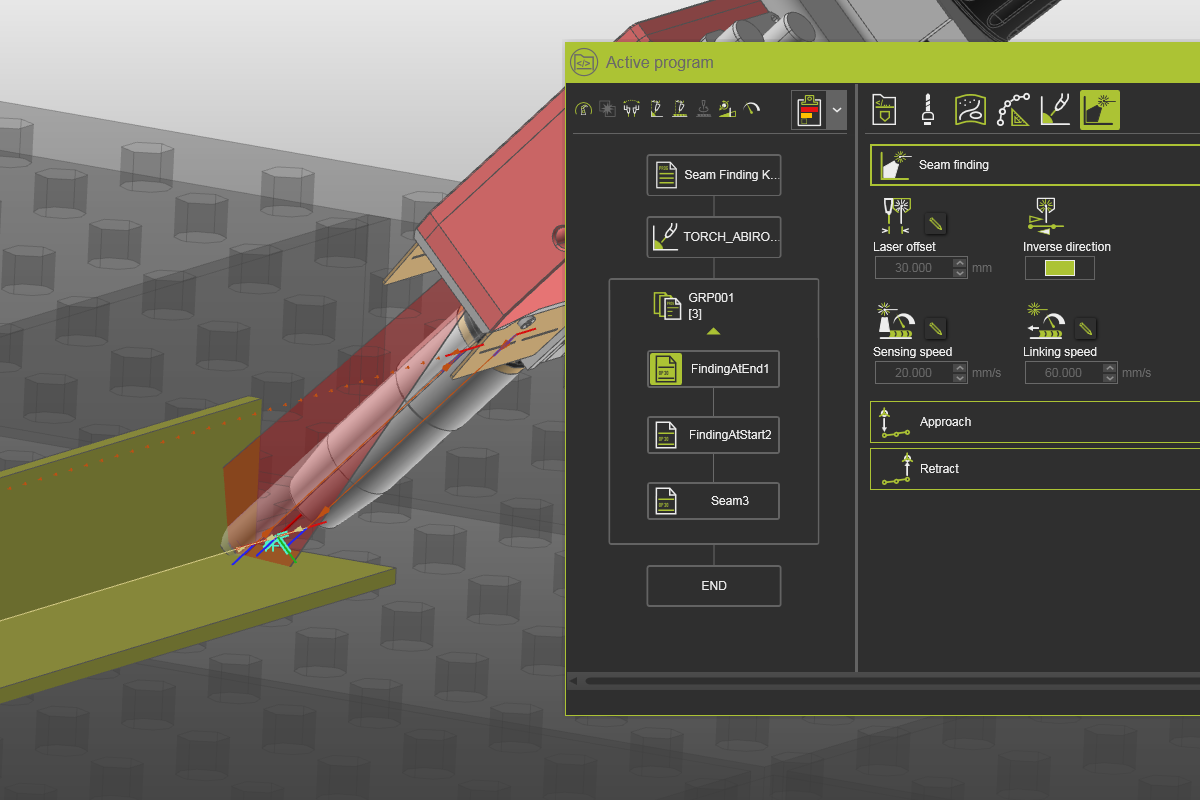
Laden Sie das Projekt Arcwelding_SeamFinding.cendoc aus dem Ordner Projekte dieser Tutorial-Bibliothek.
3.1 Legen Sie die Kalibrierungsmethode auf Nahtfindung fest
Öffnen Sie das Dashboard „Programming defaults“. Öffnen Sie den Container „Recipes“ und stellen Sie die Kalibrierungsmethode auf Seam finding line laser ein. Wählen Sie anschließend die Registerkarte „Seam finding“, um die Attribute zu überprüfen. Akzeptieren Sie die Standardwerte.
Programmier-Standardeinstellungen
3.2 Definieren Sie die Schweißnaht und programmieren Sie sie
Definieren Sie die Schweißnaht und programmieren Sie diese. Führen Sie eine Simulation durch, um das Ergebnis zu sehen.
Schweißnaht
3.3 Überprüfung der Operationsgruppe
Öffnen Sie das Dashboard des aktiven Programms. Erweitern Sie die Operationsgruppe, um festzustellen, dass die Suchoperationen vor der Nahtschweißoperation angeordnet wurden.
Operationsgruppe
3.4 Schweißnaht-Erkennungsattribute ändern
Wählen Sie die Endsuchoperation aus. Öffnen Sie anschließend den Behälter für die Nahtsuche. Ändern Sie einige der Attribute und beobachten Sie die Wirkung.
Finden-Operation ändern
4. Nahtverfolgung mit 2D/3D-Laser
Erkennung des Werkstücks (Nahtposition) durch kontinuierliche Messung – d. h. Abtasten der Werkstückposition während des Schweißvorgangs mit einem Laser.
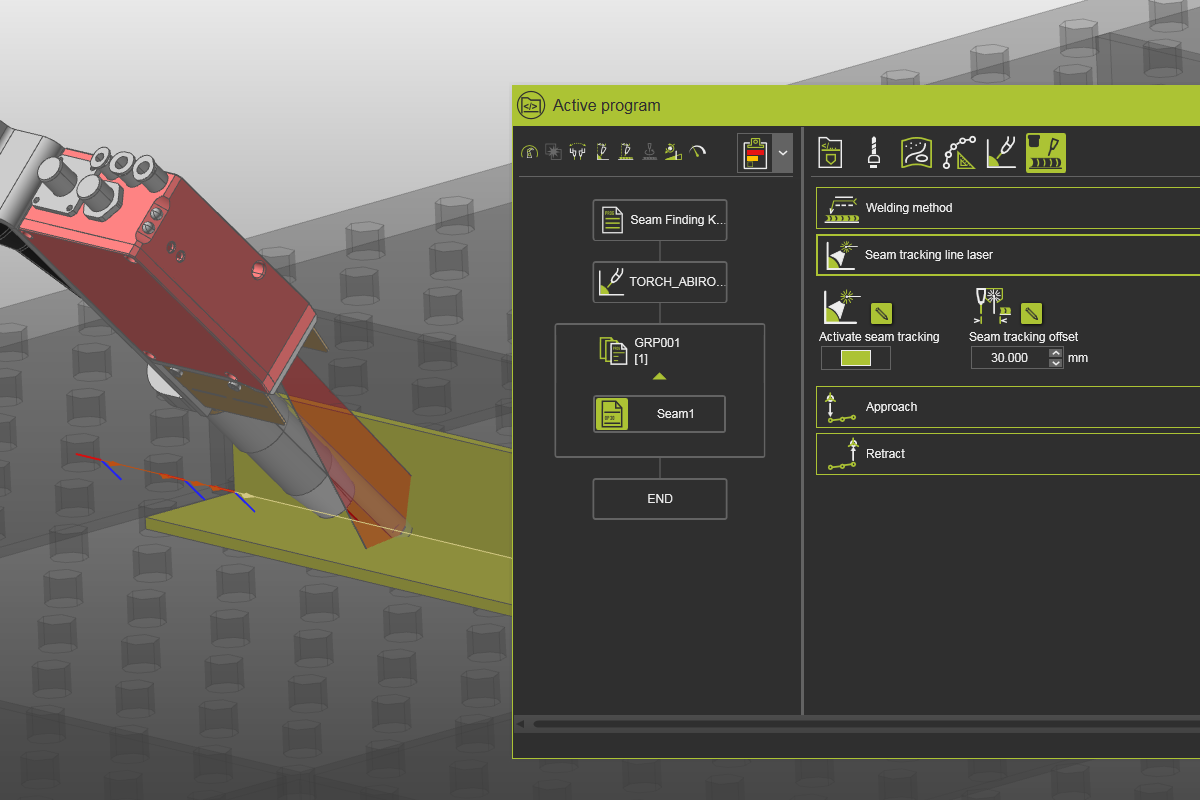
Laden Sie das Projekt Arcwelding_SeamFinding.cendoc aus dem Ordner Projekte dieser Tutorial-Bibliothek.
4.1 Legen Sie die Kalibrierungsmethode auf Nahtverfolgung fest
Öffnen Sie das Dashboard „Programming defaults“. Öffnen Sie den Container „Recipes“ und stellen Sie die Kalibrierungsmethode auf Seam tracking line laser ein.
Programmier-Standardeinstellungen
4.2 Definieren Sie die Schweißnaht und programmieren Sie sie
Definieren Sie die Schweißnaht und programmieren Sie diese. Führen Sie eine Simulation durch, um das Ergebnis zu sehen.
Schweißnaht
4.3 Ändern der Eigenschaften der Nahtverfolgung
Öffnen Sie das Dashboard des aktiven Programms. Öffnen Sie anschließend den Behälter für den Nahtverfolgungs-Linienlaser. Ändern Sie die Attribute und beobachten Sie die Wirkung.
Vorgang ändern