Richten Sie das Punktschweißprojekt ein
Zweck
Richten Sie das Punktschweißprojekt ein, indem Sie die Fertigungsumgebung mit dem Schweißroboter und der erforderlichen Ausrüstung aufbauen, und laden Sie anschließend das Werkstück, um die Einrichtung abzuschließen.
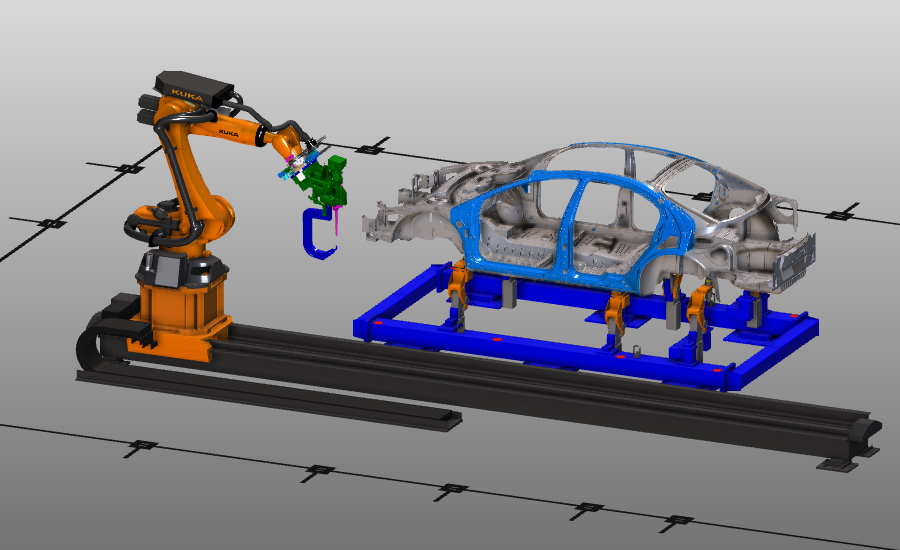
Das Layout wird aus Standardausrüstung wie Roboter, Schiene, Träger und Steuerung aufgebaut. Komponenten werden positioniert und verbunden, um die Arbeitszelle zu erstellen und für die Programmierung vorzubereiten.
Schritte
1. Vorbereitung (falls erforderlich)
Je nach verwendetem Lizenzpaket können Sie für diese Einrichtung entweder im Layout Builder oder in der Offline-Programmierung arbeiten.
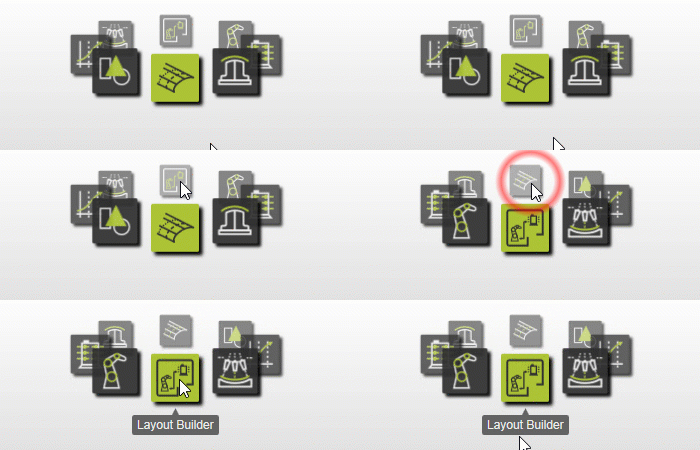
1.1 Wechseln Sie zur Arbeitsumgebung Layout Builder

Wechseln Sie zur LB-Arbeitsumgebung
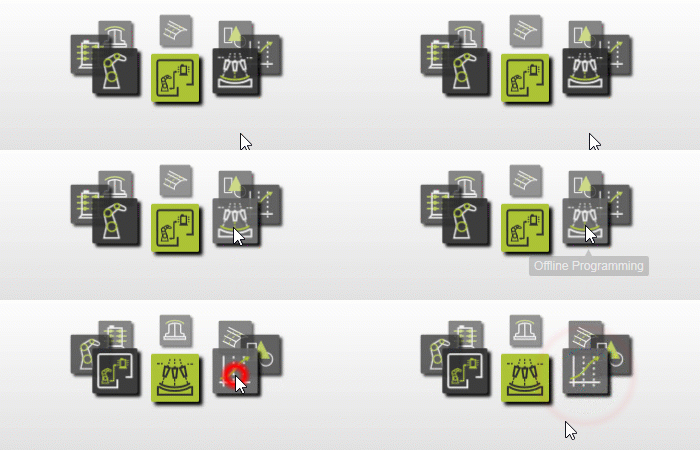
1.2 Wechseln Sie zur Offline-Programmierung-Arbeitsumgebung

Wechseln Sie zur OLP-Arbeitsumgebung
1.3 Erstellen Sie ein neues leeres Dokument
Erstellen Sie ein neues leeres Dokument, bevor Sie die Arbeitszelle aufbauen. Wenn ein anderes Dokument geöffnet ist, wählen Sie, ob Sie es speichern, ohne zu speichern schließen oder den Vorgang abbrechen möchten.

Erstellen Sie ein neues Dokument
2. Aufbau der Arbeitszelle
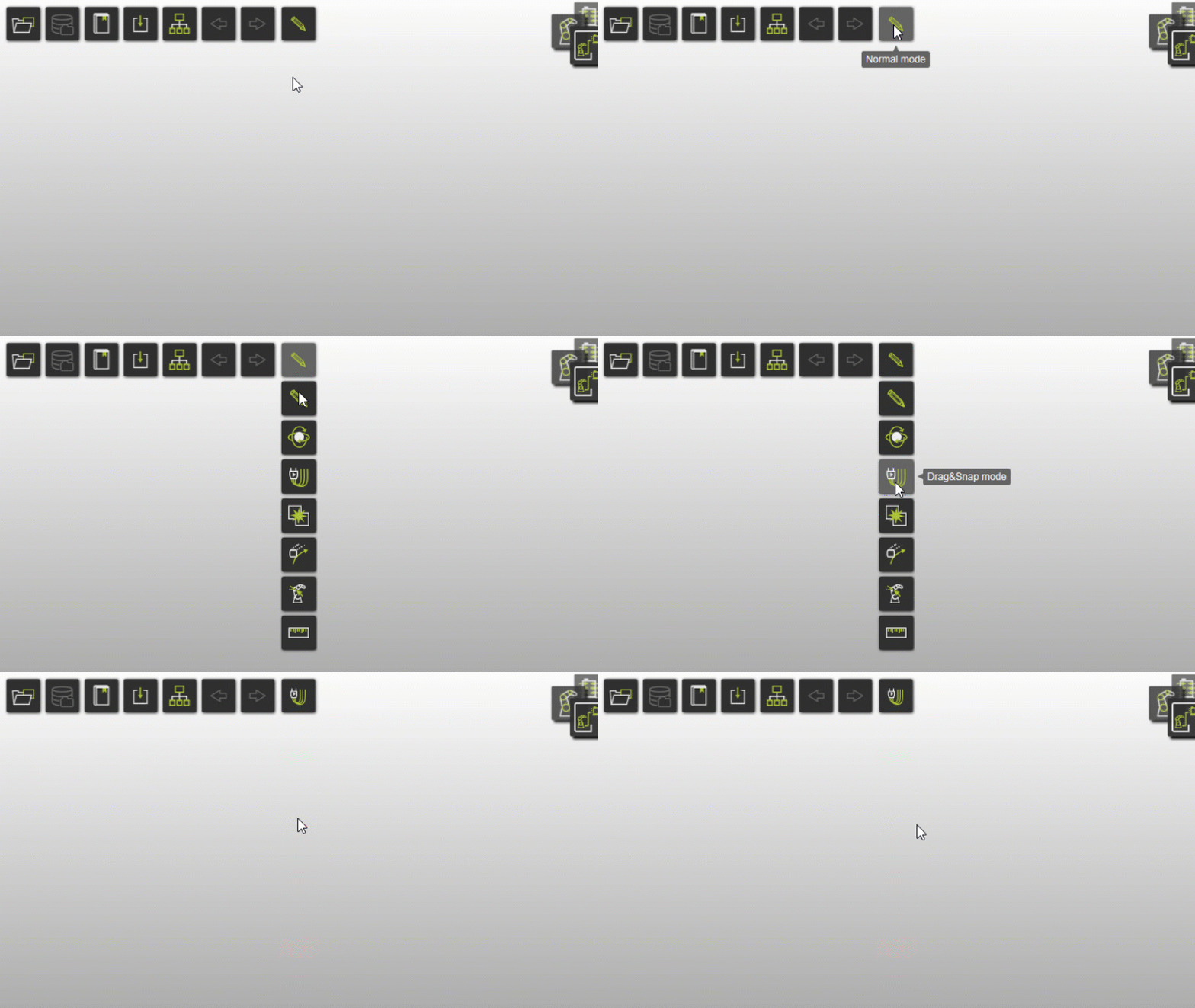
2.1 Wechseln Sie in den Drag-&-Snap-Betriebsmodus
Beim Wechsel der Werkbänke wird der Betriebsmodus standardmäßig auf Normal gesetzt. In der Offline-Programmierung wechseln Sie zu Drag & Snap, um Komponenten in der Vorrichtungsbaugruppe zu verschieben.
2.2 Fügen Sie Werkstattkomponenten zum Layout hinzu
Öffnen Sie die Projektstruktur und fügen Sie den Grundriss, den Roboter, die Schiene, den Träger und den Controller aus den Trainingsdaten hinzu.

Zum Layout hinzufügen
2.3 Fügen Sie die Schweißpistole zum Layout hinzu
Fügen Sie die zuvor erstellte Schweißpistolen-Ressource zum Layout hinzu.
Schweißpistole hinzufügen
2.4 Komponenten platzieren und verbinden
Platzieren Sie die Komponenten per Drag & Drop an der vorgesehenen Stelle und verbinden Sie dabei die erforderlichen Adapter.

Komponenten positionieren
2.5 Aufbau der elektrischen Verbindung
Erstellen Sie die elektrische Verbindung zwischen dem Controller und dem Roboter.
Herstellen der elektrischen Verbindung
2.6 Speichern Sie das Layout (sofern unterstützt)
Wenn Sie sich im Offline-Programming befinden, können Sie ein Layout nicht direkt speichern. Fahren Sie mit der Einrichtung des Shopfloor-Projekts fort und fügen Sie dort das zuvor gespeicherte Layout und das Werkstück hinzu. Wenn das Speichern von Layouts in Ihrer aktuellen Arbeitsumgebung/Lizenz verfügbar ist, speichern Sie das Layout jetzt.
Wenn das Speichern des Layouts in OLP nicht verfügbar ist, fahren Sie mit dem nächsten Abschnitt fort und fügen Sie das gespeicherte Layout hinzu. und Werkstück im neuen Projekt.
2.7 Speichern Sie das Layout
Das Layout-Dokument enthält Ressourcen und Steuerungen der Werkstatt.

Layout speichern
3. Erstellen Sie das Shopfloor-Projekt
3.1 Öffnen Sie ein neues Projektdokument
Neues Projekt öffnen
3.2 Layout und Werkstück zum Projekt hinzufügen
Fügen Sie das zuvor gespeicherte Layout und das Werkstück hinzu und platzieren Sie anschließend das Werkstück auf dem Träger.
Projektaufbau erstellen
3.3 Überprüfen Sie die Dateistruktur
Überprüfen Sie die Layout-Struktur und die Dateistruktur. Elemente, die rot markiert sind, weisen in der Regel auf nicht gespeicherte Daten hin.

Überprüfen Sie die Layout-Struktur
4. Vorbereitung zur Kollisionsanalyse
Bereiten Sie die Arbeitszelle für die Kollisionsanalyse während der Simulation vor.
4.1 Wechseln Sie zur Offline-Programmierung-Arbeitsumgebung
Wechseln Sie zur OLP-Arbeitsumgebung
4.2 Definieren Sie Kollisionsgruppen

Kollisionsgruppen definieren
4.3 Definition der Kollisionsanalyse-Zuordnung
Definieren Sie, welche Kollisionsgruppen gegeneinander analysiert werden.
Kollisionsanalyse definieren
5. Speichern Sie das Projekt
5.1 Speichern Sie die Einrichtung als Projekt
Speichern Sie die Einrichtung als .cenprj Projektdatei unter einem geeigneten Namen.

Projekt speichern
Nächster Schritt
-> Erzeugen Sie das Punktschweißprogramm