Automatische Optimierung des Schweißpfads
Zweck
Erlernen Sie die Nutzung einiger Funktionen zur Automatisierung der Programmierung.
Laden Sie das Projekt Arcwelding_BasicProgrammed.cendoc aus dem Ordner Projekte dieser Tutorial-Bibliothek.
Schritte
1. Vorfälle analysieren
1.1 Öffnen Sie das Toolpath-Dashboard und überprüfen Sie die Vorfälle
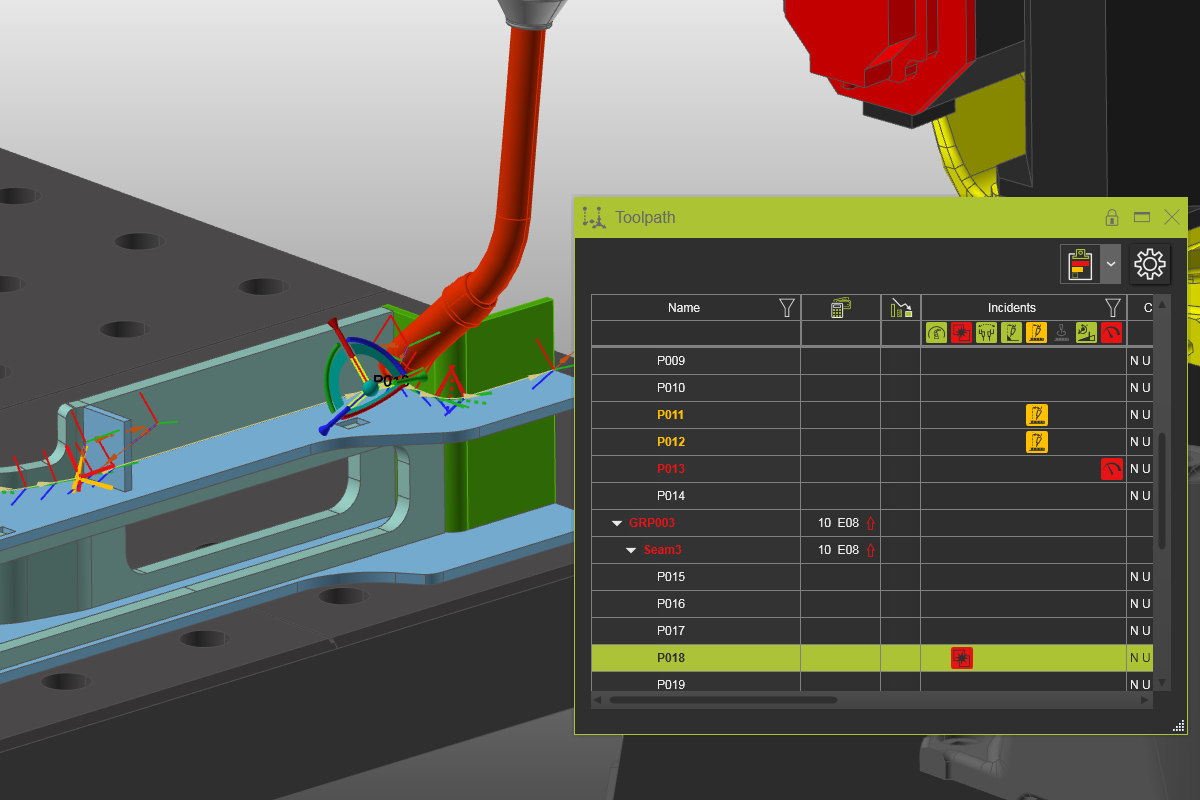
Öffnen Sie das Toolpath-Dashboard und überprüfen Sie, ob alle Vorfälle angezeigt werden.

Werkzeugbahn-Dashboard
1.2 Überprüfung von Vorfall-Pop-ups
Wählen Sie den Befehl Create and edit events aus. Fahren Sie mit der Maus über die schweißpfadbezogenen Elemente in der Vorfallfarbe. Ein kleines Popup-Fenster erscheint, um den Vorfall anzuzeigen.

Werkzeugweg-Vorfälle
2. Automatische Werkzeugwegoptimierung
2.1 Konfigurieren der Optimierungsattribute
Öffnen Sie das Dashboard des aktiven Programms und wählen Sie die Registerkarte Werkzeugwegqualität. Wenn diese nicht sichtbar ist, stellen Sie sicher, dass das oberste Programm im Workflow-Diagramm ausgewählt ist. Der Variationsraum-Container zeigt alle Werkzeugwegeigenschaften an, die in Variationen während der automatischen Optimierung geändert werden können. Der Optimierungssteuerung-Container zeigt alle Attribute und Parameter an, die als Steuerkriterien zum Starten und Stoppen der Optimierung festgelegt werden können. Setzen Sie den Wert für den Qualitätsrückgang auf 10, um ein ausgewogenes Verhältnis zwischen einem guten Ergebnis und akzeptabler Rechenzeit zu erreichen.

Automatische Optimierungsattribute
![[link:Ref_OLP_ToolpathOptim_Variants]](/_next/static/media/help_32.a83448e5.png)
2.2 Ausführung der automatischen Werkzeugwegoptimierung
Öffnen Sie das Toolpath-Dashboard erneut. Beachten Sie die Programmkosten — ein Wert, der die Auswirkung der Qualitätskriterien auf die Kosten zur Verarbeitung dieses Programms ausdrückt. Führen Sie dann für das Programm den Befehl Automatic toolpath optimization aus. Ein Fortschrittsfenster erscheint.

Automatische Werkzeugwegoptimierung
2.3 Überprüfung des Optimierungsergebnisses
Nach Abschluss erscheint ein Berichtsfenster mit dem Ergebnis der Optimierung. Das Toolpath-Dashboard wurde in Echtzeit aktualisiert. Sehen Sie sich die Ergebnisse an.
Automatische Werkzeugwegoptimierung