Bauen Sie eine Vorrichtung
Zweck
FASTSUITE Edition 2 verfügt über eine spezielle Werkbank, um eine plattenbasierte Vorrichtung zur Unterstützung des Werkstücks einfach zu erstellen.
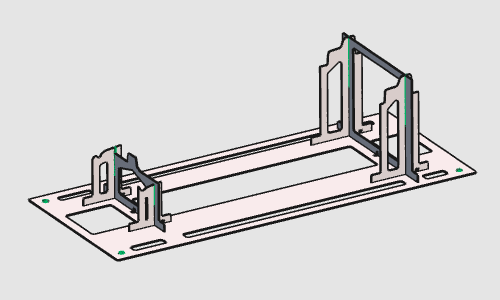
Die anfängliche Vorrichtung wird direkt vom Werkstück abgeleitet. Sie wird durch Modifikationen einzelner Platten und gegebenenfalls durch Änderung der Anzahl der Stützplatten vervollständigt. Nach der Erstellung werden die Vorrichtungsplatten auf einem Blech verschachtelt und für die 2D-Laserfertigung exportiert.
Schritte
1. Vorbereitung
1.1 Öffnen Sie die Werkstückdatei (falls erforderlich)
Wenn das Werkstückdokument nicht in die Sitzung geladen wurde, öffnen Sie B_Pillar.cenwpc aus dem Trainingsdatenordner. Wenn das Werkstück bereits geöffnet ist, kann dieser Schritt übersprungen werden.

Datei öffnen
1.2 Wechseln Sie zur Fixture Builder-Vorrichtung

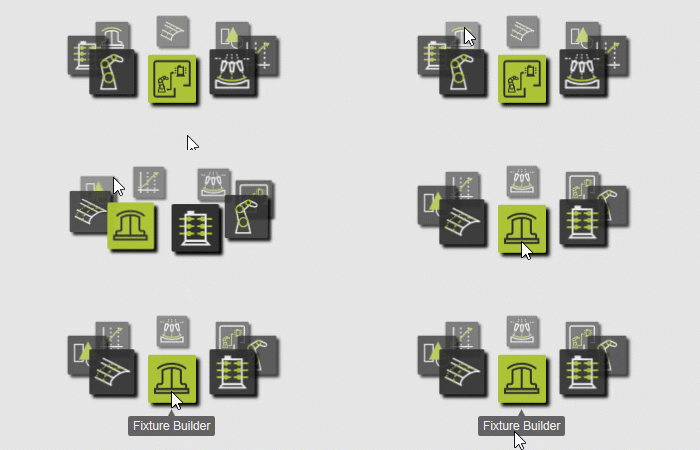
Wechseln Sie zur FB-Vorrichtungsarbeitsfläche
2. Bauen Sie die Vorrichtung auf
2.1 Bauen Sie die globale Vorrichtung auf

Bauen Sie die Vorrichtung auf
Die Vorrichtung wird modifiziert, um der Konstruktionsabsicht zu entsprechen.
Mehrere verschiedene Verbesserungsbefehle stehen zur Verfügung, von denen einige in den nächsten Schritten hervorgehoben werden.
3. Ändern der Grundplattenhöhe
3.1 Ändern der Höhenposition der Grundplatte
Ändern Sie die Position der Vorrichtungs-Grundplatte, indem Sie die Z-Achse des Manipulators ziehen, und führen Sie dann Aktualisieren aus, um die Vorrichtung neu zu berechnen.

Aktualisieren Sie die Höhe der Grundplatte
3.2 Ändern der Größe der Grundplatte
Ändern Sie die Größe der Vorrichtungs-Grundplatte. Nach dem Klicken im 3D-Raum wird die Grundplatte neu berechnet.

Größe der Grundplatte ändern
3.3 Ändern der Größe des Befestigungslochs der Basisplatte
Wählen Sie die vier Befestigungslöcher in der Grundplatte aus und ändern Sie deren Durchmesser. Nach einem Klick im 3D-Raum werden die Löcher neu berechnet.
Größe der Befestigungslöcher ändern
4. Ändern der Stützplatten
4.1 Eine Stützplatte verschieben
Ändern Sie die Position einer Vorrichtungsstützplatte. Die Vorrichtung wird unmittelbar nach dem Verschieben der Stützplatte aktualisiert.

Vorrichtungsträgerplatte verschieben
4.2 Größe einer Stützplatte ändern
Bewegen Sie die Maus über den Fuß einer Stützplatte und starten Sie den Größenänderungsbefehl. Bewegen Sie die Manipulatorachse, um die Platte zu verändern.
Vorrichtungsträgerplatte neu dimensionieren
4.3 Eine Stützplatte teilen
Platzieren Sie den Manipulator an der Vorrichtung und starten Sie den Befehl „Teilen“. Die Platte wird in zwei Platten aufgeteilt, die jeweils einzeln bearbeitet werden können.

Trennen der Stützplatte
4.4 Eine Stützplatte hinzufügen
Positionieren Sie den Manipulator an der Zielposition, an der eine neue Vorrichtung hinzugefügt werden soll.

Stützplatte hinzufügen
4.5 Entfernen einer Stützplatte

Stützplatte entfernen
Das Design der Stützplatten (und der Grundplatte) wird über mehrere verschiedene Attribute verwaltet. Diese Attribute können geändert werden, um das Gesamtdesign zu verändern.
4.6 Vorrichtungsparameter bearbeiten
Öffnen Sie das Dashboard für Vorrichtungsparameter und ändern Sie die Plattendesignattribute. Mehrere Parameter können bearbeitet werden, bevor die Vorrichtung neu berechnet wird.

Vorrichtungsparameter bearbeiten
5. Vorrichtung speichern
5.1 Speichern der Vorrichtung
Speichern Sie die Vorrichtung unter einem geeigneten Namen.

Vorrichtung speichern
Nächster Schritt
-> Richten Sie das Laserschneidprojekt ein