Optimisation automatique du chemin de soudage
Objectif
Apprenez à utiliser certaines fonctionnalités pour automatiser la programmation.
Chargez le projet Arcwelding_BasicProgrammed.cendoc depuis le dossier Projets de cette bibliothèque tutoriel.
Étapes
1. Analyser les incidents
1.1 Ouvrir le tableau de bord Toolpath et vérifier les incidents
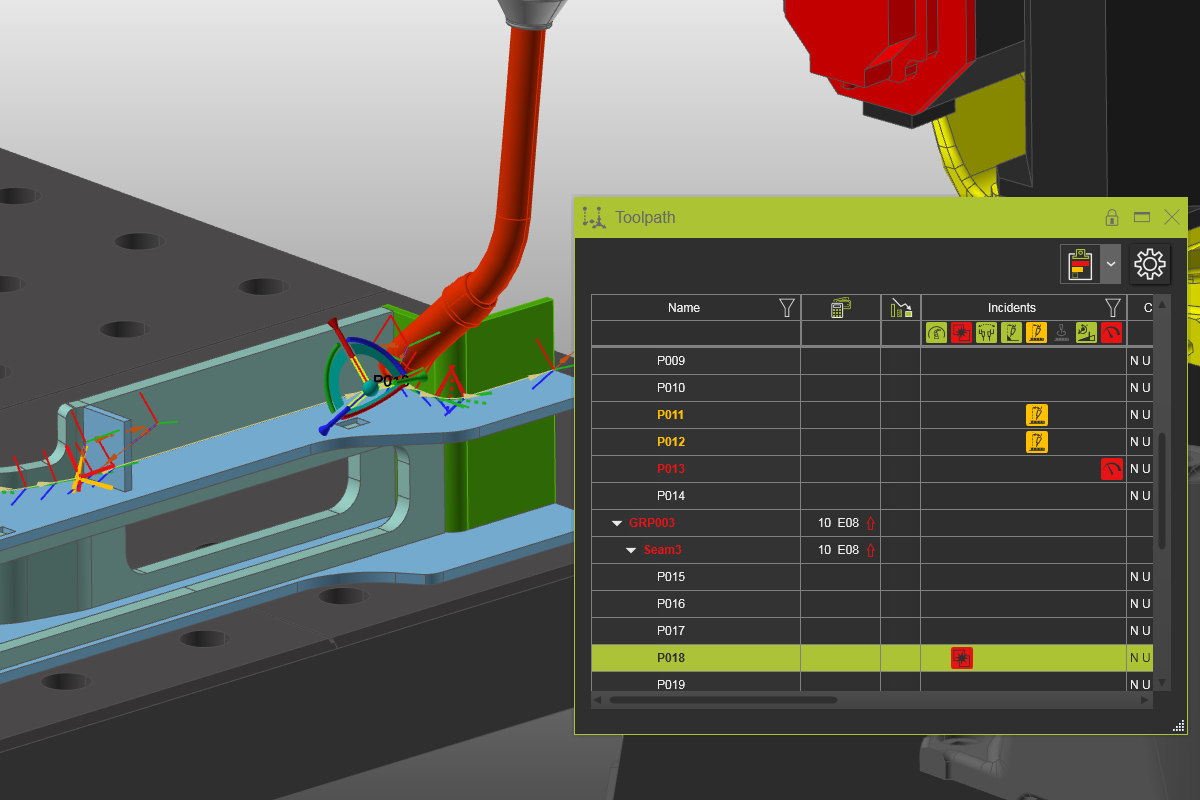
Ouvrez le tableau de bord Toolpath et vérifiez que tous les incidents sont affichés.

Tableau de bord du parcours d’outil
1.2 Inspecter les fenêtres contextuelles d’incidents
Sélectionnez la commande Créer et modifier des événements. Survolez les éléments du chemin de soudure de couleur incidente. Une petite fenêtre pop-up apparaît pour montrer l’incident.

Incidents liés au parcours d’outil
2. Optimisation automatique du parcours d’outil
2.1 Configurer les attributs d’optimisation
Ouvre le tableau de bord du programme Active et choisis l’onglet Qualité du parcours d’outil. Lorsqu’elle n’est pas visible, assurez-vous d’avoir sélectionné le programme de premier niveau dans le diagramme de flux de travail. Le conteneur Espace de variation affiche tous les attributs du chemin de l’outil pouvant être modifiés en variations lors de l’exécution de l’optimisation automatique. Le conteneur Optimization control affiche tous les attributs et paramètres pouvant être définis comme critères de contrôle pour exécuter et arrêter l’optimisation. Fixez la valeur de réduction qualité à 10 comme équilibre entre un bon résultat à atteindre avec un temps de calcul acceptable.

Attributs d’optimisation automatique
![[link:Ref_OLP_ToolpathOptim_Variants]](/_next/static/media/help_32.a83448e5.png)
2.2 Exécuter l’optimisation automatique du parcours d’outil
Rouvrez le tableau de bord Toolpath. Prenez en compte les coûts du programme — une valeur pour exprimer l’impact des critères de qualité sur les coûts de traitement de ce programme. Ensuite, dans le programme, exécutez la commande Optimisation automatique du parcours d’outil. Une fenêtre de progression s’affiche.

Optimisation automatique du parcours d’outil
2.3 Examiner le résultat d’optimisation
Une fois terminé, une fenêtre de rapport apparaît avec le résultat de l’optimisation. Le tableau de bord Toolpath a été mis à jour à la volée. Regardez les résultats.
Optimisation automatique du parcours d’outil