Soulagement de la forme portante de la plaque de support
Objectif
La forme de la plaque de support qui supporte la pièce est calculée directement à partir de la forme de la pièce. Les tolérances de la pièce et les procédés de fabrication planifiés nécessitent souvent un dégagement local, de sorte que les plaques de support ne sont pas en contact direct avec la pièce dans toutes les zones.
Cette page explique comment créer des reliefs pour obtenir l’espace requis entre la pièce et la plaque de support.
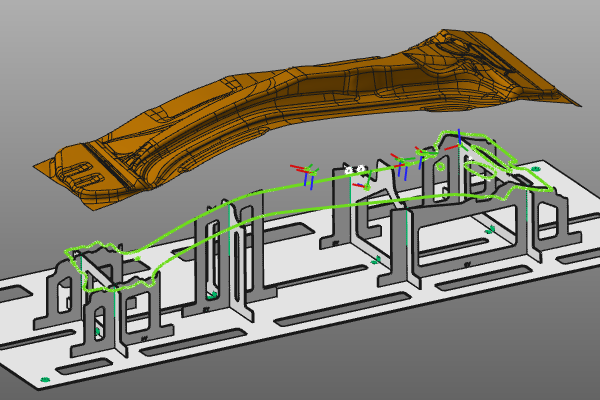
Chargez le projet Fixture_Training_Relief.cendoc depuis cette bibliothèque de tutoriels.
Étapes
1. Dégagement au contour de la géométrie du procédé
1.1 Géométrie du procédé d’affichage
Ouvrez les filtres d’affichage et appuyez sur Afficher la géométrie du procédé pour afficher les contours de géométrie assignés sur la pièce. Dans cet exemple, elles représentent la géométrie du procédé de découpe laser. Ensuite, éteins à nouveau l’écran et ferme le panneau.

Filtres d’affichage
1.2 Vérifier les zones de contact en vue perspective
Inspectez les plaques de support et vérifiez où elles sont en contact complet avec la pièce, y compris dans les zones du contour de fabrication. Si besoin, ouvrez les paramètres globaux et réglez la projection de la caméra en perspective pour inspecter plus clairement l’intérieur du luminaire.

Projection de caméra en perspective
1.3 Permettre le soulagement de la géométrie du procédé
Ouvrez le tableau de bord des paramètres du luminaire. Réglez la mise à jour manuelle sur Automatique pour que les modifications soient appliquées immédiatement. Puis ouvrez le récipient de soulagement et activez le soulagement géométrique du procédé. Examinez la forme mise à jour de la plaque de support.

Dégagement sur la géométrie du procédé
1.4 Ajuster le rayon circulaire de l’encoche
![[link:Ref_FB_ReliefParameters]](/_next/static/media/help_32.a83448e5.png)
La forme du relief est contrôlée par plusieurs paramètres. Changez le rayon d’encoche circulaire et observez comment cela affecte la géométrie du relief.
Ajustement des paramètres de relève
2. Relève de coin
2.1 Détection des candidats en relève de coin
Activez la détection de soulagement des coins. Chaque plaque de support est vérifiée par rapport aux paramètres de recherche pour trouver des coins pouvant être soulagés. Les coins détectés sont marqués d’un symbole en relief vert.
Détection de décharge de coin
2.2 Créer automatiquement des reliefs d’angle détectés
Activez la création de soulagement détecté. Les reliefs d’angle détectés sont calculés automatiquement avec des paramètres par défaut lorsque cela est possible.
Dégagement de coin à création automatique
2.3 Créer ou modifier manuellement le relief d’angle
Les reliefs d’angle peuvent également être créés ou édités manuellement. Utilisez le symbole vert et lancez le relevage de coin Créer/Modifier. Dans le panneau des paramètres, définissez les valeurs requises et appuyez sur Accepter pour créer ou mettre à jour le relevage.
Important : Les relèvements d’angle ne peuvent exister que lorsque la détection est active. Si la détection est désactivée, ils sont supprimés automatiquement. De plus, si un changement de plaque de support déclenche un recalcul complet, le relevage d’angle est remis à sa forme et taille initiales.

Créer/Modifier le relief de coin