Cartographiez les signaux du port
Objectif
Utilisez l’établi Layout Builder pour définir la communication du signal entre le contrôleur et les ressources.
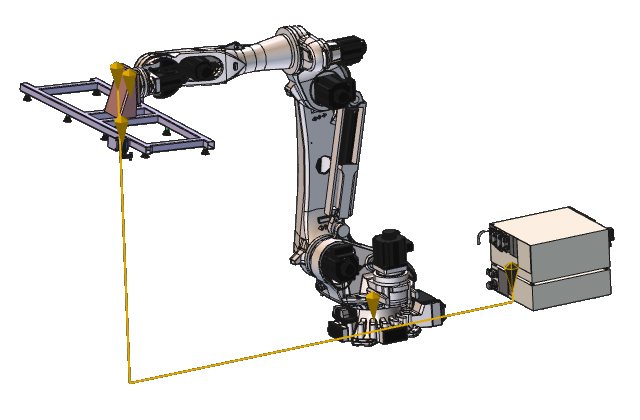
Les connexions électriques entre les ressources et le contrôleur sont utilisées pour attribuer automatiquement des signaux aux ports du contrôleur.
Étapes
1. Préparation
1.1 Passage à l’établi Layout Builder

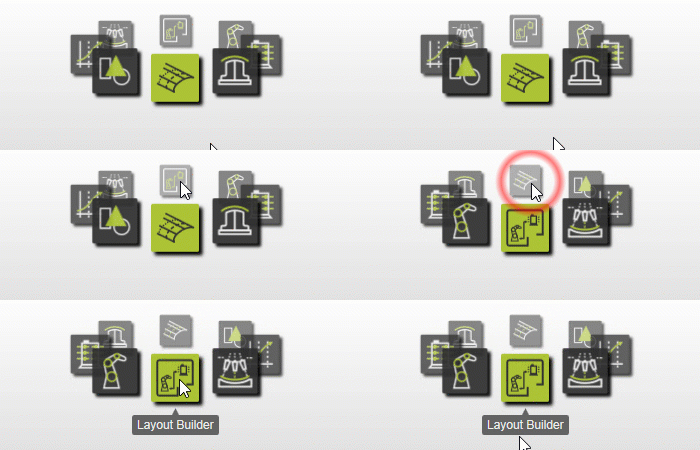
Passage au Créateur de Layouts
![[link:Ref_COM_WorkbenchCarrousel]](/_next/static/media/help_32.a83448e5.png)
2. Cartographier les ports de signal
2.1 Tableau de bord de cartographie Open Port
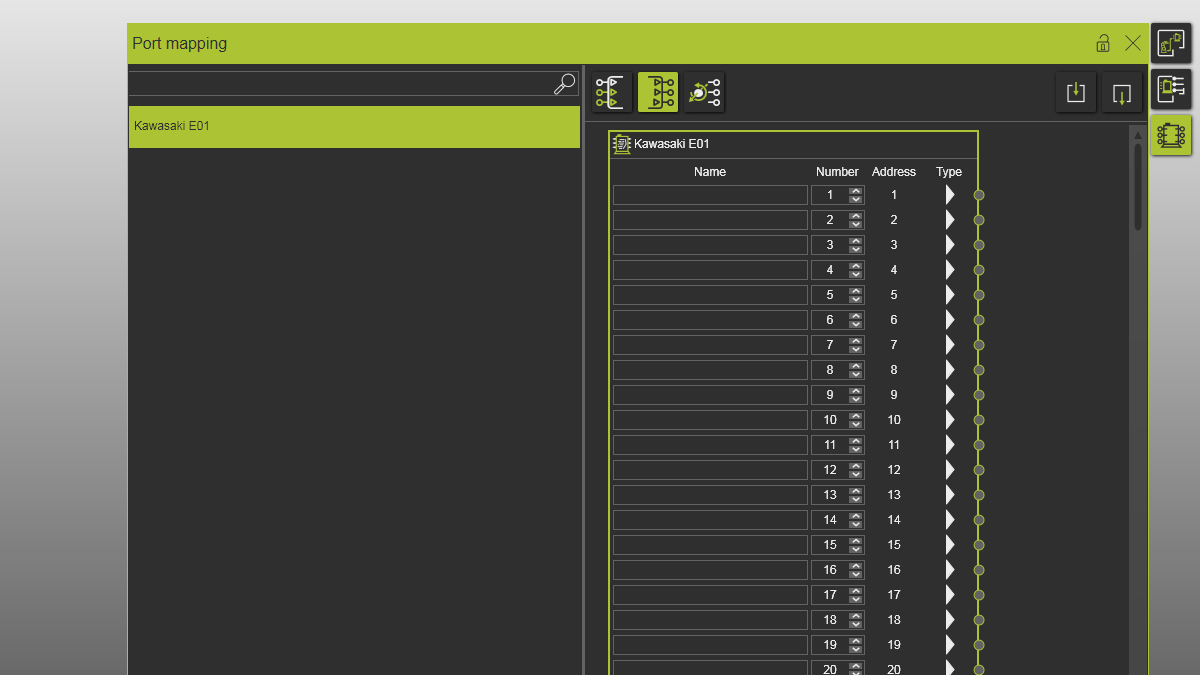
Ouvrez le tableau de bord de la cartographie des ports depuis la barre d’outils située à droite de la vue 3D.

Cartographie des ports
2.2 Vérifier les noms de ports de sortie logiques vides
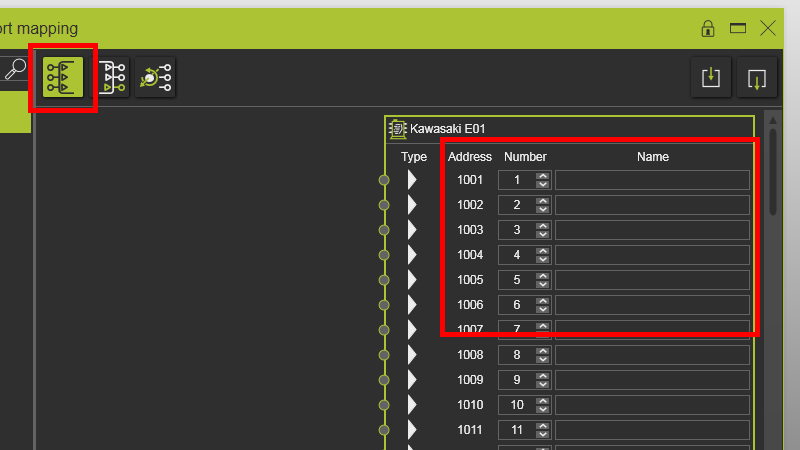
Vérifiez que les noms des ports de sortie logiques sont vides avant de créer des connexions électriques.
Cartographie des ports
2.3 Vérifier les noms de ports logiques vides
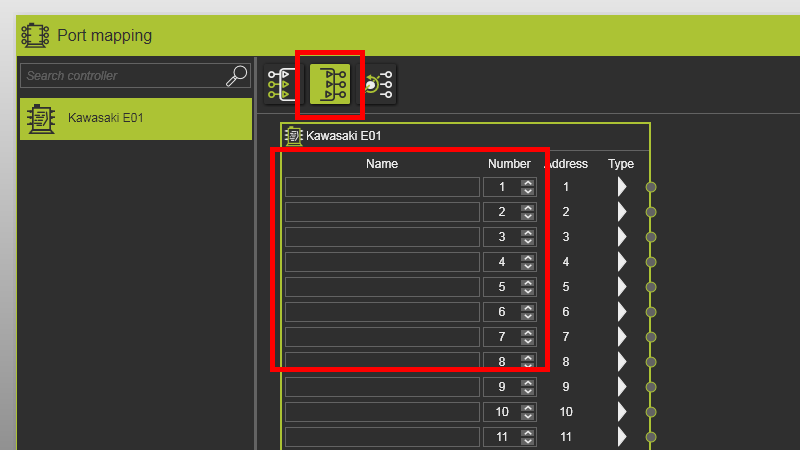
Vérifiez que les noms logiques des ports sont vides avant de créer des connexions électriques.
Cartographie des ports
2.4 Créer une connexion électrique entre la pince et la manette
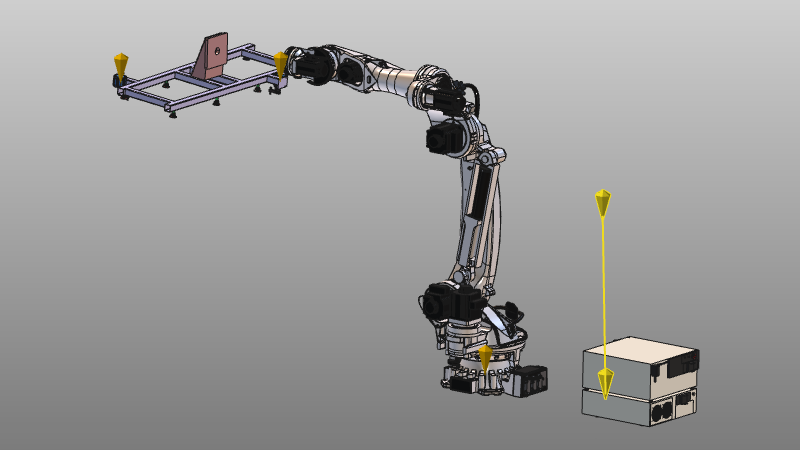
Faites glisser l’adaptateur électrique de la pince vers l’adaptateur électrique de la manette.

Créer une connexion électrique
Il est recommandé de créer d’abord des connexions électriques avant de casser les connexions mécaniques.
2.5 Vérification de l’attribution automatique des signaux
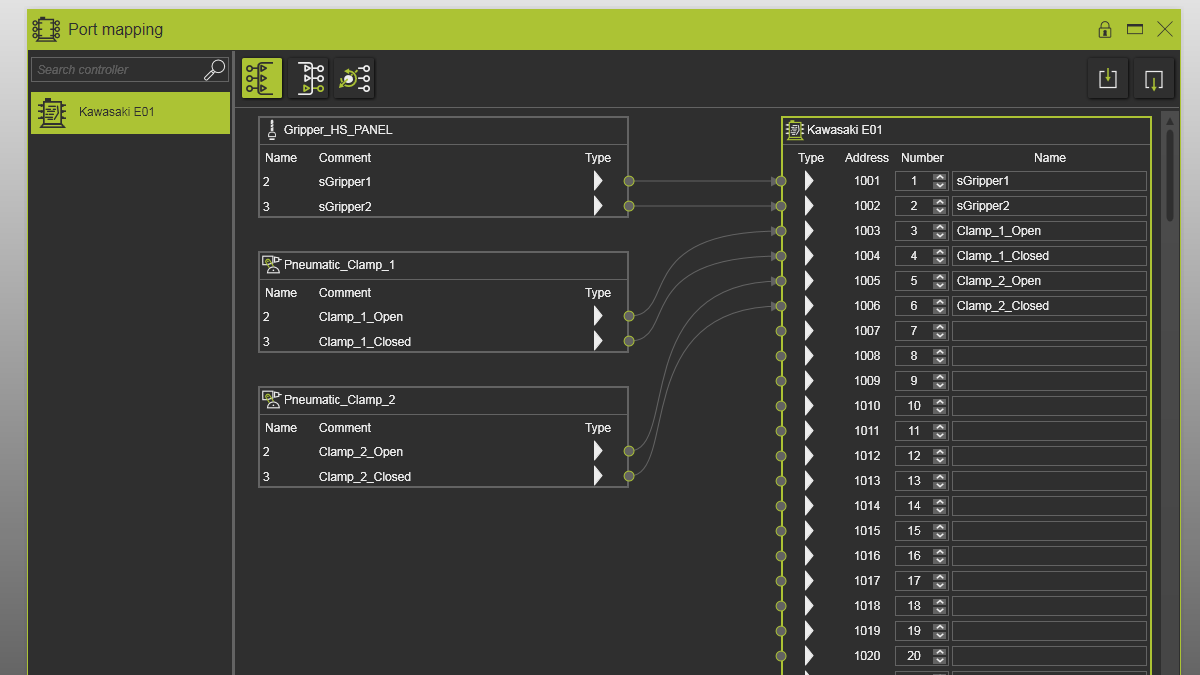
Vérifiez que les signaux du gripper et du contrôleur sont automatiquement connectés, et que les ports périphériques sont mappés aux premiers ports de manette libres.
Cartographie des ports
2.6 Créer une connexion mécanique
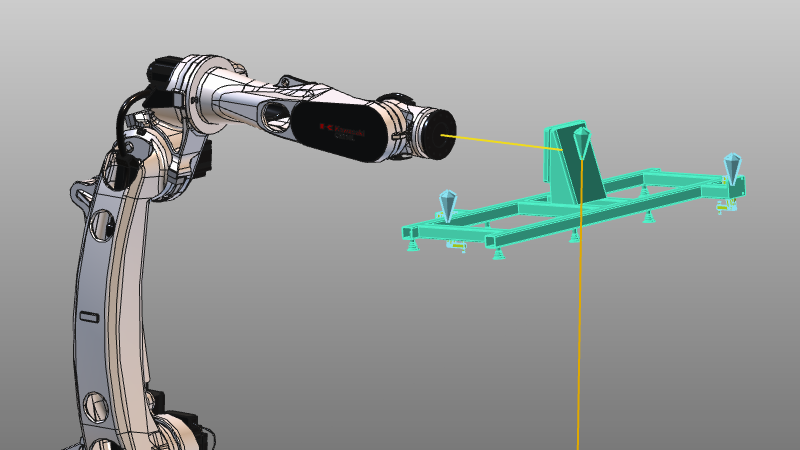
Fixez la pince sur la plaque de fixation du robot pour créer une connexion mécanique.
Cartographie des ports
2.7 Vérification de la correspondance logique des sorties
Vérifiez que les sorties logiques sont connectées à la fois aux slips de pince et au signal de l’adaptateur robot qui indique que la pince est montée.
Cartographie des ports
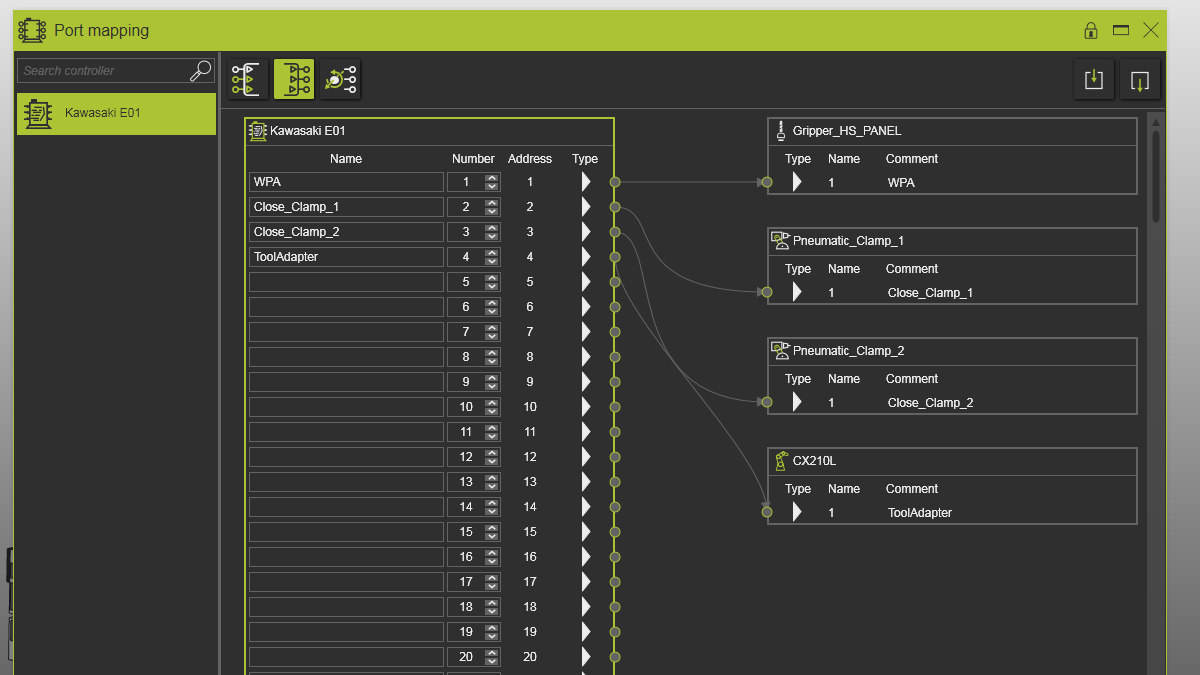
2.8 Ajuster les graphiques de connexion
Sélectionnez une connexion de signal dans le tableau de bord et ajustez la courbure à l’aide de ses poignées de direction de départ/fin.
Cartographie des ports
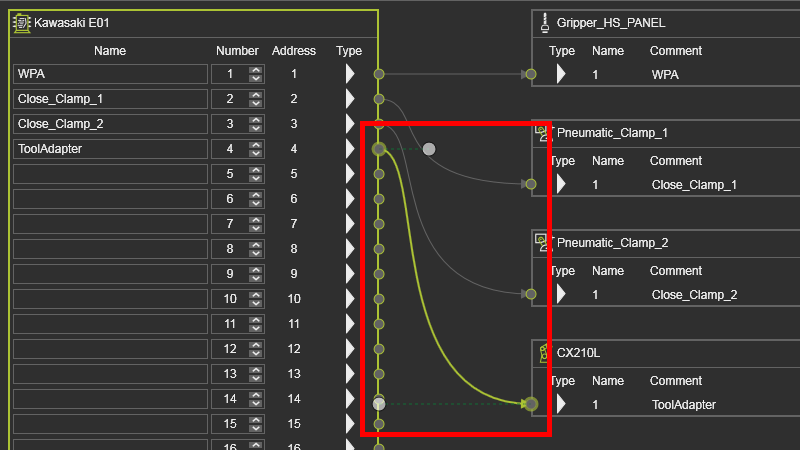
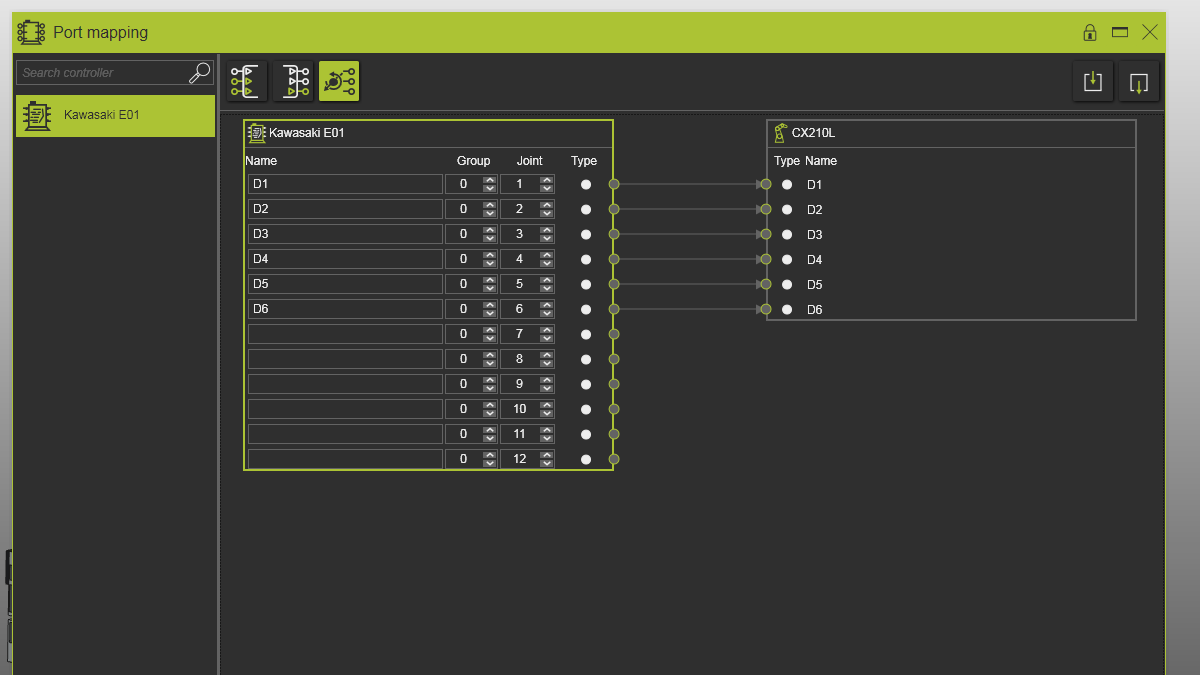
2.9 Vérifier la cartographie des ports joints
Vérifiez que les ports de jonction sont connectés au robot et que les noms des ports correspondent à ceux des robots.
Cartographie des ports
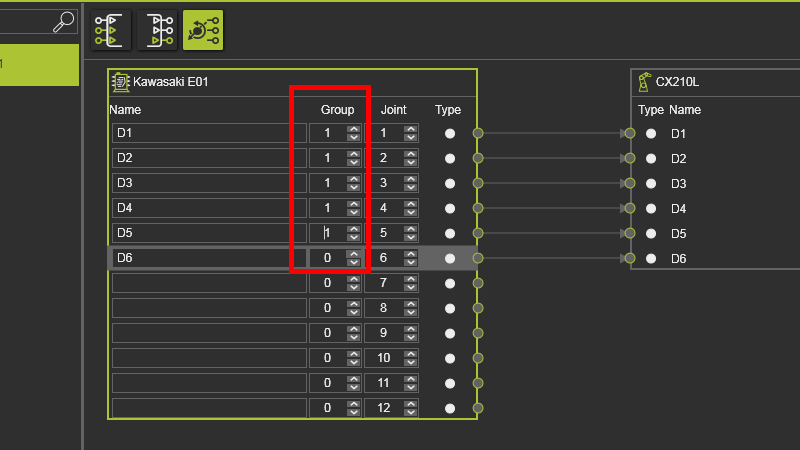
2.10 Définir un indice de groupe valide
Une valeur d’indice de groupe de 0 est invalide. Changez-le en 1 pour le premier robot connecté.
Cartographie des ports
3. Sauvegarder
3.1 Sauvegarder la disposition avec des signaux cartographiés

Sauvegarde de la disposition