Construis l’ensemble du luminaire avec des composants supplémentaires, comme des serre-joints
Objectif
Apprenez à compléter un assemblage de luminaire avec des composants de bibliothèque supplémentaires comme des serre-joints, et montez-les soit sur une tour, soit directement sur une plaque de support.
Cette page nécessite l’installation de la bibliothèque de composants standard. Consultez le contenu Démarrer pour plus de détails.
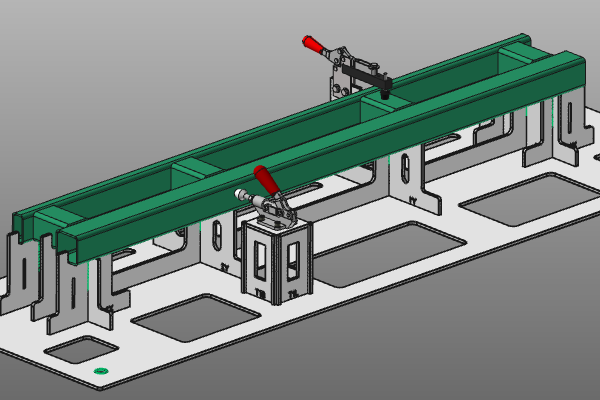
Chargez le projet Fixture_Training_Assembly.cendoc depuis cette bibliothèque de tutoriels.
Étapes
1. Clamp monté sur une tour
1.1 Ajouter une pince à partir de la bibliothèque de composants
Ouvrez le tableau de bord de la bibliothèque de composants et sélectionnez la pince que vous souhaitez utiliser. Glisse-déposer dans la scène 3D, ou utilisez Ajouter des objets existants depuis le menu en secteur.

Ajoutez une pince
1.2 Positionner la pince à la pièce
Passer en mode Drag & snap. Sélectionnez la pince et utilisez le Picking sur le centre manipulateur pour la placer à la position cible sur la pièce. Puis revenez en mode Normal.

Positionnez la pince
1.3 Ajouter une tour sous la serre
Fixez le manipulateur à l’adaptateur mécanique à pince. Si l’adaptateur n’est pas visible, ouvrez les filtres d’affichage et activez l’affichage de l’adaptateur. Ensuite, lance Ajouter la tour depuis le menu en circulation.
Dans le panneau des paramètres, assurez-vous que la plaque du dessus est activée. Cliquez sur la scène 3D pour créer la tour.

Ajouter une tour
1.4 Créer des trous de fixation sur la plaque de la tour
Fixez le manipulateur au centre des vis de serrage et créez des trous dans la plaque du dessus de la tour. Si nécessaire, dissimulez temporairement la pince dans la structure du produit pour inspecter le résultat.

Ajouter des trous de fixation
2. Serre-fixe sur la plaque de support
2.1 Ajouter une pince à partir de la bibliothèque de composants
Ouvrez le tableau de bord de la bibliothèque de composants et choisissez une serre-joint. Glisse-déposer dans la scène 3D, ou utilisez Ajouter des objets existants depuis le menu en secteur.
Ajoutez une pince
2.2 Positionner la pince sur une plaque de support
Passez en mode Drag & snap et placez la pince avec Picking à la position cible sur la pièce, au-dessus d’une plaque de support. Puis revenez en mode Normal.
Positionnez la pince
2.3 Redimensionner la bride de la plaque de support
Redimensionnez la bride de la plaque de support pour que la pince puisse être correctement montée.

Bride de plaque de support à redimensionnement
2.4 Créer des trous de fixation dans la plaque de support
Placez le manipulateur au centre des vis de serrage et créez des trous dans la plaque de support. Si nécessaire, dissimulez temporairement la serre dans la structure du produit pour vérifier la position des trous.
Ajouter des trous de fixation