Construis la pièce à travailler
Objectif
Utilisez l’établi Workpiece Builder pour construire la pièce avec des positions de soudure et préparez-la à la programmation hors ligne.
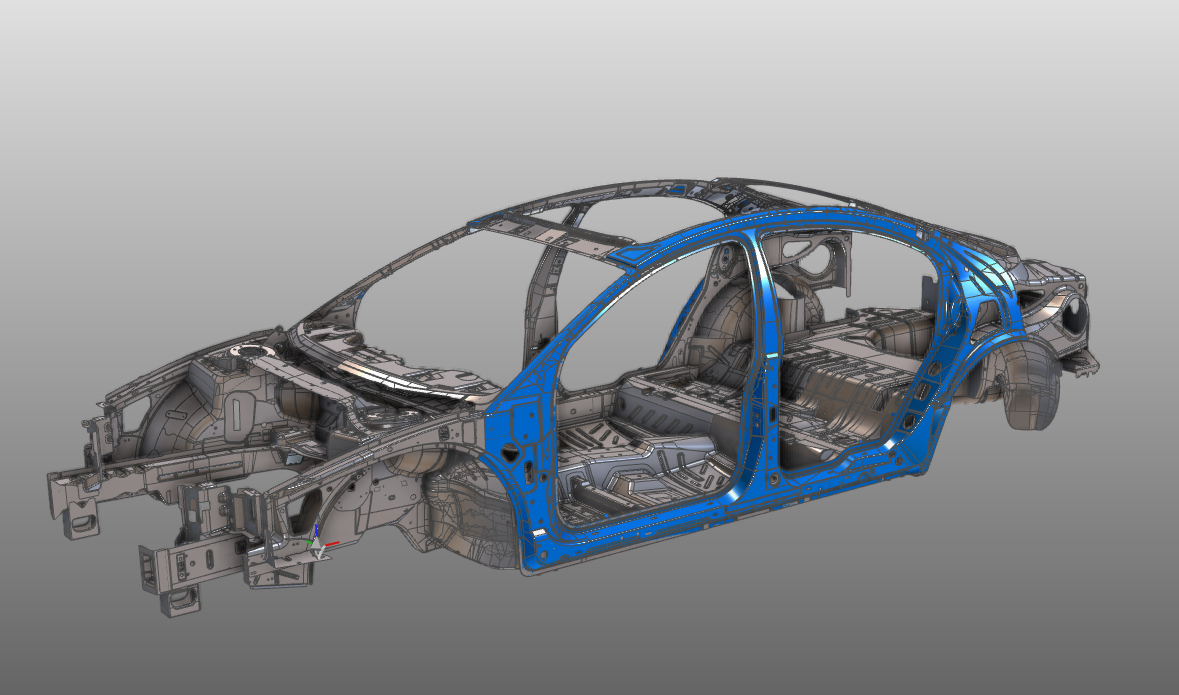
Le document de la pièce est créé à partir de géométries importées. Des informations dédiées sur le réglage et les positions de soudure sont ensuite ajoutées afin que la pièce puisse être utilisée directement dans la cellule de travail par soudure par points.
Étapes
1. Préparation
1.1 Créer un nouveau document vide (si nécessaire)
Si un autre document est déjà ouvert dans la session en cours, créez un nouveau document vide. Si aucun document n’est ouvert, vous pouvez passer cette étape.

Créer un nouveau document
Ouvrez le menu Fichier et sélectionnez Nouveau. Si vous vous le demandez, choisissez de sauvegarder le document actuellement ouvert, de le fermer sans sauvegarder ou d’annuler.
2. Définir la pièce à travailler
2.1 Vérification des paramètres d’importation de la géométrie
Pour utiliser correctement la pièce en programmation hors ligne, importez la géométrie en géométrie exacte.

Vérification des paramètres d’importation
2.2 Importer la géométrie depuis BIW_Spot_Welding_Body.cgr
Importez la géométrie depuis le fichier BIW_Spot_Welding_Body.cgr dans les données d’entraînement.

Géométrie d’importation
2.3 Créer une pièce à travailler pour la géométrie importée

Créer une pièce à travailler
3. Construire la forme de la pièce
3.1 Fixer la géométrie de la pièce à la pièce

Géométrie d’attache
4. Définir la géométrie du procédé
Créez des éléments de géométrie de procédé sur les positions de soudure.
Les positions de soudure peuvent être importées depuis des sources de données externes ou créées de manière interactive.
4.1 Positions de soudure par points d’importation
Importez les positions de soudure depuis le fichier BIW_Spot_Welding_Spots.xml dans les données d’entraînement.
Positions d’importation par soudure par points
4.2 Définir le mode géométrie du processus à Point

Définir le mode géométrie du procédé
4.3 Créer des positions de soudure de manière interactive
Définissez de façon interactive des positions de soudure supplémentaires en géométrie de procédé sur la carrosserie avec le manipulateur.

Définir les positions de soudure
5. Sauvegarder la pièce
5.1 Donner un nom approprié à la pièce
Nomme la pièce à travailler
5.2 Sauvegarder la pièce terminée

Sauvez la pièce
Étape suivante
-> Construis le pistolet à souder