Modifier le chemin de soudage
Objectif
Dans ce paragraphe, nous allons modifier le chemin de soudure, re-séquencer et ajouter des mouvements supplémentaires ainsi que des opérations de copie.
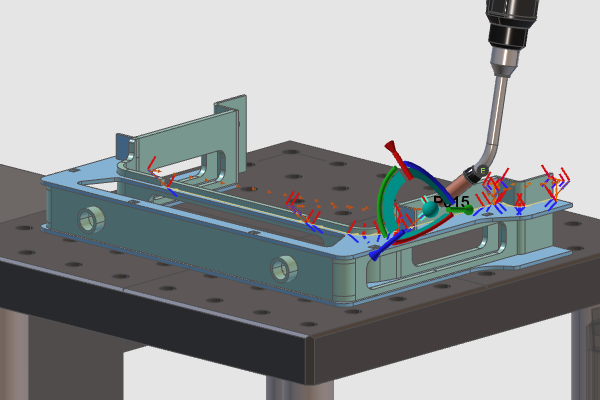
Les propriétés du chemin de soudure sont en cours de modification.
Étapes
1. Programme actif
1.1 Ouvrir le tableau de bord du programme actif
Ouvrez le tableau de bord Active Program. Le tableau de bord peut être redimensionné et déposé pour mieux s’adapter à l’écran ou aux besoins.

Tableau de bord actif du programme
1.2 Opérations de fusion et de défusion
Élargissez un groupe d’opérations pour voir les opérations incluses. Choisissez une opération puis glissez-la dans un autre groupe. L’opération sera fusionnée dans le second groupe. Si le groupe précédent ne comporte qu’une seule opération, il sera automatiquement supprimé. Pour démêler une opération, il suffit de la faire sortir du groupe pour créer un nouveau groupe d’opérations.
Fusionner les opérations en un seul groupe peut être très utile lorsque vous souhaitez modifier certains attributs pour ces opérations en une seule action.

Groupes opérationnels
1.3 Changement de séquence d’opérations
Sélectionnez le dernier groupe d’opérations et glissez-le avant le premier groupe. Cela changera la séquence des programmes. Faites jouer la simulation pour voir le résultat.

Séquence d’opérations
2. Enseignement
2.1 Insérer une opération depuis une position d’origine
Changer le parcours d’outil du programme. Ensuite, faites un clic droit sur le robot et lancez la commande Home position. Dans la liste des positions d’origine prédéfinies du robot, sélectionnez celle requise. Pour ce poste, enseigner et insérer une opération.

Position à domicile
2.2 Renommer un groupe d’opérations
Si ce n’est pas déjà ouvert, ouvrez le tableau de bord du programme Active. Sélectionnez le groupe d’opérations nouvellement inséré et cliquez sur son nom. Il passe en mode édition. Change le nom et ferme-le soit avec la touche Entrée, soit en choisissant un endroit en dehors du nom.
Renommer le groupe d’opérations
2.3 Groupes et opérations de copies d’opérations
Pour dupliquer, sélectionnez le groupe d’opérations. En maintenant la touche Ctrl, faites glisser le groupe et déposez-le à l’emplacement requis dans le programme. La duplication d’opérations individuelles fonctionne de la même manière.
Copie d’une opération
3. Détection de collision
Pour effectuer une détection de collision entre l’équipement de fabrication en mouvement et la pièce à travailler sur le D’abord, définissez quels objets vont être analysés les uns par rapport aux autres. Dans le paragraphe Mettez en place le projet : cette préparation aux collisions est enseignée et montrée.
3.1 Activer la détection de collision
Dans la barre de simulation, activez Activer la collision. Ensuite, lance une simulation. Quand les corps se heurtent, ils vont se mettre en lumière. Pour une visualisation plus agréable, vous pouvez temporairement masquer le chemin de soudure dans les filtres d’affichage.

Activer la détection des collisions
3.2 Pause de la simulation lors de la collision
Dans la barre de simulation, ouvrez les paramètres de la simulation. Ouvrez le conteneur Collision et activez la pause sur collision. Ensuite, lance une autre simulation et regarde qu’il s’arrête à la première collision détectée.

Pause sur collision
4. Enseigner
4.1 Configurer la modification automatique du parcours d’outil
Peut-être souhaitez-vous toujours confirmer toute modification que vous apportez à la soudure ou à l’opération de soudure. Mais il est aussi possible de sauter cette étape manuelle. Pour appliquer les modifications à la volée, vérifiez les paramètres de la programmation hors ligne. Vérifiez que l’option Appliquer la modification du parcours d’outil est réglée sur Automatique. Pour que cette section se concentre sur la modification elle-même, la mise à jour automatique du chemin de soudage sera appliquée.

Paramètres OLP
4.2 Positions du chemin de soudage des inserts
Changez en événements et enseignez. Choisissez le premier élément du chemin de soudure de la troisième opération et traînez le manipulateur de tension jusqu’à une position aérienne sûre. Faites un clic droit sur le centre du manipulateur et sélectionnez la commande Insérer le point avant. Un symbole I apparaît au nouvel élément pour indiquer son statut inséré manuellement. Assurez-vous de travailler dans le domaine 3D, pas d’être actif dans un tableau de bord ouvert. Ensuite, utilisez le clavier pour naviguer vers l’élément suivant et répétez pour insérer un nouvel élément de chemin de soudure avant celui sélectionné.

Position du chemin de soudure de l’insert
4.3 Modifier la position du chemin de soudure avec le manipulateur
Sélectionnez un élément de chemin de soudure et utilisez le manipulateur de Teach pour changer sa position. Un symbole M apparaît à l’élément pour indiquer sa position modifiée.

Modifier la position du chemin de soudage
4.4 Modifier la position à l’aide des coordonnées relatives
Sélectionnez un élément de chemin de soudure et cliquez sur le centre du manipulateur de l’enseignement. Une fenêtre apparaîtra avec les coordonnées du manipulateur. Sélectionnez l’option Relative à la position initiale et insérez une valeur pour la direction X. Confirmez le mouvement avec la touche Entrée. Fermer la fenêtre met fin au flux de travail. Cette méthodologie est utile lors du déplacement d’une cible aux dimensions connues.
Modifier la position du chemin de soudage
4.5 Supprimer une modification du chemin de soudure
Lorsqu’un élément de chemin de soudure a été modifié, il reçoit un symbole M à côté dans l’espace 3D. Pour supprimer la modification, faites un clic droit sur ce symbole et exécutez la commande Supprimer. L’élément revient à sa position d’origine.

Suppression de la modification du chemin de soudage
4.6 Modifier les valeurs dans le tableau de bord Teach
Sélectionnez un élément de chemin de soudage puis ouvrez le tableau de bord Enseignement. Changez la valeur de la direction X et de la rotation Rx et appuyez sur la touche Entrée pour appliquer le changement. L’aiguille surlignée sous les valeurs de rotation indique le changement enseigné.

Panel d’enseignement
4.7 Supprimer les modifications du tableau de bord Teach
Cliquez sur la main surlignée pour supprimer la modification de la rotation. Dans le tableau de bord Teach il est possible de supprimer les modifications de position sur un élément de chemin de soudure en appuyant sur les symboles de main correspondants surlignés.
Panel d’enseignement
4.8 Réaliser une simulation sans collision
Avec la fonctionnalité présentée ci-dessus, il devrait être possible de modifier les opérations de manière à pouvoir exécuter une simulation complète sans collision.
Panel d’enseignement
Étape suivante
→ Téléchargez le programme de soudage