Calibrez la soudure
Objectif
Apprenez à calibrer la soudure avec les différentes méthodes proposées par le logiciel.
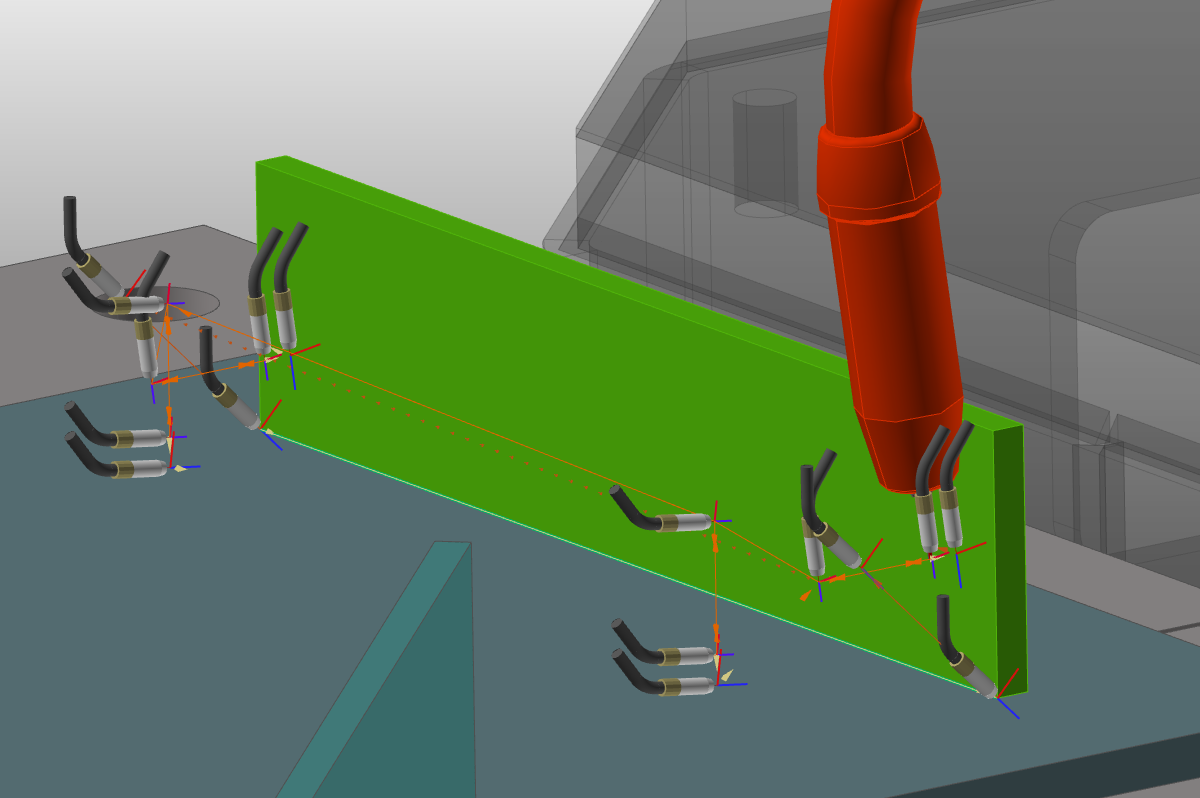
Chargez le projet Arcwelding_TouchSensing.cendoc depuis le dossier Projets de cette bibliothèque tutoriel.
Étapes
1. Détection tactile
Détection de la pièce (position de la couture) par contact — c’est-à-dire par collision entre le pistolet à souder et la pièce.
1.1 Définir la méthode d’étalonnage dans les paramètres de programmation
Ouvre le tableau de bord des paramètres par défaut de la programmation. Ouvrez le conteneur Recettes et réglez la méthode de calibration sur Touch by Point indication. Ensuite, sélectionnez l’onglet Détection tactile pour rechercher les attributs de détection tactile. Réglez le type sur Détection avec buse si ce n’est pas déjà défini. Cela prendra le pistolet à souder comme objet détecteur au contact de la pièce.

Paramètres par défaut de programmation
![[link:Ref_ArcWeld_TouchSense]](/_next/static/media/help_32.a83448e5.png)
1.2 Définir la soudure
Définissez la soudure, mais ne la confirmez pas encore.

Soudage
1.3 Choisir les points d’étalonnage tactile
Choisissez les points d’étalonnage souhaités sur la pièce. Leur position est prise à partir de la position du clic de la souris, basée sur WYSIWYG. Une sphère bleue apparaît à chaque position de toucher. Une fois terminé, confirmez la sélection pour programmer l’opération.
Positions tactiles
1.4 Examiner le groupe opérationnel
Ouvre le tableau de bord du programme Active. Élargissez le groupe d’opérations pour remarquer que les opérations tactiles ont été placées avant l’opération de soudure de couture. Lance une simulation pour voir le programme complet.

Groupe opérationnel
1.5 Modifier les attributs de l’opération tactile
Sélectionnez l’opération de premier contact. Ensuite, ouvrez le conteneur Touch Sense dans l’onglet Touch Sensing. Modifiez certains attributs tactiles et remarquez l’effet.
Modifier l’opération tactile
1.6 Passer au tactile avec détection de fil
Supprime le programme. Ensuite, ouvre les paramètres de programmation par défaut et règle le type de détection sur Toucher avec fil.

Détection tactile avec fil
1.7 Programme avec positions de fil de contact
Sélectionnez la définition de couture existante pour la programmer. Les positions tactiles sont affichées. Une position peut être déplacée en choisissant la sphère jaune et en la faisant glisser. De nouveaux postes peuvent également être ajoutés. Ensuite, programmez l’opération.

Détection tactile avec fil
1.8 Programmer une seconde soudure avec des positions tactiles
Programmez une seconde soudure avec des positions tactiles. Ouvrez le tableau de bord du programme Active et élargissez les groupes d’opérations pour voir que chaque groupe contient une opération de soudage avec ses positions tactiles.
Opérations de soudure avec le sens du toucher
1.9 Trier les opérations de contact et de soudage en groupes séparés
Supprime le programme. Dans les paramètres par défaut de la programmation, activez l’option Opération triée. Ensuite, programmez à nouveau deux joints de soudure et remarquez que les groupes d’opérations ont été triés en un groupe d’opérations tactiles et un groupe d’opérations de soudure.

Opérations réglées
2. Détection au laser ponctuel
Détection de la pièce (position de la jointure) en mesurant la position de la pièce à l’aide d’un laser. Le flux de travail pour calibrer la soudure est similaire à la méthode de détection tactile décrite ci-dessus.
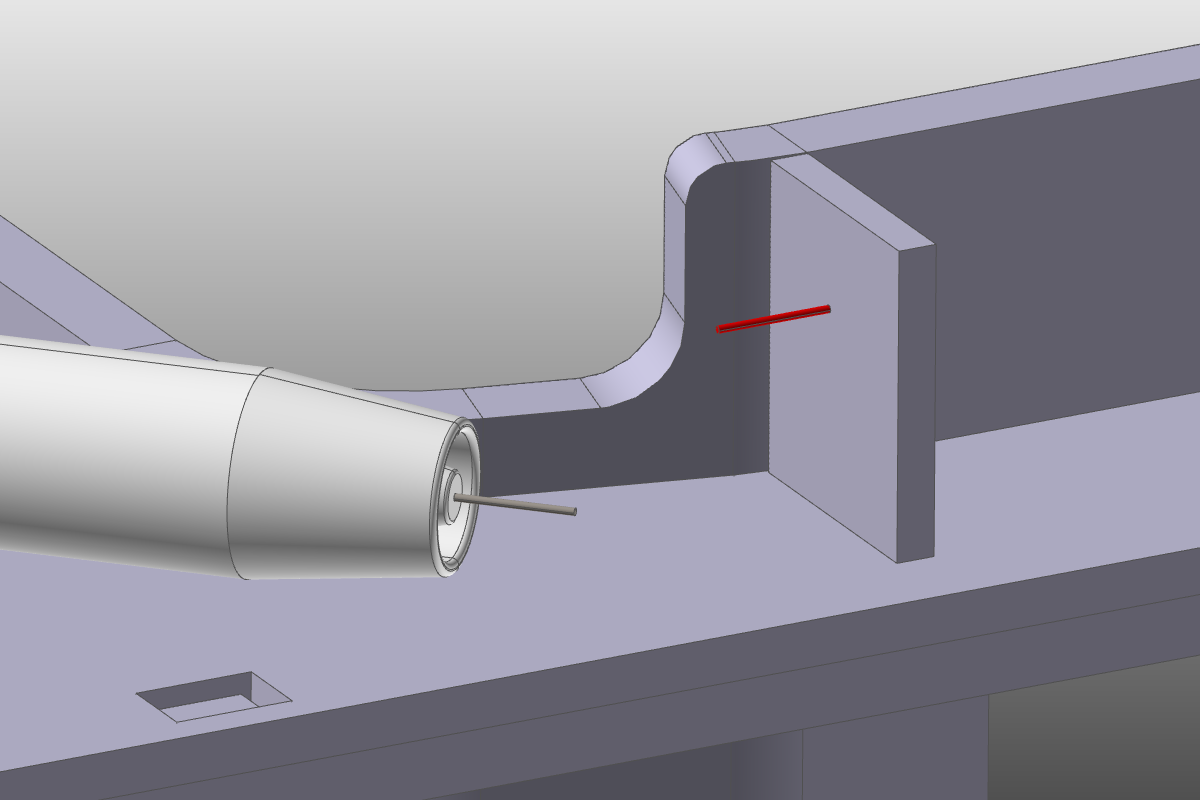
3. Recherche de couture avec laser 2D/3D
Détection de la pièce (position de la couture) par mesure — c’est-à-dire en scannant la position de début et de fin de la soudure avec un laser 2D/3D en ligne.
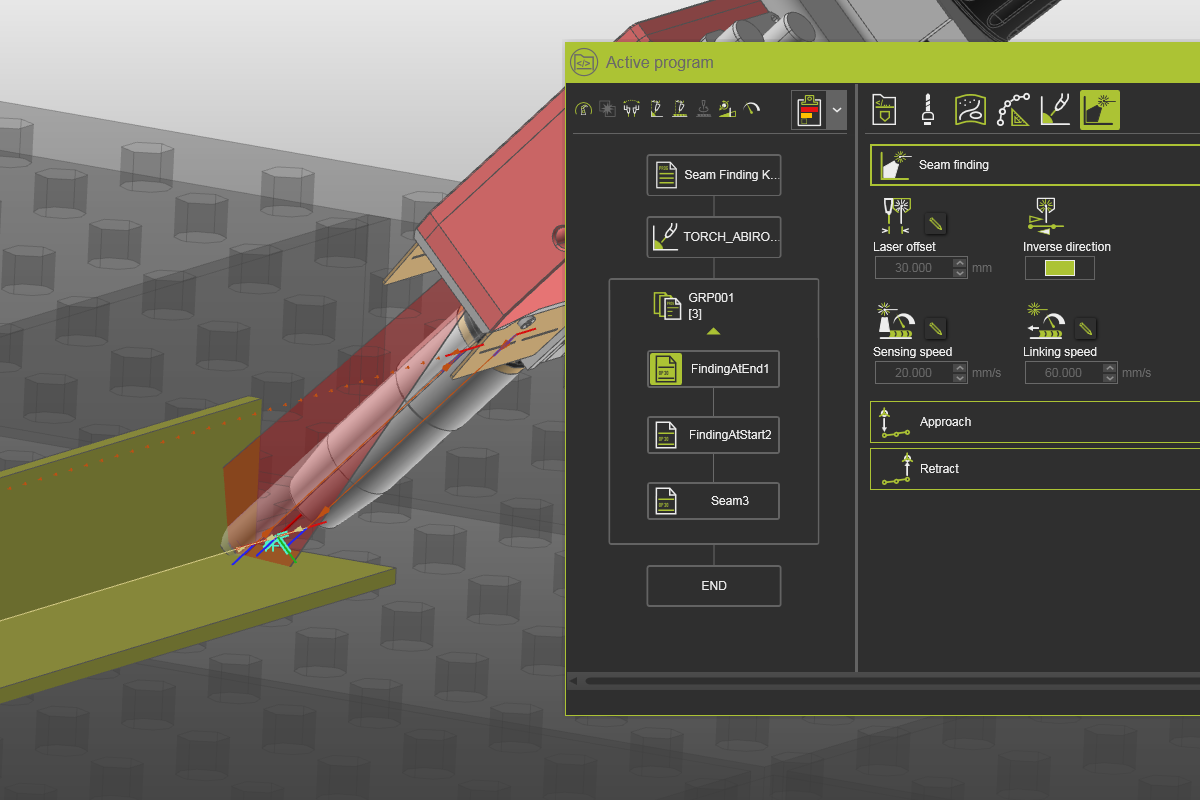
Chargez le projet Arcwelding_SeamFinding.cendoc depuis le dossier Projets de cette bibliothèque tutoriel.
3.1 Régler la méthode d’étalonnage sur la recherche de couture
Ouvre le tableau de bord des paramètres par défaut de la programmation. Ouvrez le conteneur Recettes et réglez la méthode de calibration sur laser de détection de ligne de couture. Ensuite, sélectionnez l’onglet Recherche de couture pour examiner les attributs. Acceptez les valeurs par défaut.
Paramètres par défaut de programmation
3.2 Définir la soudure et la programmer
Définissez la soudure et programmez-la. Lance une simulation pour voir le résultat.
Soudage
3.3 Revoir le groupe d’opérations
Ouvre le tableau de bord du programme Active. Élargissez le groupe d’opérations pour remarquer que les opérations de détection ont été placées avant l’opération de soudure de couture.
Groupe opérationnel
3.4 Modifier les attributs de recherche de couture
Sélectionnez l’opération de recherche de fin de situation. Ensuite, ouvre le conteneur de recherche de couture. Modifiez certains attributs et remarquez l’effet.
Modification de l’opération de recherche
4. Suivi de la couture avec un laser 2D/3D
Détection de la pièce (position de la couture) par mesure continue — c’est-à-dire en scannant la position de la pièce pendant l’opération de soudage avec un laser.
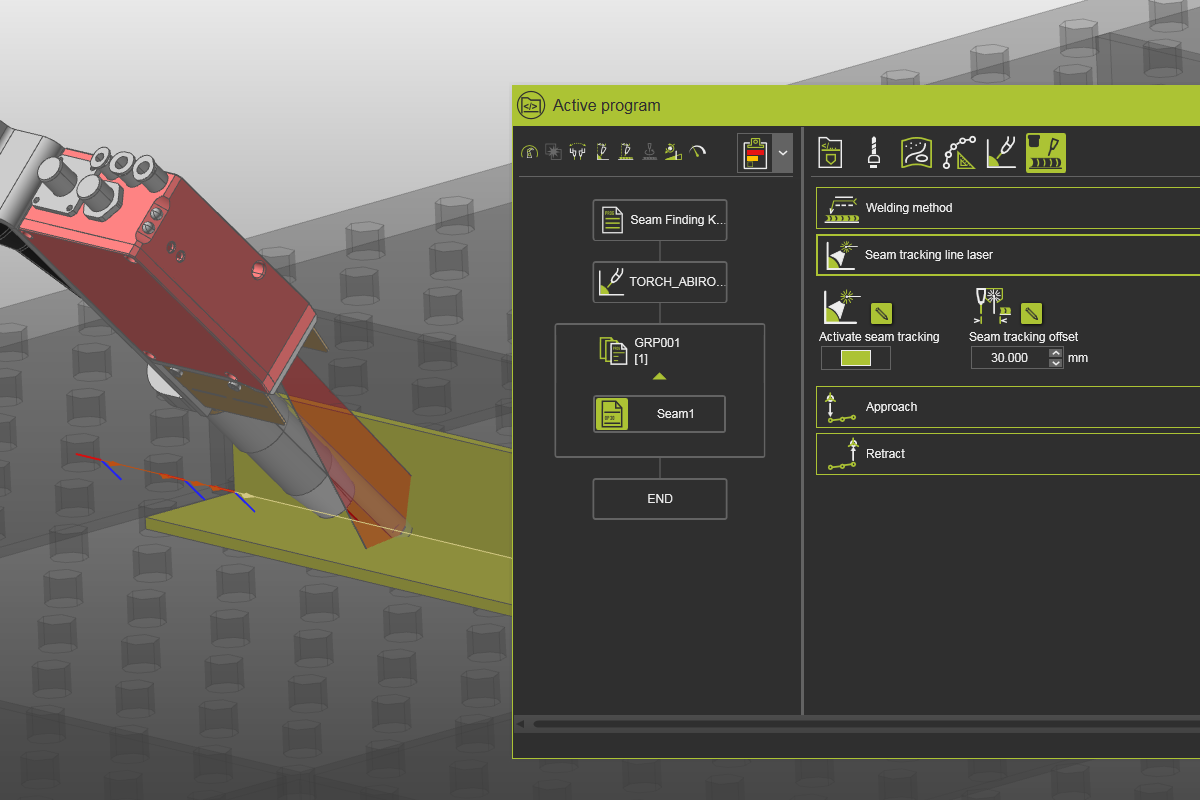
Chargez le projet Arcwelding_SeamFinding.cendoc depuis le dossier Projets de cette bibliothèque tutoriel.
4.1 Régler la méthode d’étalonnage sur suivi de couture
Ouvre le tableau de bord des paramètres par défaut de la programmation. Ouvrez le conteneur Recettes et réglez la méthode de calibration sur laser de ligne de suivi de couture.
Paramètres par défaut de programmation
4.2 Définir la soudure et la programmer
Définissez la soudure et programmez-la. Lance une simulation pour voir le résultat.
Soudage
4.3 Modifier les attributs de suivi des coutures
Ouvre le tableau de bord du programme Active. Ensuite, ouvre le conteneur laser à ligne de suivi de couture. Modifiez les attributs et remarquez l’effet.
Modification de l’opération