Mettre en place le projet de soudure par points
Objectif
Mettez en place le projet de soudure par points en construisant l’environnement de l’atelier avec le robot de soudage et l’équipement nécessaire, puis chargez la pièce pour compléter l’installation.
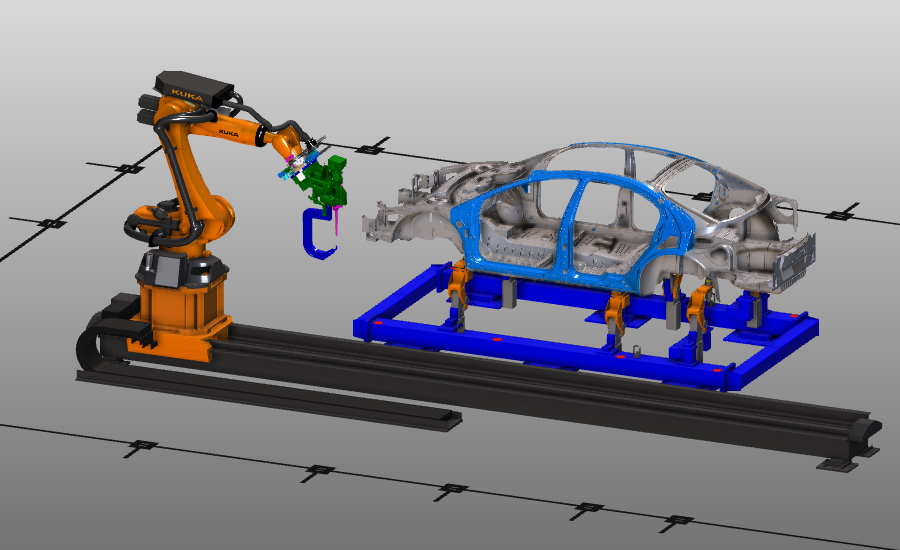
La configuration est construite à partir d’équipements standards tels que robot, rail, support et contrôleur. Les composants sont positionnés et connectés pour créer la cellule de travail et la préparer à la programmation.
Étapes
1. Préparation (si nécessaire)
Selon le package de licence utilisé, vous pouvez travailler dans Layout Builder ou Offline Programming pour cette séquence de configuration.
1.1 Passage à l’établi Layout Builder

Passer à l’établi LB

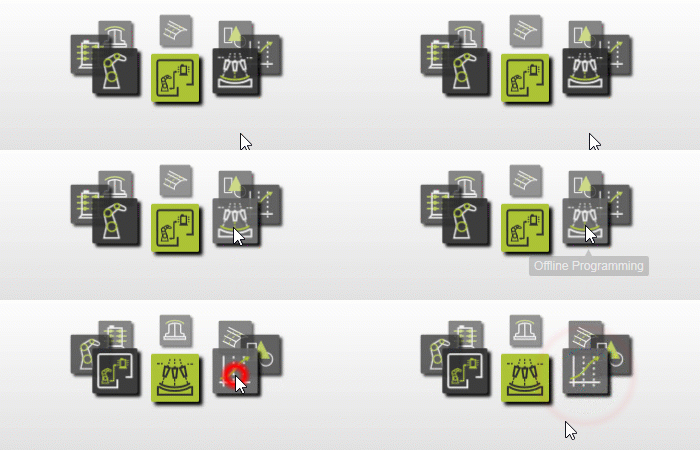
1.2 Passage à l’établi de programmation hors ligne

Passer à l’établi OLP
1.3 Créer un nouveau document vide
Créez un nouveau document vide avant de construire la cellule de travail. Si un autre document est ouvert, choisissez de le sauvegarder, de le fermer sans sauvegarder ou d’annuler.

Créer un nouveau document
2. Construire la cellule de travail
2.1 Passage au mode de fonctionnement Drag & snap
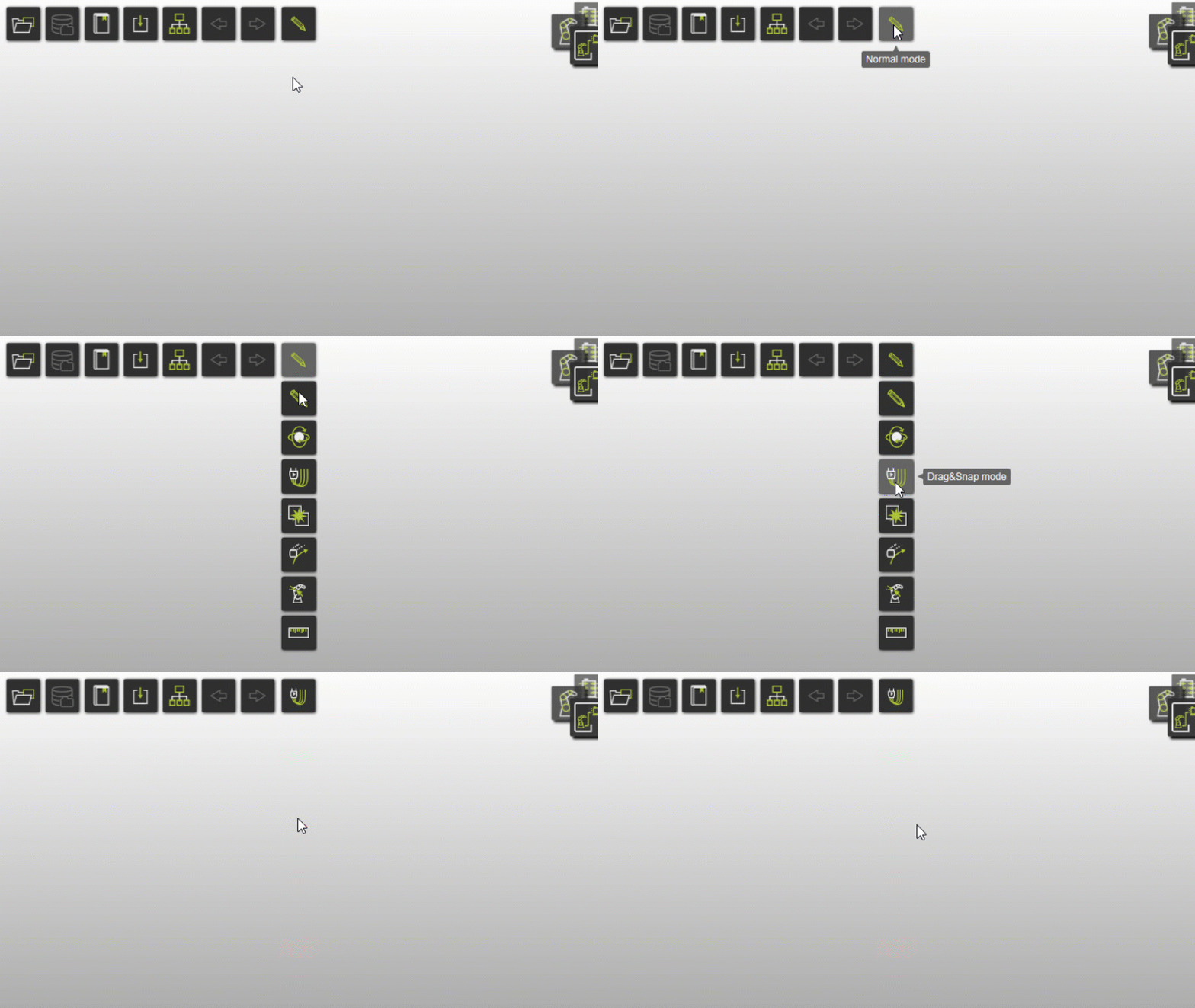
Lors du changement d’établi, le mode Opération passe par défaut à Normal. En programmation hors ligne, passez à Drag & snap pour déplacer les composants dans l’ensemble du dispositif de fixation.
2.2 Ajouter des composants de plancher à la disposition
Ouvrez la structure du projet et ajoutez le plan d’étage, le robot, le rail, le support et le contrôleur à partir des données d’entraînement.

Ajouter à la mise en page
2.3 Ajouter le canon à souder à la disposition
Ajoutez la ressource du pistolet de soudure déjà construit à la configuration.
Ajoutez un pistolet à souder
2.4 Placer et connecter les composants
Placez les composants en position avec glisser-déposer tout en connectant les adaptateurs nécessaires.

Composantes de place
2.5 Construire la connexion électrique
Créez la connexion électrique entre le contrôleur et le robot.
Construire la connexion électrique
2.6 Sauvegarder la disposition (si supportée)
Si vous êtes en programmation hors ligne, vous ne pouvez pas sauvegarder une mise en page directement. Continuez jusqu’à la configuration du projet sur le plancher et ajoutez la mise en page et la pièce précédemment enregistrées là-bas. Si la sauvegarde de la mise en page est disponible dans votre établi/licence actuelle, enregistrez la mise en page dès maintenant.
Si la sauvegarde de la mise en page n’est pas disponible dans OLP, continuez avec la section suivante et ajoutez la mise en page sauvegardée et pièce dans le nouveau projet.
2.7 Sauvegarder la disposition
Le document de mise en page contient les ressources et contrôleurs du plancher d’atelier.

Sauvegarde de la disposition
3. Construire le projet de surface d’atelier
3.1 Ouvrir un nouveau document de projet
Nouveau projet ouvert
3.2 Ajouter la mise en page et la pièce à travailler au projet
Ajoutez la disposition précédemment enregistrée et la pièce, puis placez la pièce sur le porte-avions.
Configuration du projet de construction
3.3 Vérifier la structure du fichier
Vérifiez l’arbre de mise en page et la structure des fichiers. Les éléments marqués en rouge indiquent généralement des données non enregistrées.

Vérifier la structure de la disposition
4. Préparer l’analyse des collisions
Préparez la cellule de travail pour l’analyse des collisions lors de la simulation.
4.1 Passage à l’établi de programmation hors ligne
Passer à l’établi OLP
4.2 Définition des groupes de collision

Définition des groupes de collision
4.3 Définir la correspondance de l’analyse des collisions
Définissez quels groupes de collision sont analysés les uns par rapport aux autres.
Définition de l’analyse des collisions
5. Sauver le projet
5.1 Sauvegarder la configuration en tant que projet
Enregistrez la configuration comme un fichier projet .cenprj sous un nom approprié.

Projet de sauvegarde
Étape suivante
-> Générez le programme de soudure par points