Parcours d’outils de programmation
Objectif
Apprenez des fonctionnalités supplémentaires pour programmer les opérations et leurs parcours d’outils.
Chargez le projet Training_LaserCutFeatures.cendoc depuis le dossier Projets de cette bibliothèque tutoriel.
Étapes
1. Créer et programmer des contours de découpe
1.1 Générer le contour de coupe
Lance la commande Générer la géométrie du processus. Sélectionnez le mode Contour générique avec l’option Limite de surface.

Générer la géométrie du procédé
1.2 Étendre la sélection aux frontières de surface complètes
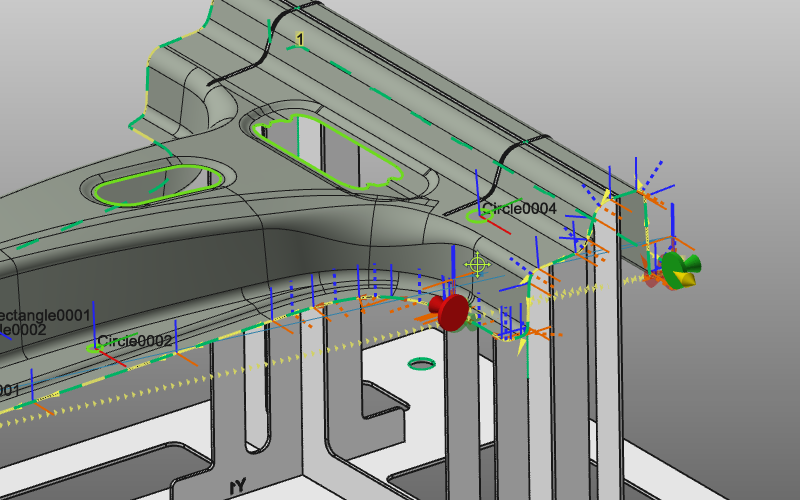
Choisissez une surface de la pièce et vérifiez que la limite de surface est indiquée. Ouvrez le menu en pie sur cette surface et prolongez la recherche avec la sélection automatique des surfaces. Toutes les limites extérieures et intérieures de la pièce sont marquées par des vecteurs normaux.

Sélection de la frontière de surface
1.3 Inverser les normales et confirmer les contours
Si les directions sont incorrectes, utilisez Inverser toutes les normales depuis le menu en secteur. Acceptez le résultat pour créer tous les contours de coupe.

Inverser les normales de contour
1.4 Programmer plusieurs contours simultanément
Passer à la trajectoire d’outil de programme. Au lieu de calculer les opérations une par une, sélectionnez plusieurs contours de coupe (CTRL) et programmez-les ensemble.

Parcours d’outil du programme
2. Programme de sous-zones du contour de coupe
Lorsque le contour de découpe est généralement programmé dans une seule opération, il peut être souhaité de programmer le contour en parties, c’est-à-dire en sous-zones. Par exemple, lorsqu’un contour plus grand est découpé par deux robots laser différents.
2.1 Activation du mode de connexion d’opération
Si le panneau Paramètres de programmation n’est pas visible, ouvrez-le depuis le menu en secteur. Activez le mode de connexion Opération afin que les sous-zones programmées soient automatiquement connectées aux positions de début et de fin.
Paramètres de programmation
2.2 Sous-domaines séparés par le programme
Programme des sous-zones du contour de coupe qui sont séparées les unes des autres.
Sous-domaines de programmes
2.3 Remplir la zone entre les opérations existantes
Programmez la zone entre les opérations existantes. Les marqueurs de début et de fin sont automatiquement placés aux frontières d’opérations voisines.
Segments d’exploitation de connexion
2.4 Marqueurs de départ/fin de déplacement connectés
Lorsque les sous-zones sont connectées, les marqueurs affichent un disque supplémentaire aux positions de début et de fin. Déplacer une position de départ déplace automatiquement la position d’extrémité connectée.
Déplacer les marqueurs connectés