Construis la pièce à travailler
Objectif
Utilisez l’établi Workpiece Builder pour construire la surface de la pièce pour l’opération de nettoyage et la préparer à la programmation et à la simulation hors ligne.
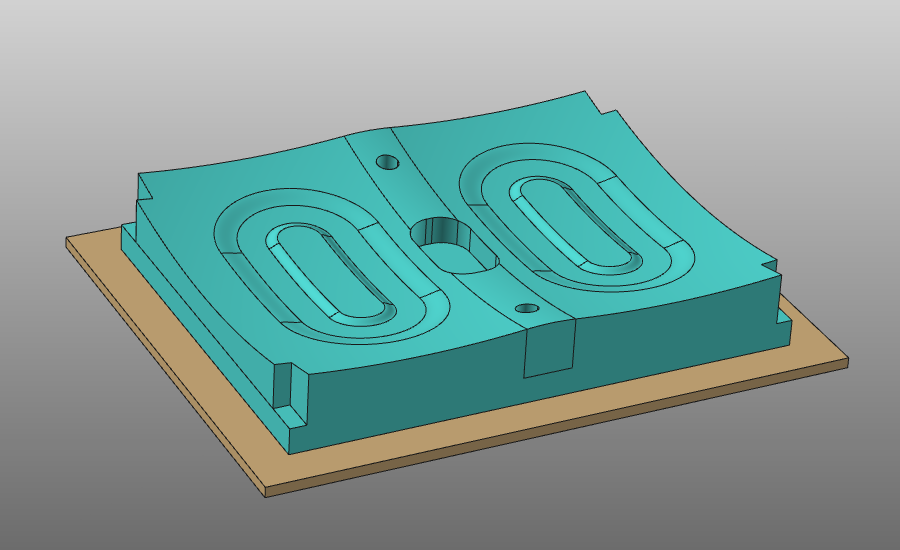
Le document de la pièce est créé à partir de géométries importées. Des informations dédiées à la configuration, la géométrie du procédé et les données de simulation sont ensuite ajoutées avant de sauvegarder la pièce pour les étapes ultérieures du projet.
Étapes
1. Préparation
1.1 Créer un nouveau document vide (si nécessaire)
Si un autre document est déjà ouvert dans la session en cours, créez un nouveau document vide. Si aucun document n’est ouvert, vous pouvez passer cette étape.

Créer un nouveau document
Ouvrez le menu Fichier et sélectionnez Nouveau. Si vous vous le demandez, choisissez de sauvegarder le document actuellement ouvert, de le fermer sans sauvegarder ou d’annuler.
2. Définir la pièce à travailler
2.1 Vérification des paramètres d’importation de la géométrie
Pour utiliser correctement la pièce en programmation hors ligne, importez la géométrie en géométrie exacte.

Vérification des paramètres d’importation
2.2 Importation de géométrie depuis Mold_Workpiece.stp
Importez la géométrie depuis le fichier Mold_Workpiece.stp dans les données d’entraînement.

Géométrie d’importation
2.3 Créer une pièce à travailler pour la géométrie importée

Créer une pièce à travailler
3. Construire la forme de la pièce
3.1 Fixer la géométrie de la pièce à la pièce

Géométrie d’attache
4. Définir la géométrie du procédé
Créer une géométrie de procédé pour l’opération de nettoyage.
4.1 Définir les options d’affichage pour la gestion de la géométrie
Définissez des réglages qui facilitent la sélection de la géométrie.
Définir les options d’affichage
4.2 Définir le mode géométrie du procédé sur Face

Définir le mode géométrie du procédé
4.3 Sélectionner les faces à inclure
Utilisez la sélection de pièges pour inclure les faces pour la géométrie du procédé. La direction du traîner détermine si la sélection est stricte (à l’intérieur uniquement) ou basée sur le tactile.

Sélectionner les faces (ajouter)
4.4 Enlever les visages indésirables
Appuyez sur Ctrl et utilisez la sélection de pièges pour retirer les faces de l’ensemble.
Sélectionner les faces (supprimer)
4.5 Créer la géométrie du procédé
Créez la géométrie du procédé sur la surface sélectionnée.
Créer une géométrie de procédé
4.6 Vérification de l’orientation de la géométrie du procédé
Vérifiez et ajustez l’orientation de la géométrie du procédé de surface lorsque nécessaire.
Modifier la géométrie du procédé
4.7 Restauration des paramètres d’affichage globaux (optionnel)
Restaurer les paramètres d’affichage
5. Définir l’objet de simulation
L’objet de simulation sert à calculer l’impact du procédé sur la surface, par exemple le temps de contact de la pulvérisation.
5.1 Créer un objet de simulation de procédé
Créez un objet de simulation de procédé pour la pièce complète.

Créer un objet de simulation
5.2 Ajustement des paramètres du maillage de simulation
Modifier les paramètres du maillage de l’objet de simulation, tels que la taille globale du triangle.
Modifier l’objet de simulation
6. Sauvegarder la pièce
6.1 Nommez et sauvegardez la pièce
Donnez un nom approprié à la pièce et stockez-la sur disque.
Sauvez la pièce
Étape suivante
-> Construis le nettoyant à jet d’eau