Mettre en place le projet de choix et place
Objectif
Mettez en place le projet pick and place en construisant l’environnement de l’atelier avec le robot de manutention et l’équipement nécessaire, puis chargez la pièce comme dans la vraie installation de production.
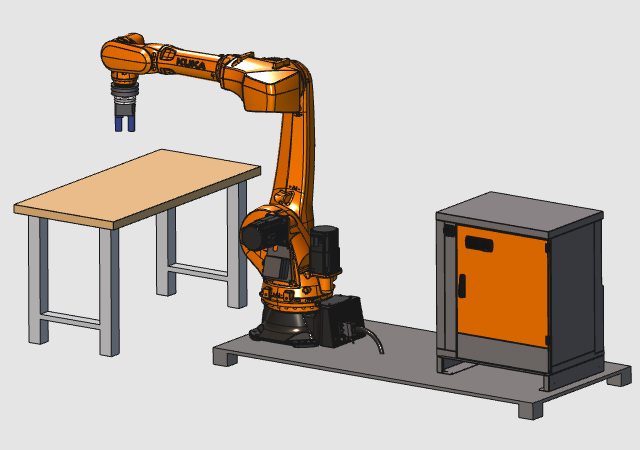
La configuration est construite à partir d’équipements standards tels que le robot de manutention. Les composants sont positionnés et connectés pour compléter la cellule de travail, puis la pièce est chargée sur la table.
Étapes
1. Préparation (si nécessaire)
Selon le package de licence utilisé, vous pouvez travailler soit dans Layout Builder, soit en Programmation hors ligne pour la séquence de configuration.
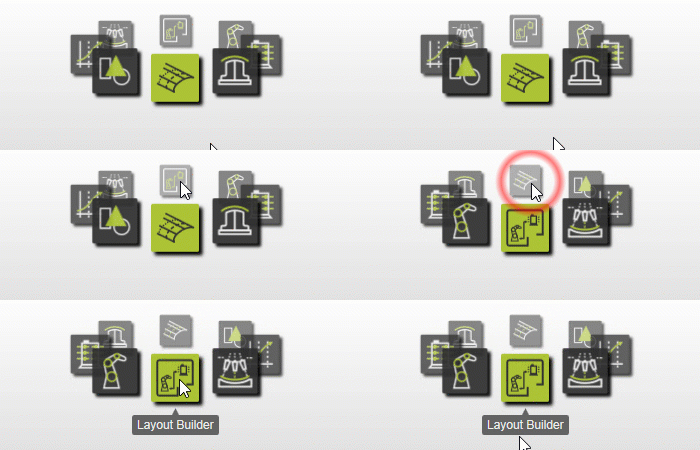
1.1 Passage à l’établi Layout Builder

Passer à l’établi LB
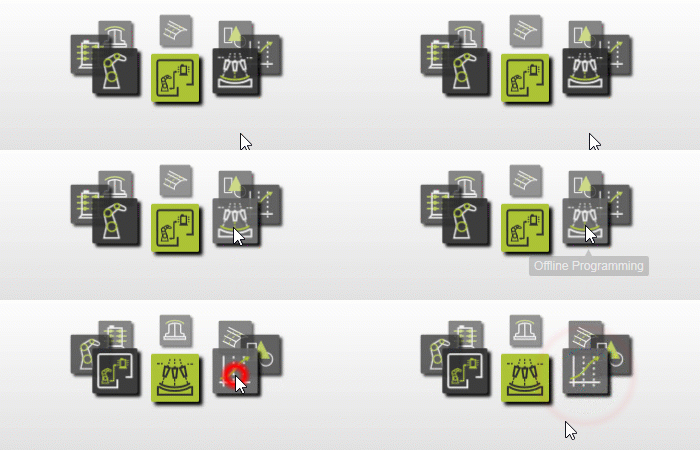
1.2 Passage à l’établi de programmation hors ligne

Passer à l’établi OLP
1.3 Créer un nouveau document vide
Créez un nouveau document vide avant de construire la cellule de travail. Si un autre document est ouvert, choisissez de le sauvegarder, de le fermer sans sauvegarder ou d’annuler.

Créer un nouveau document
2. Construire la cellule de travail
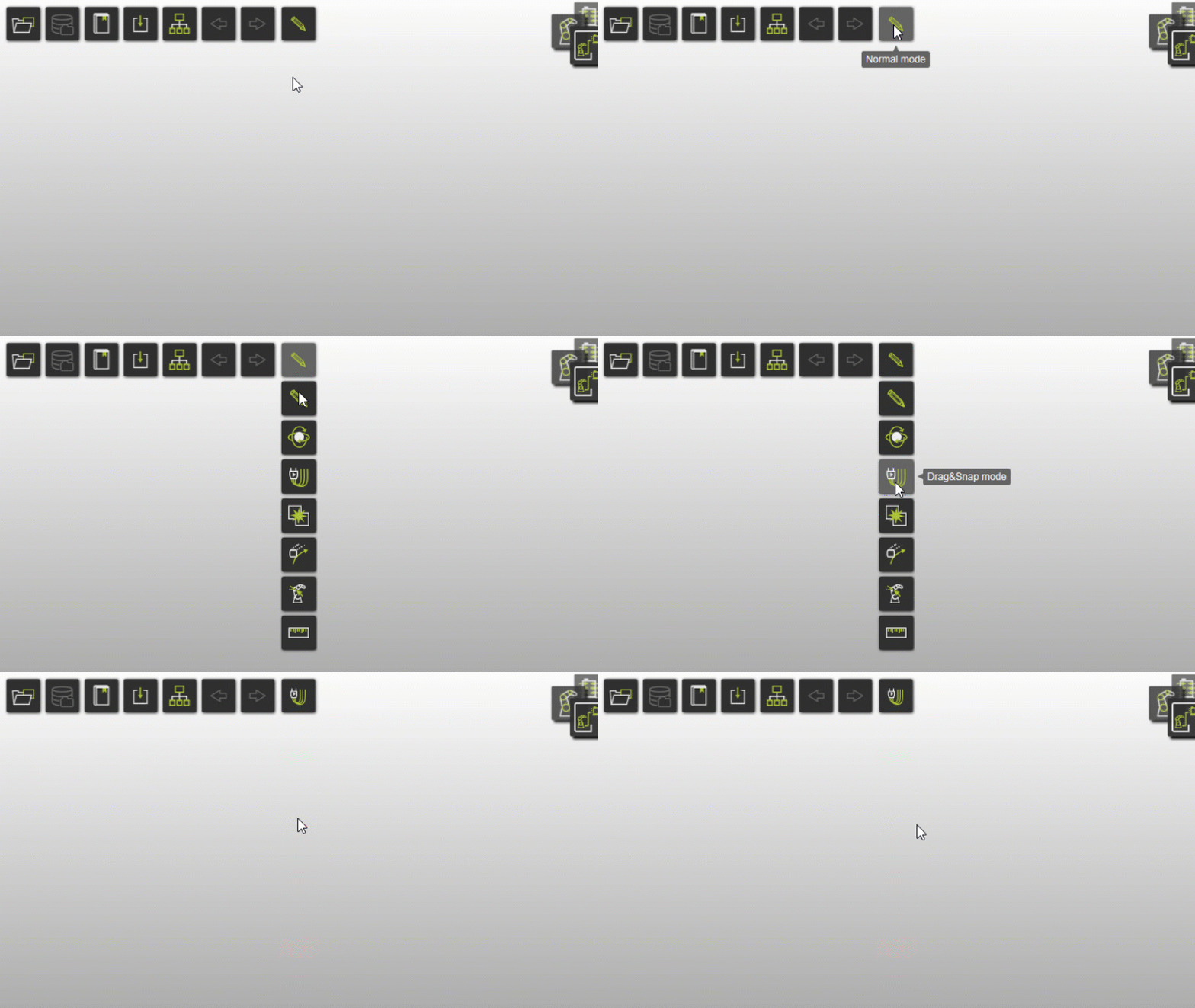
2.1 Passage au mode de fonctionnement Drag & snap
Lors du changement d’établi, le mode Opération passe par défaut à Normal. En programmation hors ligne, passez à Drag & snap pour déplacer les composants dans l’ensemble du dispositif de fixation.

Régler le mode Drag & snap
2.2 Ajouter des composants à la disposition
Ouvrez la structure du projet et ajoutez la table, le robot, l’adaptateur, le piédestal et le contrôleur à partir des données d’entraînement.

Ajouter à la mise en page
2.3 Placer les composants dans la disposition
Positionnez les composantes à l’aide d’adaptateurs ou de coordonnées explicites. Le tableau doit être à X=1800, Y=-950 et Z=0.

Composantes de place
2.4 Chargez et montez la prise
Chargez la pince déjà créée et connectez-la au robot.
Ajoutez et montez la prise
2.5 Construire la connexion électrique
Créez la connexion électrique entre le contrôleur et le robot.
Construire la connexion électrique
3. Sauvegarder la disposition
3.1 Vérifiez l’établi avant de sauvegarder
En programmation hors ligne, vous ne pouvez pas sauvegarder une mise en page. Passez à l’établi Layout Builder avant de sauvegarder.
3.2 Sauvegarder la disposition
Enregistrez le document de mise en page. Il contient l’équipement de l’atelier, les ressources et les contrôleurs.

Sauvegarde de la disposition
Étape suivante
-> Générez le programme pick & place