Préparation
Objectif
Apprenez à préparer votre projet avant d’effectuer une optimisation manuelle ou automatique du programme.

Une bonne préparation améliore la qualité des résultats, réduit le temps d’itération et évite les échecs d’optimisation évitables.
Étapes
1. Mise en place des ressources
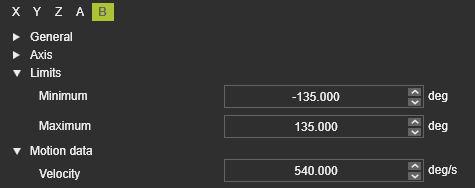
1.1 Vérifier les limites des axes
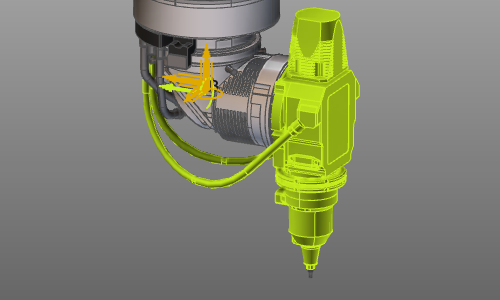
Vérifiez que les limites d’axe pour la machine, le robot et les ressources externes correspondent à la configuration physique.
1.2 Vérifier les limites de vitesse de l’axe
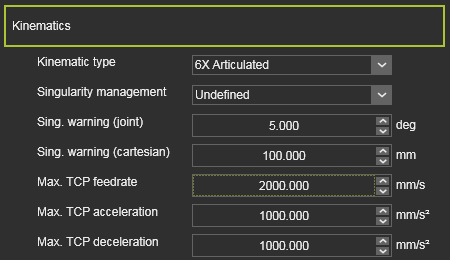
Confirmez que les valeurs de vitesse maximale de l’axe (vitesse) sont correctement définies.
2. Installation de collision
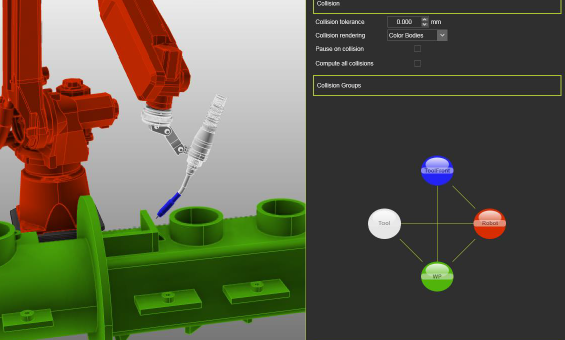
2.1 Définition des groupes de collision
Créez des groupes de collision afin qu’aucune collision permanente n’existe entre paires actives.

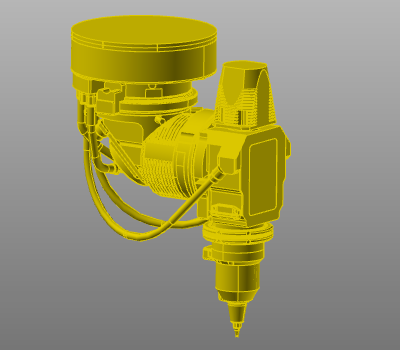
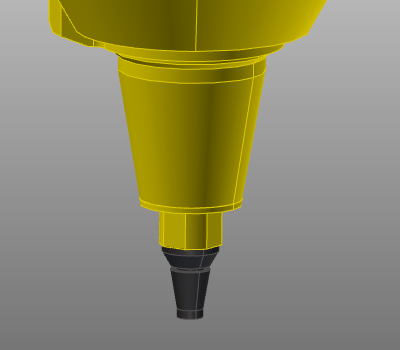
2.2 Exclure la géométrie inutile
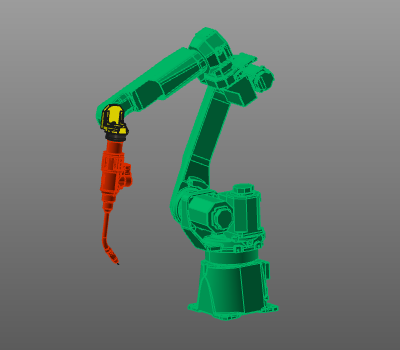
Retirer la géométrie non critique des groupes de collision pour réduire le temps de calcul.
2.3 Vérification de l’appariement collision
Validez les définitions de paires de collision dans les paramètres de simulation.
2.4 Vérifier la présence de collisions cachées
Effectuez une vérification de scénario pour vous assurer qu’aucune collision cachée ne subsiste avant l’optimisation.
3. Paramètres de programmation
3.1 Définir les paramètres par défaut du processus
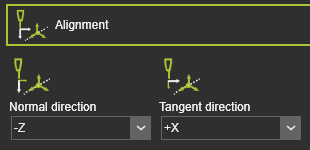
La programmation définie par défaut à l’état du processus prévu, incluant l’alignement de l’outil et les angles du processus.
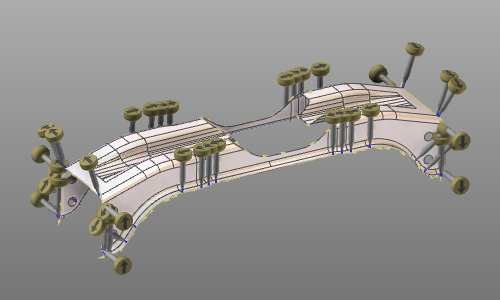
3.2 Définir des positions de départ claires
Programmez des valeurs de départ explicites pour la machine, le robot et les axes externes.
Incluent :
- Valeurs d’axe externe au premier élément de trajet d’outil.
- Mouvement PTP vers la première position de chaque opération.
- Approchez et rétractez les positions avec le type de mouvement approprié.
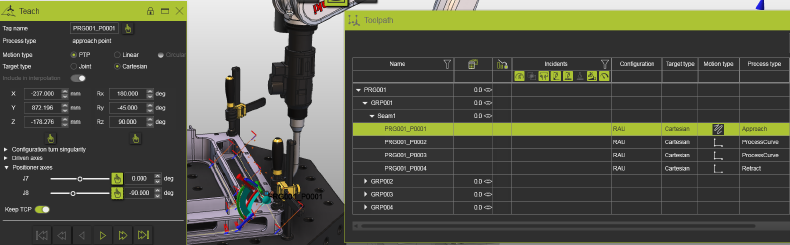
3.3 Vérifier les valeurs de vitesse
Assurez-vous que les postes de procédé n’ont pas de vitesse nulle.
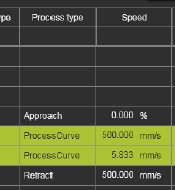
4. Définition de la qualité du parcours d’outil
4.1 Paramètres de qualité ouverts
Configurez les critères de qualité dans l’onglet technologie de qualité Parcours d’outil dans Programmation par défaut ou Programme actif.


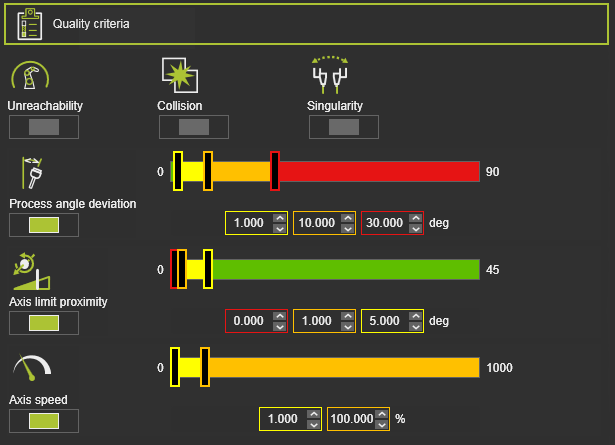
4.2 Activer les critères pertinents
Activez les critères nécessaires pour votre situation. Les paramètres par défaut du système sont généralement un bon début.
Pour le soudage à l’arc, les critères d’angle d’outil peuvent être assouplis lorsque l’orientation initiale de l’outil est flexible.
4.3 Niveaux de seuil d’accordage
Ajustez les limites si nécessaire, par exemple la déviation maximale de l’angle de procédé.
Utilisez ces niveaux comme guide :
| Niveau | Indicateur | Signification |
|---|---|---|
| Début de la zone interdite |  | Une valeur qu’il ne faut jamais dépasser. |
| Début de la zone critique |  | Une valeur qu’il faut éviter si possible. |
| Début de l’évaluation |  | Limite où se termine la plage idéale. |
Dans la plupart des cas, il faut maintenir la vitesse d’axe à 100 % pour éviter de réduire la vitesse TCP dans les sections de procédé.
5. Calculer et valider le parcours initial de l’outil
5.1 Calculer le parcours d’outil
Générez le parcours d’outil après préparation et incluez des opérations auxiliaires de démarrage/fin lorsque nécessaire.
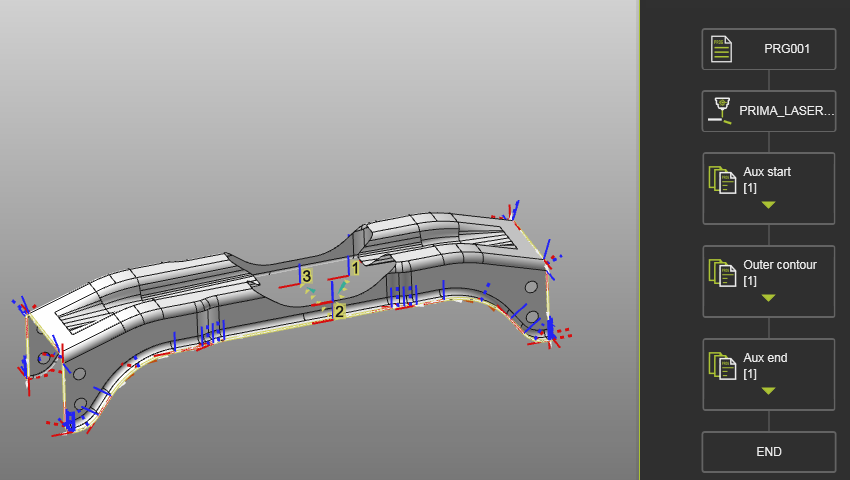
5.2 Validation en 3D et tableaux de bord
Examinez le résultat en 3D et dans les tableaux de bord.
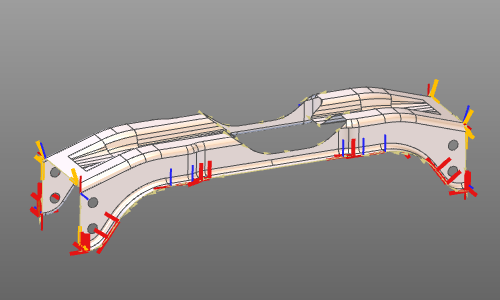
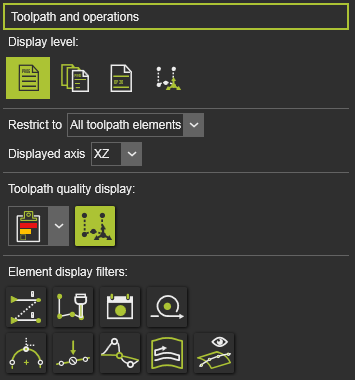
Activez les filtres d’affichage pour voir la qualité et les informations spécifiques à chaque parcours d’outil.
6. Comportement de validation des collisions
La validation des collisions est affichée dans les critères d’évaluation, mais l’activation est contrôlée dans la barre du lecteur de simulation.

La programmation autonome exécute toujours l’analyse des collisions en arrière-plan, même lorsque l’affichage de la collision de simulation est désactivé.