Générez le programme de soudure par points
Objectif
Après avoir configuré la cellule de travail avec l’ensemble de la carrosserie, générez, optimisez et simulez les programmes de soudure par points.
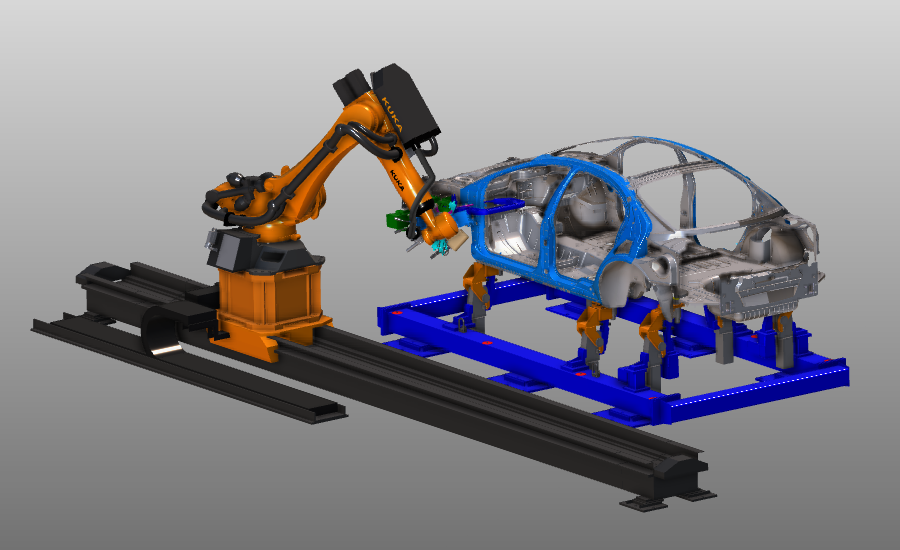
Les positions de soudure par points sont programmées en groupes séparés. Le parcours d’outil résultant est ensuite affiné avec des fonctions d’apprentissage et d’optimisation, suivies d’une validation par simulation.
Étapes
1. Préparation
1.1 Passage à l’établi de programmation hors ligne

Passer à l’établi OLP
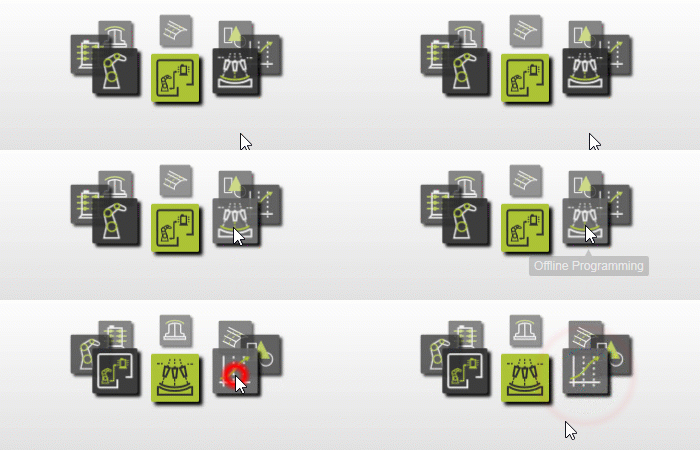
2. Installation de l’unité
2.1 Vérification de la technologie de soudure par points
Vérifiez que la technologie de soudure par points est active pour le robot.

Technologie des décors
2.2 Base de fixation et cadre d’outil
Réglez le cadre de base et le cadre d’outil comme actifs pour la programmation.
Définir la base et le TCP
3. Programmer le parcours d’outil
3.1 Créer la première position à domicile
Utilisez la méthode simple de l’enseignement pour créer la première position à domicile. Un nouveau programme robotique est créé automatiquement et les tableaux de bord OLP sont activés.

Programmer une opération
3.2 Ajuster la perspective de la caméra
Utilisez la vue en perspective au besoin pour améliorer la navigation dans la scène 3D.

Changer la vue de la caméra
3.3 Programmer la première opération de soudage
Programmez la première opération de soudure. Vous pouvez sélectionner plusieurs points ensemble ou un par un en utilisant Ctrl.
Points de fonctionnement du programme
4. Optimisation
4.1 Déplacer le rail dans un environnement événementiel/enseignant
Passez à l’environnement Événements et enseignement, puis déplacez le robot le long du rail pour atteindre le premier point.

Démarrer l’optimisation du parcours d’outil
4.2 Lancer la première simulation
Simulez le programme pour obtenir un contrôle qualité initial.

Simuler le programme
4.3 Révision des problèmes du programme
Vérifiez les problèmes signalés du programme avant de poursuivre l’optimisation.
Vérifier les problèmes de programme
4.4 Modification de l’orientation et de la configuration des canons
Ajustez l’orientation des canons selon les positions de soudure et définissez la configuration correcte du robot pour réduire les collisions.
Modifier le parcours de l’outil
4.5 Interpolation du parcours d’outil
Interpolez entre la première et la dernière position de soudure pour obtenir un mouvement de canon plus fluide. Utilisez l’optimisation des tangents lorsque cela est approprié.

Interpoler le parcours d’outil
4.6 Insertion des positions d’approche
Insérez les positions de l’outil avant la première opération de soudage pour définir l’approche de l’arme.
Améliorer le parcours d’outil (avant)
4.7 Insérer les positions de rétraction
Insérez les positions des outils après la dernière opération de soudage pour définir la rétraction du canon.
Améliorer le parcours d’outil (après)
4.8 Simuler un programme optimisé
Relance la simulation et confirme que les collisions sont résolues.
Simuler un programme optimisé
5. Optimisation technologique
5.1 Simuler l’ouverture/fermeture du canon aux positions de soudure
Activez la simulation pour ouvrir et fermer le pistolet de soudure à chaque position de soudure.

Pistolet de soudure simulé
5.2 Inclure la rotation des canons pendant l’opération
Activez la rotation du canon pendant la soudure lorsque cela est nécessaire.
Simuler la rotation du canon
6. Informations complémentaires
6.1 Naviguer avec le tableau de bord Teach
Utilisez le tableau de bord Teach pour naviguer le long du parcours généré.

Navigation par trajet d’outil
6.2 Réviser les valeurs du moniteur de simulation
Vérifiez les vitesses, les coordonnées TCP et les valeurs des joints dans le moniteur de simulation.

Moniteur de simulation
7. Télécharger le programme
7.1 Générer et télécharger un programme robotique
Générez le programme à télécharger sur le robot controller.

Programme de téléchargement
7.2 Vérifier le répertoire de sortie du téléchargeur
Les fichiers programme sont stockés à l’emplacement de sortie défini dans les propriétés du contrôleur. Vérifiez ce chemin et copiez les fichiers ailleurs si nécessaire.

Passage à l’établi CB
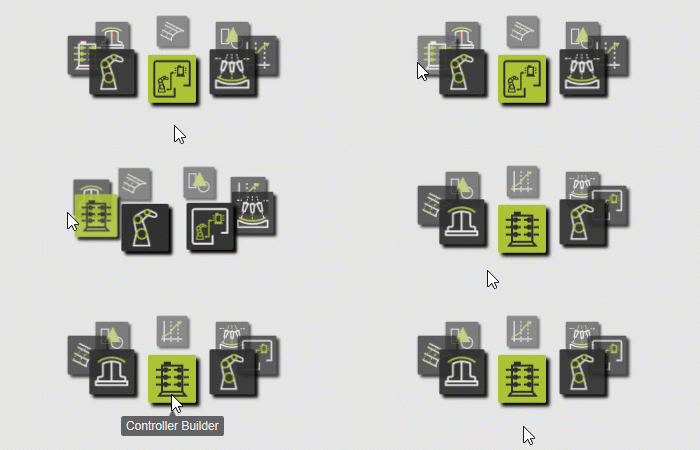

Vérifier les propriétés de téléchargement
8. Sauver le projet
8.1 Sauvegarder le projet sous un nom approprié

Projet de sauvegarde