Générez le programme de soudure à l’arc
Objectif
Les capacités cinématiques des équipements externes sont utilisées pour optimiser la programmation et réduire le mouvement de l’axe robotique.
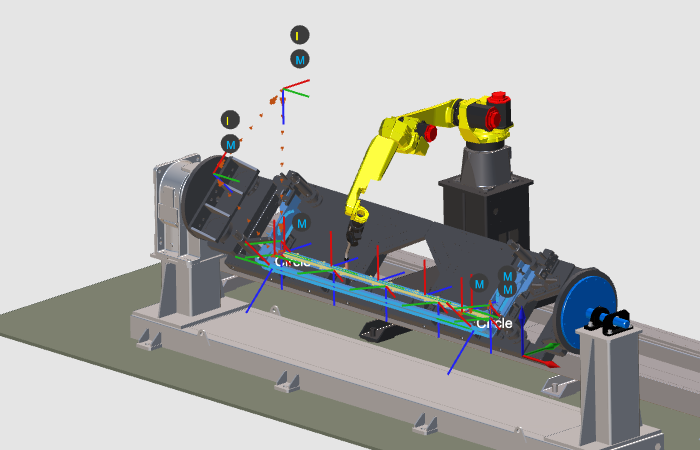
Chargez la cellule de travail préparée à partir des étapes précédentes, programmez les opérations de soudage et optimisez le programme généré en interpolant les axes cinématiques externes.
Étapes
1. Charger la cellule de travail
1.1 Ouvrez le document de la cellule de travail existant.
Ouvrez le fichier de la cellule de travail ArcWelding_ExternalAxis_Base.cendoc depuis le dossier Projets de cette bibliothèque tutoriel. Ce document contient la mise en place complète du projet requise pour les tâches de ce chapitre.

Ouvrir un document de cellule de travail existant
2. Impliquer le rail robot dans le programme
2.1 Programme le chemin de soudure.

Programmer un chemin de soudage
2.2 Modifier la position du rail pour le point d’approche.
Ajustez la position des rails pour que le robot puisse atteindre la position d’approche du trajet d’outil.

Modifier la position du rail
2.3 Modifier la position du rail pour le point final.
Utilisez le tableau de bord Teach pour déplacer le rail afin que le robot puisse atteindre la position finale du chemin de soudure.

Modifier la position du rail
2.4 Simuler le trajet avec le mouvement des rails.

Simuler le parcours d’outil
2.5 Ajustez la densité de position du trajet d’outil.
Changez le nombre de positions de trajet d’outille le long du trajet de soudure. Les attributs d’approximation déterminent ce nombre.

Mettre à jour les positions du parcours d’outil
2.6 Ajouter l’interpolation des rails.
Ajoutez l’interpolation de la position du rail le long du trajet pour générer un mouvement de rail fluide.

Interpolation ferroviaire
3. Impliquer le positionneur de pièce dans le programme
3.1 Programmez le chemin de soudure circulaire.
Programmer un chemin de soudage
3.2 Modifier l’angle du positionneur et simuler.
Utilisez le tableau de bord Teach pour modifier l’angle du positionneur de la pièce afin que le robot puisse atteindre l’approche du chemin de soudage et les positions finales, puis simuler le résultat.
Modifier l’angle du positionneur
3.3 Ajouter l’interpolation du positionneur.
Changez le nombre de positions du trajet d’outil en utilisant les attributs d’approximation, puis ajoutez l’interpolation du positionneur de la pièce le long du chemin pour une rotation douce.
Interpolation du positionneur
4. Simulation
4.1 Simulez le programme.
Simuler le programme
5. Sauver le projet
5.1 Sauvegardez le projet en tant que document .cendoc.

Sauvegarder le projet en tant que document
Étape suivante
→ Téléchargez le programme OLP