Encore des opérations de soudage
Objectif
Dans ce chapitre, un second programme sera créé. Dans ce programme, plusieurs options seront présentées pour compléter ou améliorer l’opération de soudage.
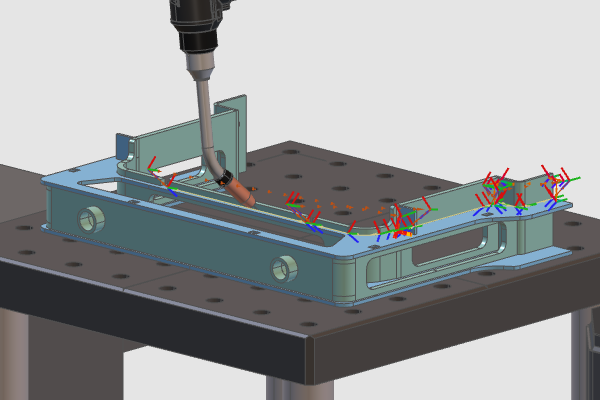
Le calcul de programmes supplémentaires est un moyen de gérer les chemins de soudage calculés. Des informations de base telles que les cadres de base, les directions des contours et les limites seront présentées.
Étapes
1. Programme
1.1 Créer un second programme
Ouvre le tableau de bord Programmes et fais un clic droit sur le conteneur Programmes quand il n’est pas encore ouvert. Choisissez la commande Créer un nouveau programme pour créer un second programme. Le second programme sera activé automatiquement.

Créer un programme
1.2 Vérifier la visibilité du cadre de base
Changez dans la configuration de l’unité et vérifiez que les images de base avec le symbole BF sont affichées. Sinon, alors ouvrez les filtres d’affichage et réglez pour afficher toutes les images.

Installation des unités
1.3 Créer un nouveau cadre de base
Faites un clic droit sur le cadre de base du robot et sélectionnez la commande Créer un nouveau cadre de base. Le manipulateur reste présent sur le nouveau cadre de base pour le déplacer à sa position souhaitée.

Cadre de base
1.4 Positionner le nouveau châssis de base
Faites un clic droit sur le centre du manipulateur et lancez la commande Picking. Dans le sous-menu, sélectionnez l’option Choisir le point central et sélectionnez le bord du trou central sur la table pour repositionner le cadre de base. Appuyez sur la touche Échap pour terminer la commande ou choisir un point dans l’espace 3D.

Cadre de base
1.5 Renommer le nouveau châssis de base
Faites un clic droit sur la nouvelle trame de base créée et sélectionnez la commande Renommer la trame. Voici le nouveau nom de la base du châssis. Cliquez sur l’espace 3D pour terminer la commande.

Cadre de base
1.6 Activez le nouveau châssis de base
Faites un clic droit sur la trame de base nouvellement créée et sélectionnez Définir la trame de base active. Cette trame de base deviendra alors la référence pour les coordonnées des éléments du parcours outil.

Cadre de base
Sachez que le cadre de base créé ici est un élément du projet et dans cette perspective sera enregistré dans le document du projet. Lorsqu’il est nécessaire que le cadre de base soit sauvegardé avec le Table, il doit être créé dans le document de ressource de la table avec la fonctionnalité de la ressource Établi de constructeur.
2. Programmes d’opérations de soudure
2.1 Créer une soudure à filet par projection
Changer pour générer la géométrie du procédé. Créez une nouvelle soudure à filet par projection. Le point d’extrémité sur le contour de couture qui se trouve le plus proche de la sélection de la couture détermine le début et la direction par défaut du contour de couture. Une fois l’aperçu affiché, cliquez sur la flèche violette au début du contour pour changer sa direction. Acceptez le contour et calculez le chemin de soudure.

Direction du chemin de soudage
2.2 Combiner les projections en une seule soudure à filet
Créez une nouvelle soudure à filet sur le premier bord. Lorsque la projection est introuvable, on sélectionne d’abord l’arête et on continue à choisir les surfaces. Puis continuez pour une seconde projection sur l’arête adjacente. Les deux résultats trouvés seront assemblés sur une seule soudure à filet. Lorsque les projections sont séparées, une connexion linéaire sera créée entre les deux. Complétez le contour de soudage et confirmez pour calculer le chemin de soudage.
Combinez plusieurs contours
2.3 Ajuster les limites du chemin de soudage
Les opérations de soudage peuvent également être programmées sur la géométrie existante du procédé ou lorsque le chemin de soudure n’a pas été calculé instantanément. Créez une nouvelle soudure. Une fois l’aperçu affiché, passez au parcours d’outil Programme. Ensuite, déplacez le cône vert pour changer le début du chemin et déplacez le cône rouge pour changer la fin du chemin. Accepter et créer le chemin de soudure. Le cône jaune indique de quel côté il faut aborder la courbe de niveau.
Limites du chemin de soudage
2.4 Simuler le programme complet
Réinitialisez l’état de démarrage et simulez l’ensemble du programme.

Simulation de programme
3. Programmer une opération de soudure avec calibration par détection tactile
3.1 Configurer les paramètres par défaut de calibration des coutures
Ouvre le tableau de bord des paramètres par défaut de la programmation. Développez le conteneur Recettes dans l’onglet technologie de la base technologique. Pour permettre l’étalonnage de la couture, réglez la méthode à appliquer sur l’indication Touch by point.

Étalonnage des coutures
3.2 Créer et simuler des positions de détection tactile
Si ce n’est pas déjà actif, changez pour Générer la géométrie du processus. Créez une nouvelle soudure à filet. Une fois la sélection du contour terminée, cliquez sur les surfaces qui seront utilisées pour définir les positions de calibration des joints sur la pièce de soudure. D’après WYSIWYG, les clics de souris sur la surface deviennent les positions tactiles dans l’ordre de prise. Calculez le chemin de soudage et lancez une simulation pour voir le résultat.

Indication de toucher par point
Étape suivante
→ Modifier le chemin de soudage