Construire un robot contrôleur
Objectif
Utilisez l’établi Controller Builder pour définir et configurer un robot contrôleur pour les flux de travail de simulation et de programmation.
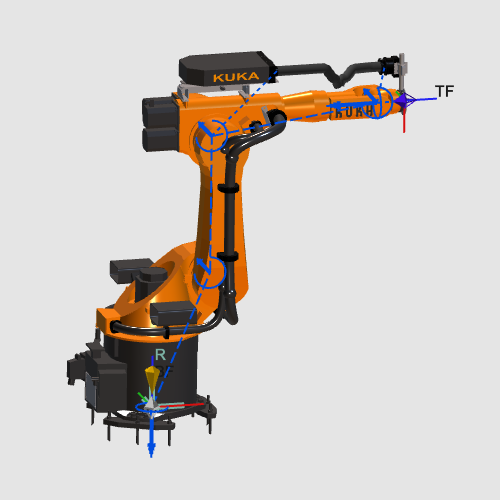
Le document contrôleur est créé à partir de géométrie importée puis configuré avec la cinématique, les trames et les propriétés nécessaires à un comportement de simulation fiable.
Étapes
1. Préparation
1.1 Créer un nouveau document vide (si nécessaire)
Si un autre document est déjà ouvert dans la session en cours, créez un nouveau document vide. Si aucun document n’est ouvert, vous pouvez passer cette étape.

Créer un nouveau document
Ouvrez le menu Fichier et sélectionnez Nouveau. Si vous vous le demandez, choisissez de sauvegarder le document actuellement ouvert, de le fermer sans sauvegarder ou d’annuler.
1.2 Passage à l’établi Controller Builder

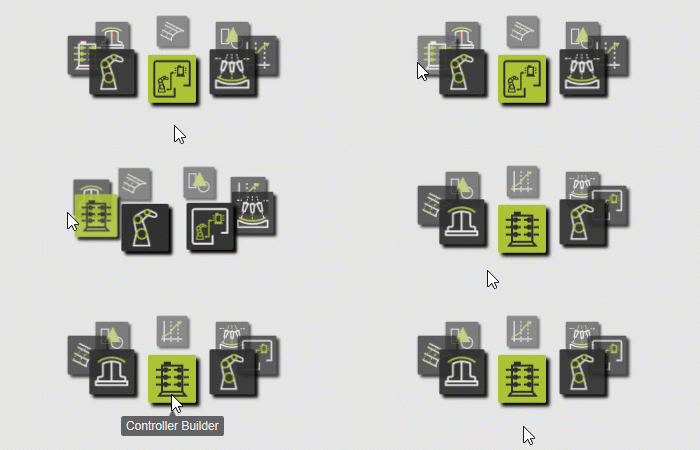
Passage au Constructeur de manettes
2. Définir la ressource de base du contrôleur
2.1 Géométrie d’importation du contrôleur
Importez la géométrie depuis l’ensemble de fichiers d’entraînement.

Géométrie d’importation
2.2 Créer la ressource de production
Créez une nouvelle ressource de type production pour la géométrie importée.

Créer une ressource de production
3. Configurer la cinématique du contrôleur
3.1 Définir les articulations et axes de rotation
Définissez les axes 1 à 6 comme des articulations entraînées par rotation selon les données robotiques disponibles.

Définition des axes articulaires
4. Attacher la géométrie et définir les propriétés du contrôleur
4.1 Attacher la géométrie aux référentiels racine et axis
Attachez la géométrie importée aux référentiels racine et aux axes correspondants.

Géométrie d’attache
4.2 Configurer TCP, les trames et les propriétés du contrôleur
Définir le point central de l’outil, définir les paramètres de l’axe, et définir les propriétés de l’adaptateur et du cadre.

Configurer les propriétés du contrôleur
5. Sauvegarder et vérifier
5.1 Sauvegarder la ressource du contrôleur

Sauvegarder la ressource
5.2 Recharger et vérifier la configuration
Ouvre la ressource sauvegardée et vérifie le comportement configuré.

Ouvrez et vérifiez