Construire la pièce de soudure
Objectif
FASTSUITE L’édition 2 distingue la pièce à travailler, la pièce de soudure et la ressource de fixation. La pièce de soudure sera construite à partir du fichier externe contenant la géométrie de la pièce de soudure.
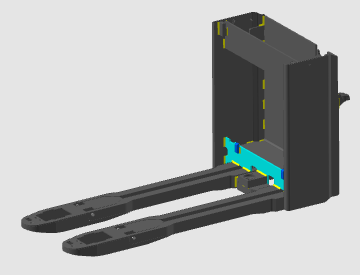
Le document de la pièce de soudure est généré et rempli avec la géométrie importée à partir d’un fichier externe. Ensuite, la géométrie du procédé requise et les références adaptateurs sont définies afin que la pièce puisse être utilisée dans le luminaire puis en programmation hors ligne.
Étapes
1. Préparation (si nécessaire)
1.1 Créer un nouveau document lorsqu’un autre fichier est déjà ouvert.
Si un autre document est ouvert dans la session en cours, créez un nouveau document vide avant de continuer.

Créer un nouveau document
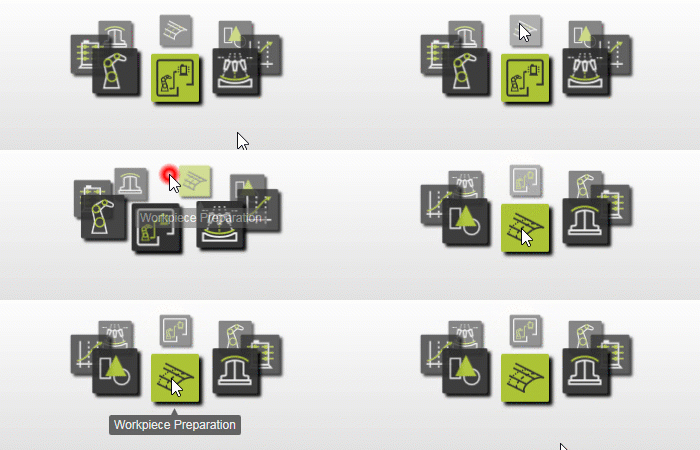
1.2 Passer à l’établi Workpiece Creator.

Passage à l’établi WPC
2. Définir les propriétés de la pièce de soudage
2.1 Créer une nouvelle pièce pour la pièce de soudure.

Créer une pièce à souder
2.2 Donner un nom approprié à la pièce soudée et vérifier ses propriétés.

Propriétés de la pièce de jeu
3. Construire la forme de la pièce de soudure
3.1 Vérifiez les paramètres d’importation avant de charger la géométrie.
Pour utiliser correctement la pièce soudée en programmation hors ligne, importez le modèle en géométrie exacte.
3.2 Importez la géométrie de la pièce soudée depuis un fichier externe.

Importation de la géométrie de la pièce soudée
3.3 Attacher la géométrie importée au document de la pièce.

Géométrie d’attache
4. Définir la géométrie du procédé
4.1 Créer des éléments de géométrie de procédé sur les joints de soudure.
Alternativement, la géométrie du procédé peut également être générée plus tard dans l’établi de programmation hors ligne avant de créer des programmes de soudure à l’arc.

Définir la géométrie du procédé
5. Terminer la soudure
5.1 Créer une référence d’adaptateur mécanique enfant pour le placement des luminaires.
Utilisez un emplacement de référence commun entre la pièce de soudure et le fixateur, comme un trou de fixation, afin que le placement soit répétable et précis.

Créer un adaptateur pour pièce de soudure
5.2 Repositionnez l’adaptateur par défaut existant si nécessaire.
Si l’emplacement par défaut n’est pas adapté, déplacez l’adaptateur à la position de référence finale.

Ajustez la position de l’adaptateur
6. Sauvegarder
6.1 Conservez la partie de soudure terminée.

Économisez la pièce soudée
Étape suivante
→ mise en place du projet de soudage