Modifier les attributs de calcul du chemin de coupe
Objectif
Apprenez à modifier les attributs de calcul du chemin de coupe et à vérifier comment chaque paramètre affecte le parcours généré.
Chargez le projet Training_LaserCutFeatures.cendoc depuis le dossier Projets de cette bibliothèque tutoriel.
Étapes
1. Attributs de calcul du chemin de coupe
1.1 Générer la géométrie du procédé
Lance la commande Générer la géométrie du processus. Sélectionnez le mode contour générique avec l’option Chercher pour fermer. Choisissez un contour sur la pièce. Acceptez la sélection et appuyez sur Accepter à nouveau pour construire le contour de coupe.

Générer la géométrie du procédé
1.2 Programmer le parcours d’outils
Passer à la trajectoire d’outil de programme. Sélectionnez le contour et utilisez le cône vert pour déplacer la position de départ du chemin. Ensuite, programmez le parcours d’outil pour ce contour.

Parcours d’outil du programme
1.3 Définir le mode d’approximation sur linéaire
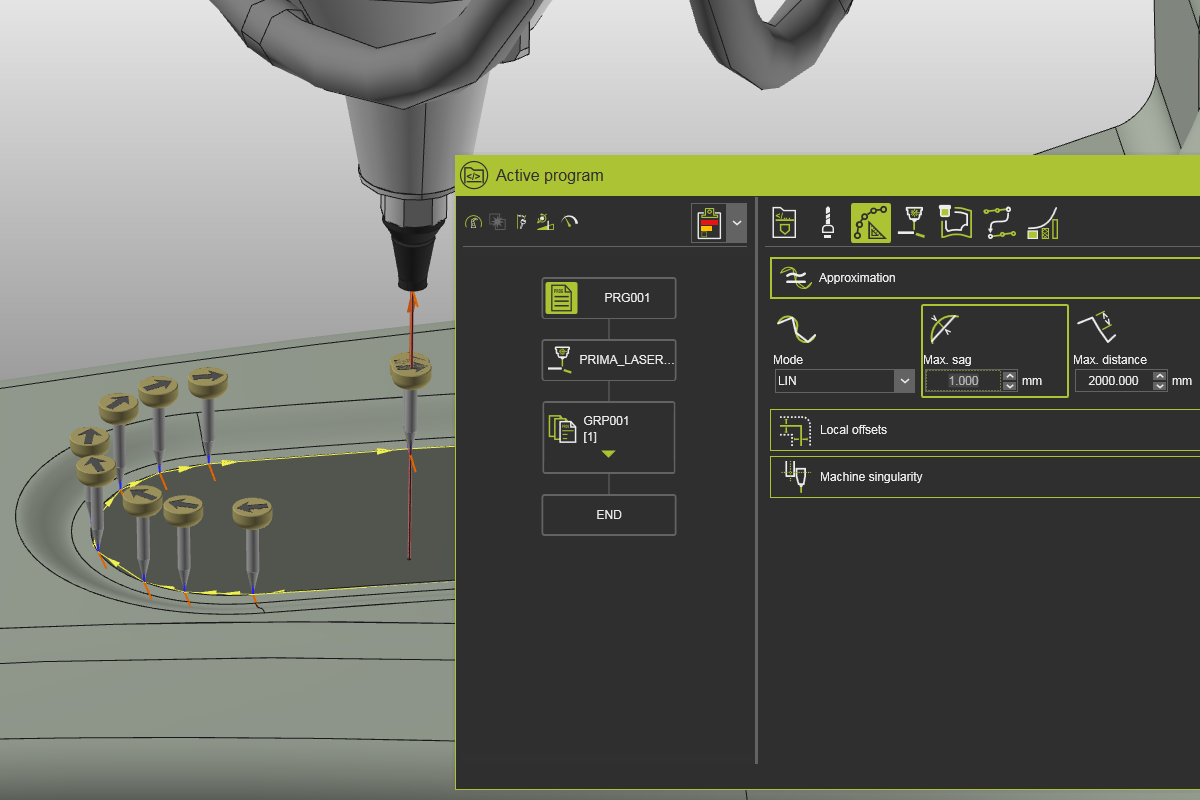
Ouvre le tableau de bord du programme Active. Dans le calcul du trajet d’outil > approximation, réglez le mode de calcul sur LIN (linéaire) pour représenter le contour avec de petits mouvements linéaires.

Attributs de calcul du trajet d’outil
1,4 Régler le sac maximal à 1 mm
Changez l’attribut d’approximation Max. sag à 1 mm. Cela définit la déviation maximale autorisée du chemin de coupe calculé par rapport au contour de la géométrie du procédé.
Paramètres d’approximation
![[link:Ref_Tech_Approximation]](/_next/static/media/help_32.a83448e5.png)
1,5 Régler la distance maximale à 10 mm
Réinitialisez les paramètres d’approximation. Ensuite, changez la distance maximale entre les positions du chemin à 10 mm.
Paramètres d’approximation
1,6 Feuille de réglage décalée à 4 mm
Ouvre le conteneur des décalages locaux. Réglez le décalage de la feuille à 4 mm et examinez le résultat.
Décalages locaux
1,7 Régler le contour à 2 mm
Réglez le décalage de contour à 2 mm et comparez-le avec le comportement du décalage de la feuille.
Décalages locaux