Programming with multiple robots
Purpose
Learn to monitor while programming multiple robots on the same workpiece.
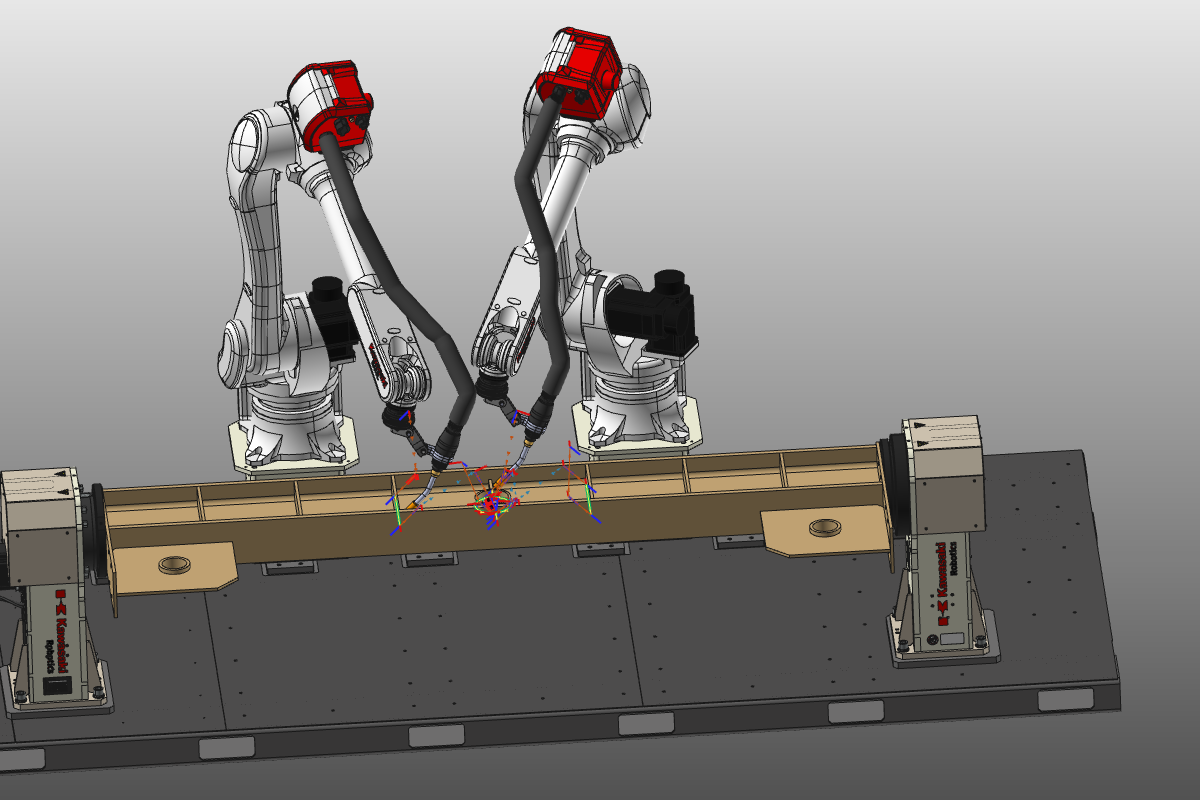
Load the project Arcwelding_BasicProgrammed.cendoc from the Projects folder of this tutorial library.
For the purpose of this training session, some simplified welding operations have been programmed in such a way that this setup leads to conflicts and critical situations during simulation.
Steps
1. Teach with joint values
1.1 Set positioning mode to Joint values
Open the General settings and verify in the Offline programming container that the Positioning mode in teach setting has been set to Joint values.

OLP settings
1.2 Review programs for both controllers
Open the Programs dashboard and set controller E01 active. Then open the Active program dashboard and review the operations. Change to controller E02 and notice that the corresponding program is displayed in the Active program dashboard. Review its operations as well.

Welding program
1.3 Run a simulation with collision analysis
Run a simulation with Collision analysis and review the result.

Simulation
1.4 Teach over joint values in Events and teach
Change to Events and teach. When teaching over joint values, the controller places the tool frame at the selected toolpath position based on the joint values of the resource (the robot in this case). When selecting a toolpath position, the corresponding controller and program are activated automatically. Notice that the other program is placed, or remains, in its home position.

Teach over joint values
2. Teach with simulation
Teach with simulation is an alternative to the above situation. Instead of positioning the resources over the joint values to reach the desired position, a simulation is run in advance and the position is reached based on that simulation. This enables positioning of any other resource according to the same simulation time frame.
2.1 Set positioning mode to Simulation
Open the General settings and verify in the Offline programming container that Positioning mode in teach has been set to Simulation. A program simulation starts running in the background.
OLP settings
2.2 Use Teach panel for simulation-based teaching
Change to Events and teach. Then open the Teach panel. The option to switch between joint value teach and teach over simulation is available there.
Teach over simulation
2.3 Pick positions and compare both robots at simulation time
Pick some positions and notice that both robots are placed according to their position at simulation time.
Teach over simulation