Create a custom specific derivation
Introduction
It has a huge advantage to build a derived translator. It will use the complete (base) parent translator with the only exception that new content will be added here and redefined existing functions will override the base ones. In this case the base translator remains intact. But also that (major) changes made to the base translator are being applied automatically to any derived translator.
Steps
1. Derived translator
In Visual Studio Code open CustomTranslator.py from the example plugin, that has been implemented during the preparation.
At the beginning is again the class definition of the translator. Since we want to derive from HelloWorld, we must specify it inside the brackets.
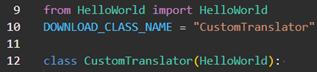
For this example the hierarchic structure looks like:
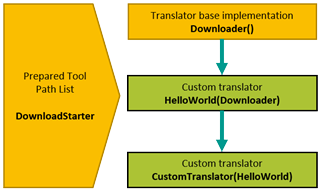
Furthermore, it is important to add the following line at the beginning of each downloader.

These lines will add the current path to the Python path. This is important for using further deviations.
2. Override functions
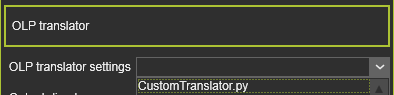
In the controller of the workcell, change the used translator to CustomTranslator.py.
In the parent class HelloWorld.py we output all attributes with the property PROCESS_ATTRIBUTE.
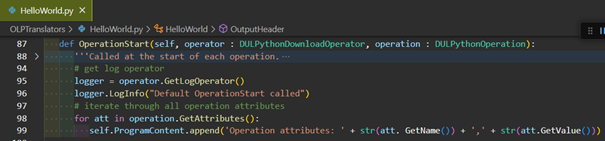
In CustomTranslator.py we override the function with a custom implementation. Add the following lines to the OperationStart() function.
# get log operator
logger = operator.GetLogOperator()
logger.LogInfo("Default OperationStart called")

# get the operation name
operationName = operation.GetName()

# iterate through all operation attributes
self.ProgramContent.append('Operation name: %s' % operationName)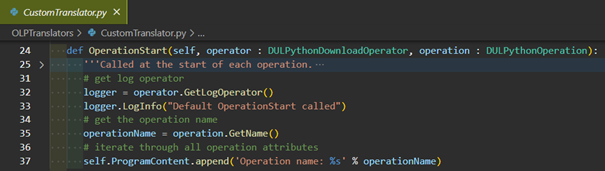
Overriding the function means that the previous output of the operations attributes in HelloWorld.py will no longer occur.
Output of HelloWorld.py:

Output of CustomTranslator.py:

However, it is also possible to call the OperationStart() function of the parent class at the end. Add the following line to the function.
super().OperationStart(operator, operation)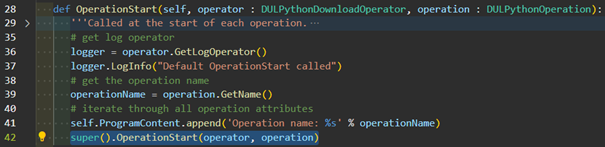
Output:

This also allows you to decide whether the parent function should be called at the beginning or the end. Call the OperationStart() implementation of the parent class at the start. Remove the previously added line at the end and place it at the beginning, according the picture below.
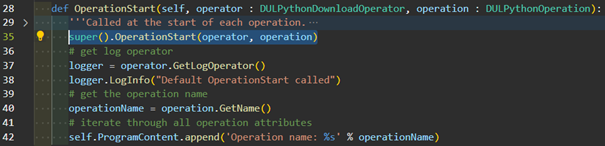
Output:

3. Event output
In your workcell, add a Text event to a toolpath element by opening the event panel.
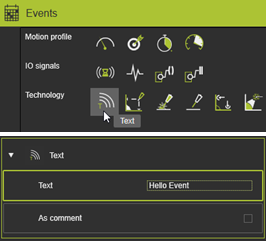
Implement the text event output. Add the following lines to the HandleEvent() function.
# get all attributes
attributes = event.GetAttributes()

# initialize variables
text = ''
isComment = True

# iterate through attributes
for attribute in attributes:
    # get text
    if attribute.GetName() == 'Text':
        text = attribute.GetValue()
    # get flag is text is a comment (True) or command (False)
    elif attribute.GetName() == 'IsComment':
        isComment = attribute.GetValue()

# check if comment
if isComment:
    # create string and add it to source string array
    self.ProgramContent.append('Comment: %s' % text)
else:
    self.ProgramContent.append('Command: %s' % text)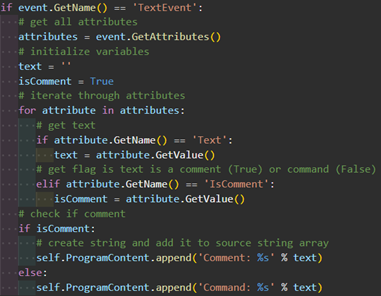
Output:
