Play and monitor simulations
Purpose
Learn to simulate the program, or just parts of it and to monitor the motion of the robot.
Use or load the project that has been saved in the chapter Building a simple Arc Welding project. Otherwise, load the project Arcwelding_BasicProgrammed.cendoc from the Projects folder of this tutorial library.
Steps
1. Simulations
1.1 Open and lock the Simulation monitor
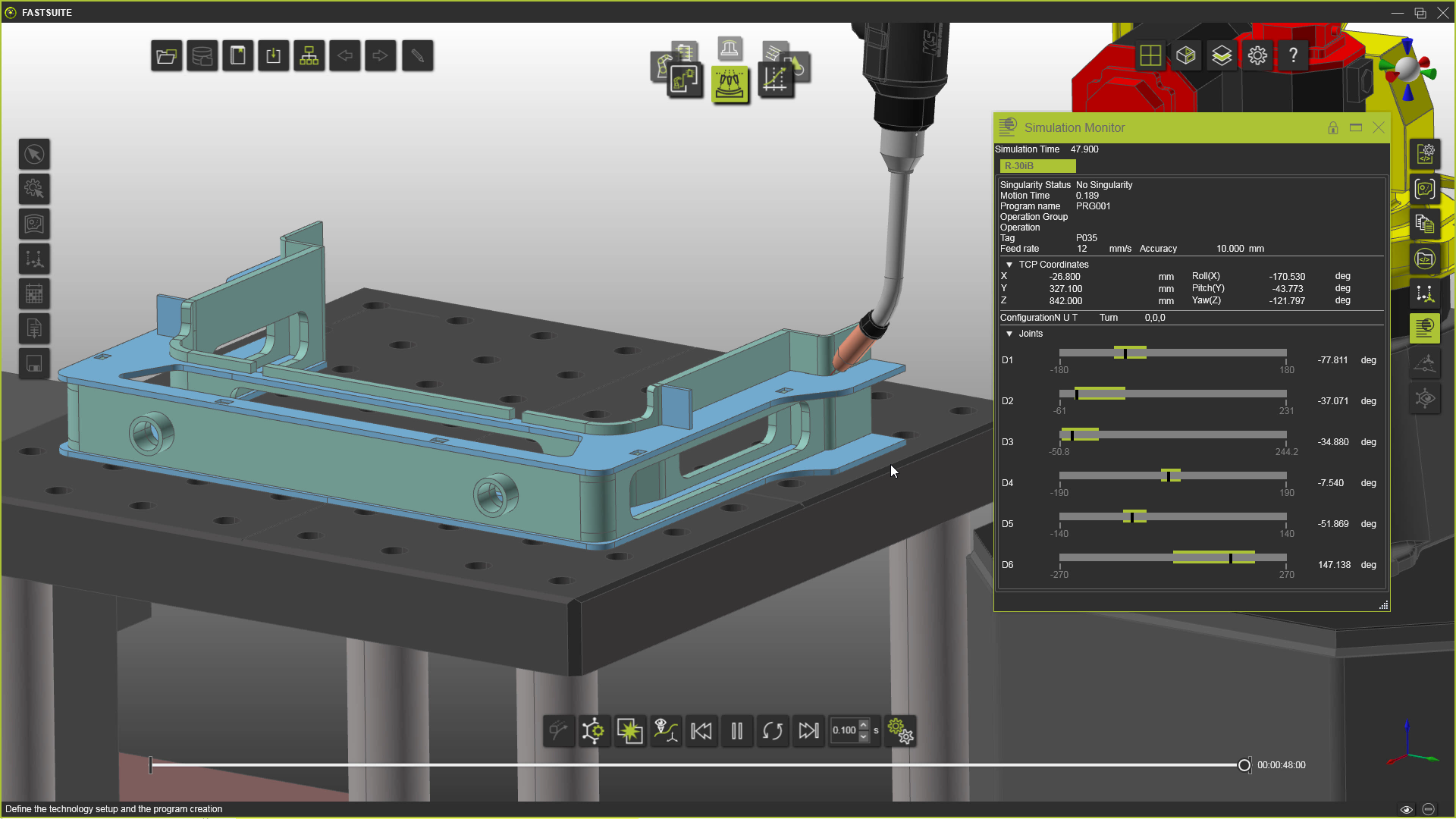
Open the Simulation monitor and lock the window. Then play the program. The Simulation monitor window displays values of the individual robot axes and welding gun center point (TCP). This helps identify potential issues related to axis limits.

Open the Simulation monitor
1.2 Navigate the running simulation with the slider
While simulation is running, the simulation slider ball becomes available. Drag it to navigate through the program. If Reset is pressed, simulation data is cleared and the slider is no longer available.

Navigate the simulation
1.3 Turn on path trace
Press Turn on path trace and run the simulation. The TCP motion is traced and displayed relative to the active base frame. Clicking Reset deletes the trace.

Trace path
1.4 Play partial simulation from the Active program dashboard
Open the Active program dashboard. Right click one operation group and select Play partial simulation. Simulation is executed only for the welding path of the selected group or operation.

Partial simulation
1.5 Play partial simulation between two path elements in 3D
In 3D, right click one welding path element and select Play partial simulation. Then click a second path element. Simulation plays only the range between both elements.
Partial simulation
1.6 Play partial simulation from one element to end of program
After starting partial simulation, select the same welding path element again. Simulation runs from that element to the end of the program.
Partial simulation
1.7 Switch back to full simulation play
In the Simulation bar, drag the Partial simulation button up and drop it when the Simulation play button is visible. This returns to full simulation play.
Change simulation
1.8 Change simulation step size
Press Set simulation step size and change the step size value. Play the simulation. The bigger the step size, the faster the simulation runs.
Simulation step size