Build the workpiece
Purpose
Use the Workpiece Builder workbench to build the workpiece from imported geometry and prepare it for offline programming.
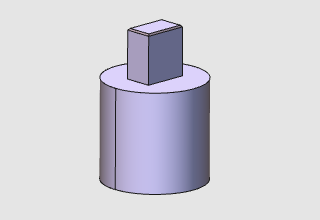
The workpiece document is created from external geometry. Dedicated information is then assigned so the part can be handled and loaded in the workcell layout for later processing.
Steps
1. Preparation
1.1 Create a new empty document (if needed)
If another document is already open in the running session, create a new empty document. If no document is open, you can skip this step.

Create a new document
Open the File menu and select New. If prompted, choose whether to save the currently open document, close it without saving, or cancel.
2. Define the workpiece
2.1 Verify geometry import settings
To use the workpiece properly in offline programming, import the geometry as exact geometry.

Verify import settings
2.2 Import geometry from Workpiece_Cylinder.step
Import the geometry from the Workpiece_Cylinder.step file in the training data.

Import geometry
2.3 Create a workpiece for the imported geometry

Create a workpiece
3. Build the workpiece shape
3.1 Attach the part geometry to the workpiece

Attach geometry
4. Save the workpiece
4.1 Give the workpiece an appropriate name
Name the workpiece
4.2 Save the completed workpiece

Save the workpiece