Installing a server license
Wibu CodeMeter installation
After the Wibu CodeMeter Runtime software has been downloaded it can be installed. A plain default installation here is sufficient.
Just make sure that the marked components Network Server and Remote access to WebAdmin are included in the installation.
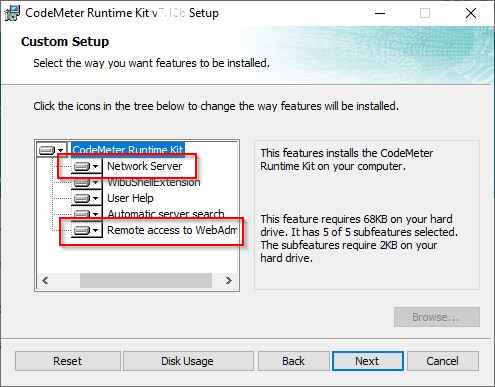
A guide to assist the installation can be downloaded from the Wibu website.

CodeMeter installation guide
After having successfully installed the software, the icon of the CodeMeter Control Center will appear at the lower right corner of your Windows taskbar on your main screen.
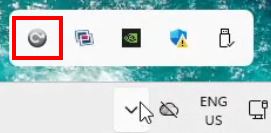
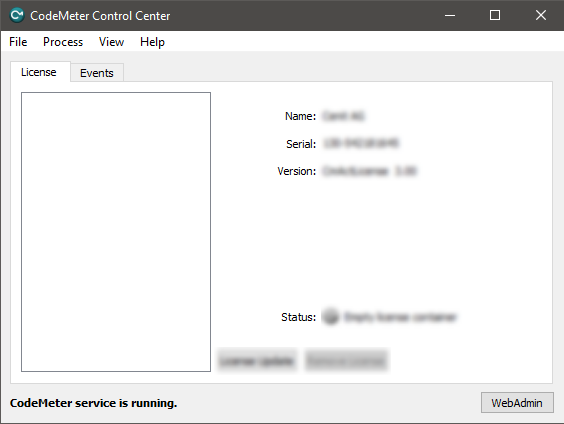
The Control Center can be started from here or through the Windows Start menu. It opens with a panel similar to the picture below.
License preparation
In case you have received a license dongle, plug the dongle into the USB port of the workstation. It will be pre-configured instantly and ready for use. The following steps in this paragraph can be skipped and you can continue with the License request and activation.
CodeMeter uses so called containers; packages of licensed (vendor) products. The FASTSUITE container Cenit_AG.WibuCmLif has to be downloaded from the Cenit download portal if it has not been received by email.
Cenit download portal
With the container file downloaded, the license preparation can be started.
Pick the file from the download location and drag it into the CodeMeter Control Center. Then drop it in the container area.
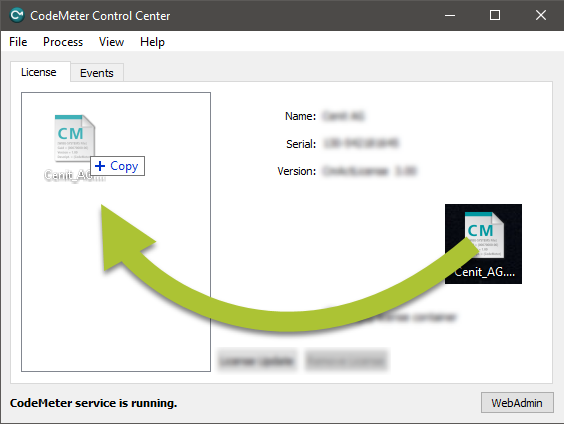
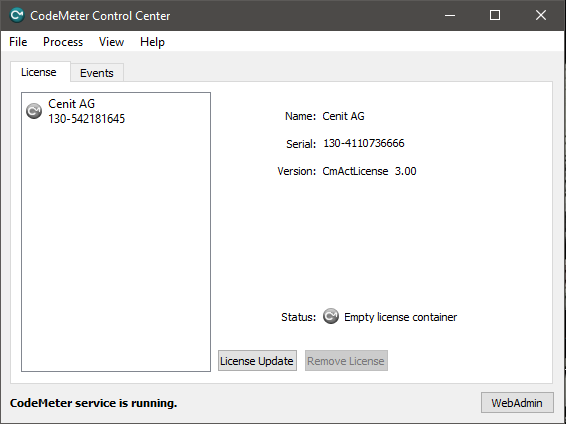
The container will be imported. When successful, the result should look similar to the picture below.
License request and activation
With the container generated, the license installation can be started. Go to the FASTSUITE webdepot.
Cenit webdepot
This will open the login page.
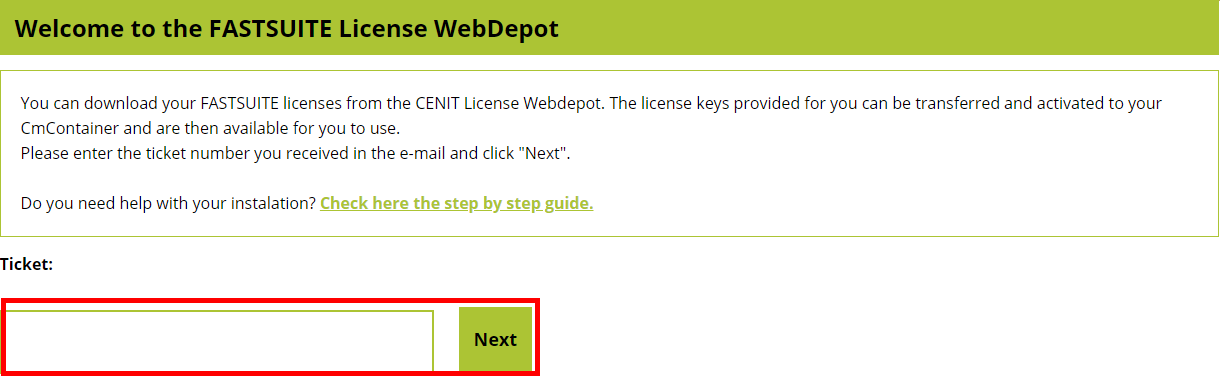
Enter the ticket number you have received by email and press the Next button to continue. A list appears of all licenses that are included in this ticket, like in the example below.

Press the Activate licenses button to continue.
On the next page the selection has to be made if the license has to be installed on the dongle, which can be used on any workstation, or if you want to receive a license file, that will be installed on a dedicated workstation.
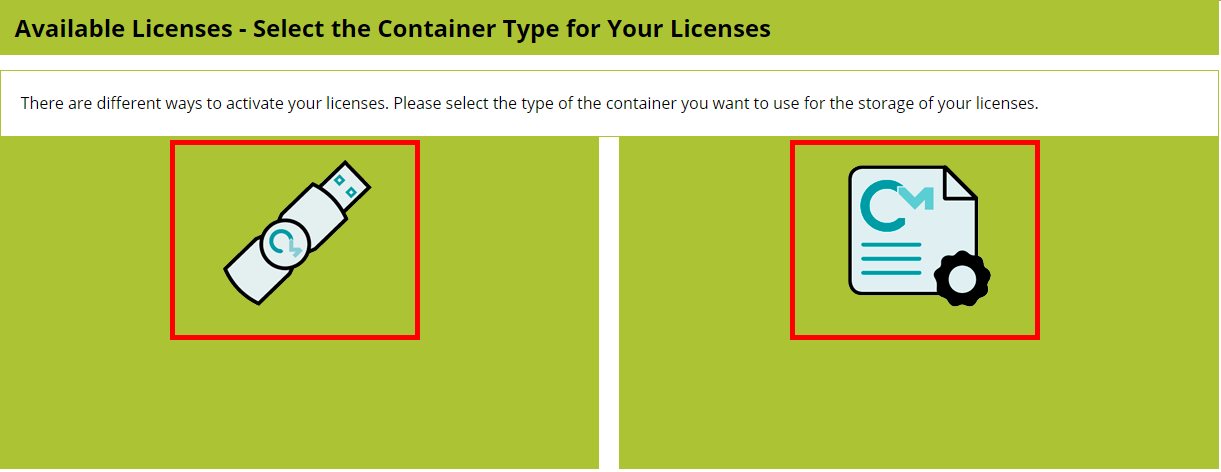
Press on the button corresponding to the license type you require. The following steps then are the same for both types.
A) Online installation
With the online installation, the default method of the webdepot, the license will be installed and activated automatically. To enable the online installation it needs to be verified that the webdepot is listed as a Trusted WebSocket Origin in the CodeMeter WebAdmin.
In the CodeMeter Control Center press the WebAdmin button. It opens the administration in your default browser.

Go to the menu Configuration - Advanced - Trusted WebSocket Origins.
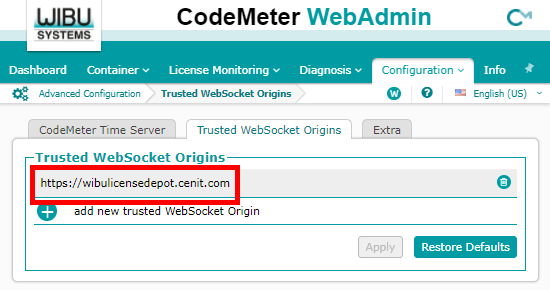
Check if the address https://wibulicensedepot.cenit.com is in the list of Trusted WebSocket
Origins. When the link to the webdepot is not listed here, you need to add it, otherwise the
online activation is not possible.
The webdepot returns an overview of available licenses. Then simply follow the instructions on the page.
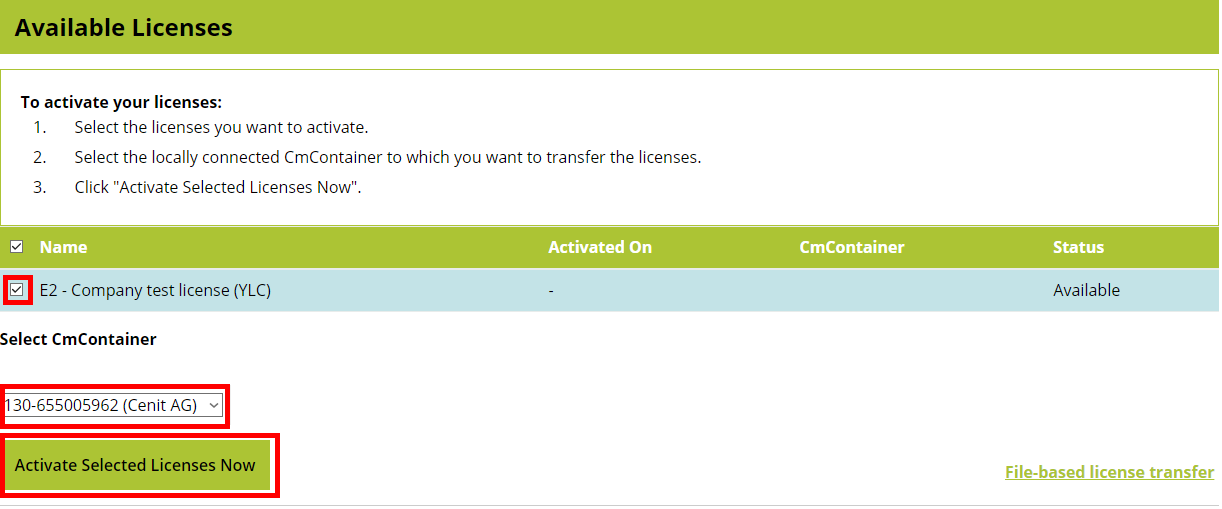
B) File based license transfer
File based license transfer is an optional alternative to online installation. Use this workflow when the license activation needs to be performed manually by exchanging license files between CodeMeter and the CENIT WebDepot.
The file based license transfer consists of three actions:
- Create and upload a license request. — Generate the request file in CmFAS Assistant and upload it to the WebDepot.
- Download and import the license update. — Download the update from the WebDepot and import it into the CodeMeter container.
- Create and upload a receipt. — Create a receipt confirming the import and upload it to the WebDepot.
Create and upload a license request
To create a license request:
-
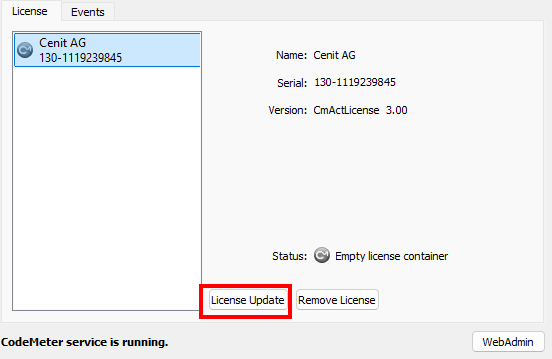
In the CodeMeter Control Center, select the CENIT AG license container and click License Update.
-
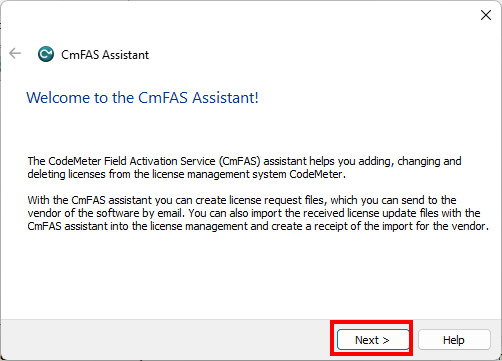
The CmFAS Assistant opens. Click Next.
-
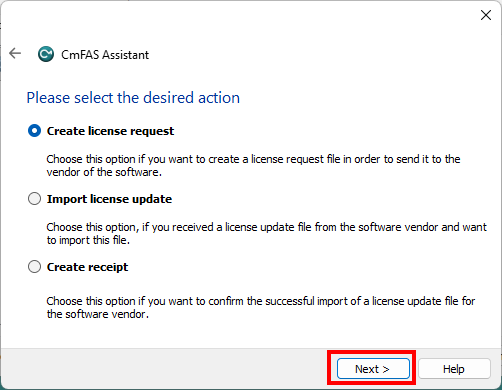
Select Create license request and click Next.
-
Follow the instructions in the CmFAS Assistant to create and save the license request file.
In the WebDepot, the Upload Request step provides the corresponding instructions for the file based activation.
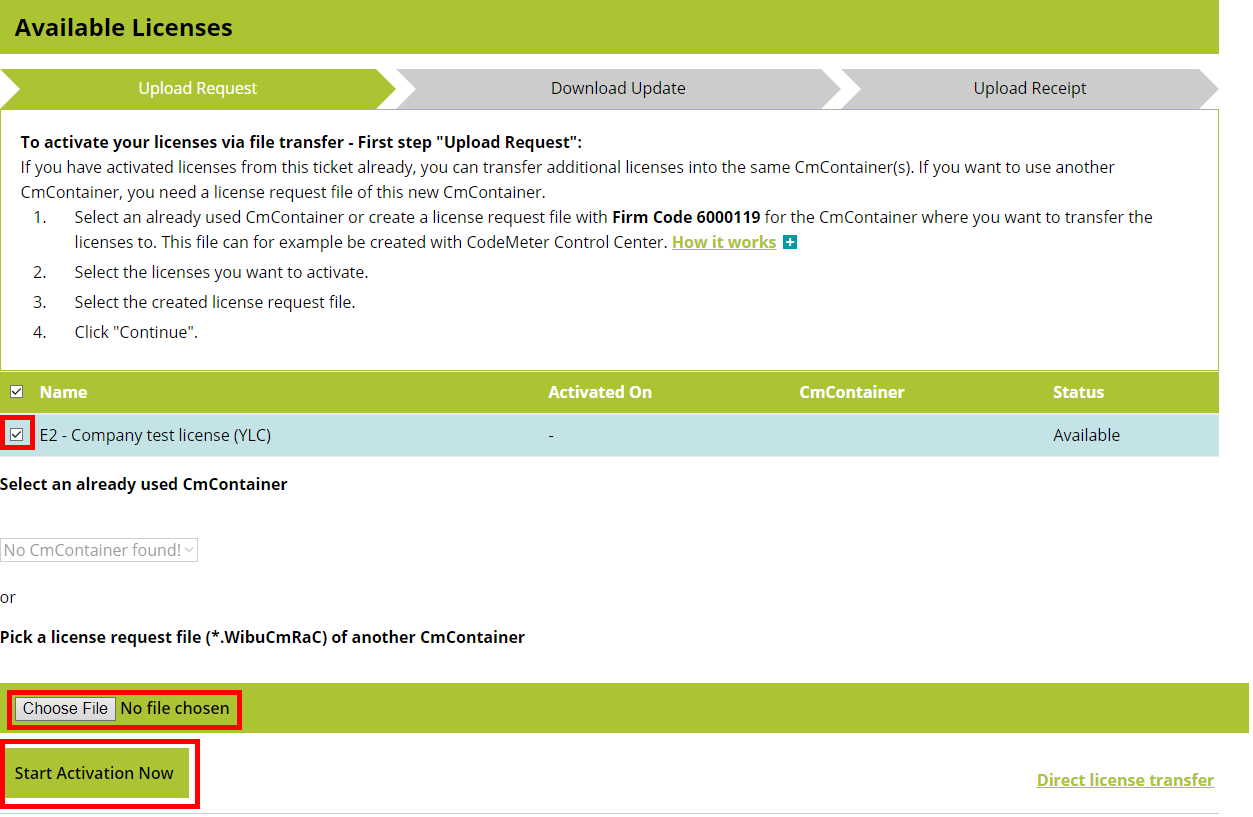
Upload the license request file generated by the CmFAS Assistant.
After the request has been selected and uploaded, click Start Activation Now.
Download and import the license update
After the license request has been uploaded successfully, the Download Update step is displayed.
Download the license update file provided by the WebDepot.
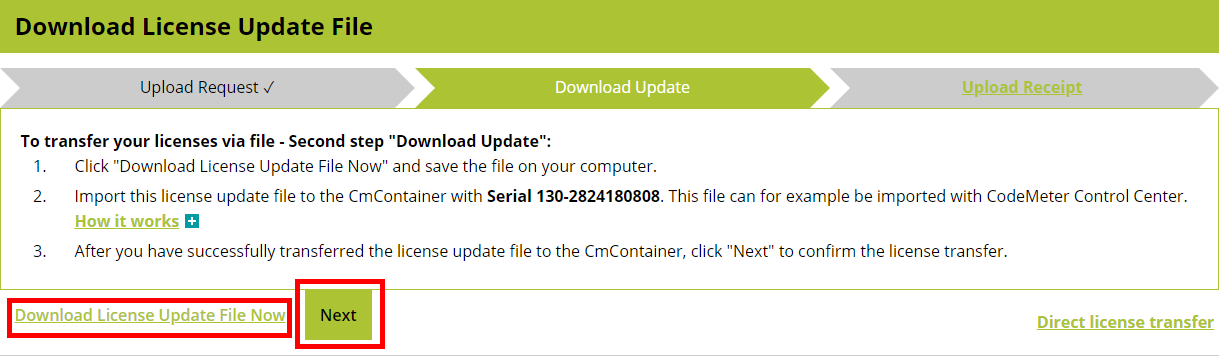
To import the downloaded license update:
-
Open the CodeMeter Control Center.
-
Select the corresponding CENIT AG license container.
-
Click License Update.
-
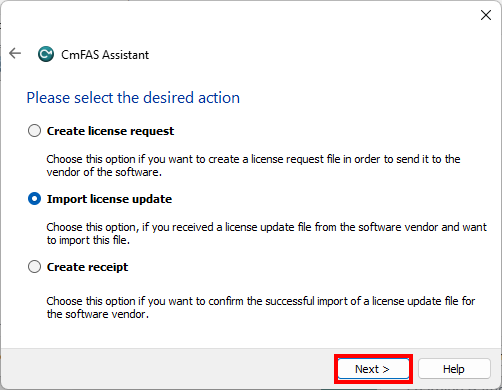
In the CmFAS Assistant, click Next.
-
Select Import license update and click Next.
-
Select the license update file downloaded from the WebDepot.
-
Follow the instructions in the assistant to complete the import.
The license update is imported into the selected CodeMeter license container.
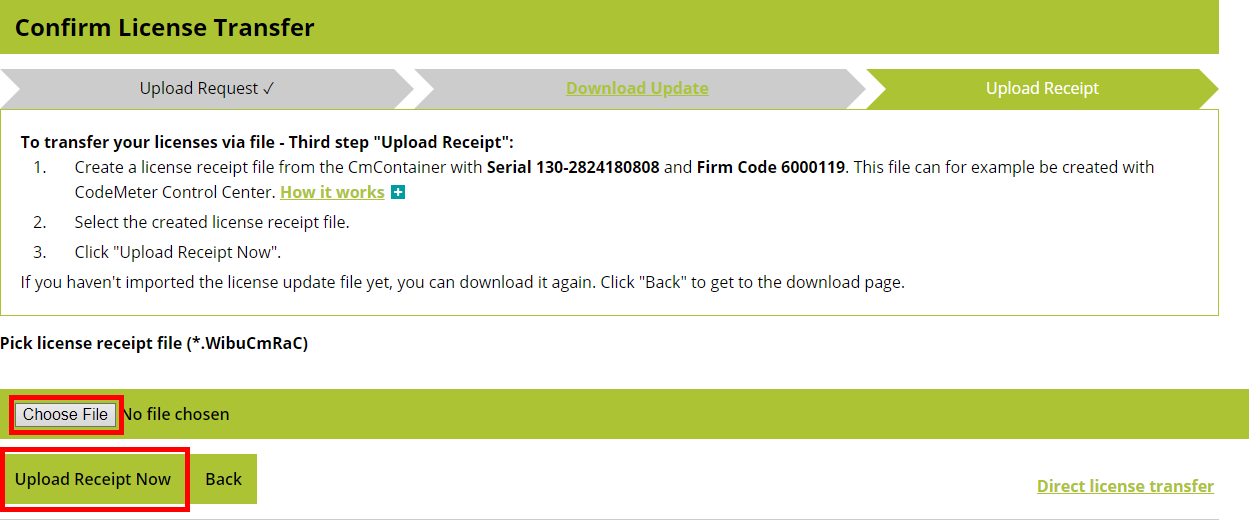
Return to the WebDepot and click Next.
Create and upload a receipt
The final step is to confirm that the license update was successfully imported.
To create the receipt:
-
Open the CodeMeter Control Center.
-
Select the corresponding CENIT AG license container.
-
Click License Update.
-
In the CmFAS Assistant, click Next.
-
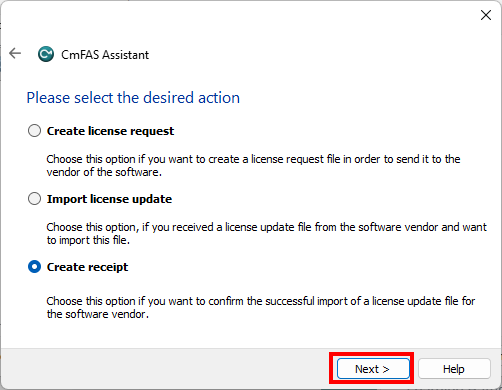
Select Create receipt and click Next.
-
Follow the instructions to create and save the receipt file.
Return to the Upload Receipt step in the WebDepot and upload the generated receipt file.
After the receipt has been uploaded successfully, a confirmation is displayed.

License overview
After the available license has been successfully activated, the license overview in the WebDepot is updated.

The system is now ready to run FASTSUITE Edition 2.
To update or renew a license, follow the corresponding activation procedure again.
Configure the license server
In the CodeMeter Control Center press the WebAdmin button. It opens the administration in your default browser.
Go to the menu Configuration - Server - Server Access.
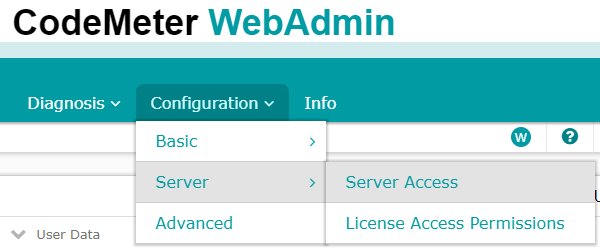
Enable the network server and press the Apply button to confirm it.
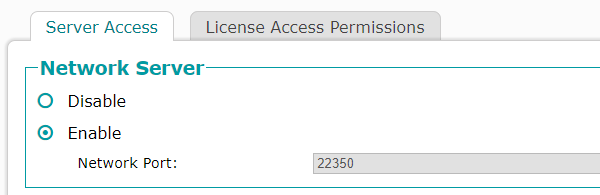
The server is now ready to distribute the license package.
Configure the license client
On each client open the CodeMeter Control Center and press the WebAdmin button. It opens the administration in your default browser.
Go to the menu Configuration - Basic - Server Search List.
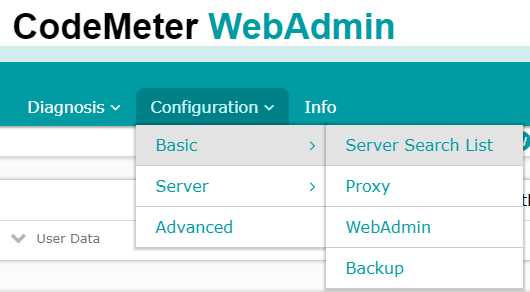
Add the license server name and confirm it.
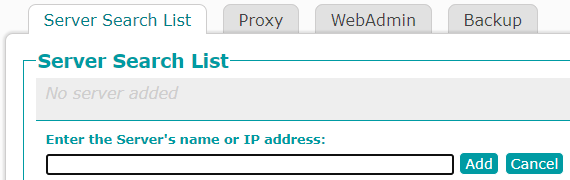
At the bottom left side of the WebAdmin usually the localhost is shown as the current server. The defined server name should appear in the list of servers when you click on it.

The client is now ready to request a license from the server.