Modify the global design
Purpose
This page explains how to modify the global fixture design, including base plate adjustments and support plate updates.
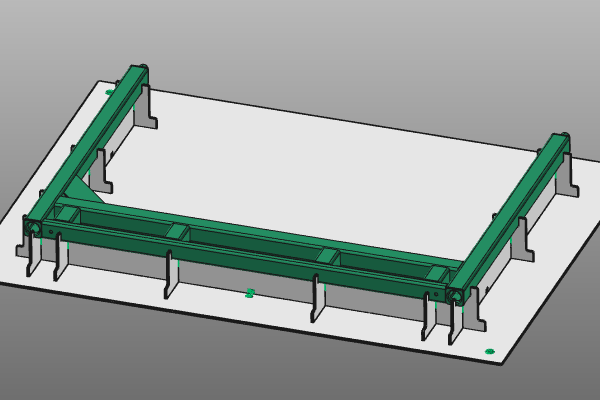
Continue with the fixture from the previous page. If needed, load fixture_training1_1.cendoc from the training material installation folder.
Steps
1. Modify the base plate
1.1 Reposition and update the base plate
Use the manipulator to modify the base plate position and orientation relative to the workpiece. Run the Update command at the manipulator center to recompute the fixture.

Modify the base plate position
![[link:Ref_Manipulator_Position]](/_next/static/media/help_32.a83448e5.png)
1.2 Resize the base plate
Open the pie menu on the base plate and run Resize the base plate. Update the plate dimensions in the panel, then click in empty 3D space to apply the new size.

Resize the base plate
2. Modify the support plates
2.1 Move support plates X1 and X2
Select support plate X1, open the pie menu, and start Move support plate. Drag the plate to the required position using the manipulator axis. Repeat the same action for support plate X2.
The Move command remains active after dragging. Press Esc or start another command to finish.

Move support plate
2.2 Split support plates X2 and X1
Pick support plate X2 and run Split support plate. Then split support plate X1.

Split support plates
2.3 Add support plates with given length
Move the manipulator to the desired position and run Add support plate with given length on its axis.
Create one plate with length 150 mm, then add a second plate with length 80 mm.

Add support plate with given length
2.4 Add a full-length support plate
Move the manipulator to another location and run Add support plate to create a new support plate with maximum length.

Add support plate
2.5 Resize a support plate
To reduce support plate length, place the manipulator at the plate base on the side you want to shorten. Run Resize the support plate and drag the manipulator to the required position.
The command stays active until you press Esc or start another function.
Resize support plate
2.6 Repeat for the opposite long tube
Repeat the previous two actions at the long tube on the other side of the workpiece.
Add support plate on opposite side
2.7 Create plates in both X and Y directions
When Add support plate (with given length) is started on the manipulator center, a new plate is created in both X and Y directions.
Add support plates in X and Y
3. Save
3.1 Save your changes
Do not forget to save all changes made to the fixture.

Save the fixture