Build the base fixture
Purpose
This page explains the main functionality used to build the base fixture.
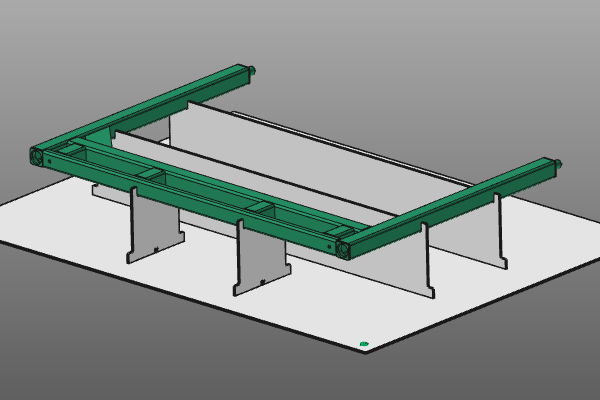
The workpiece is loaded in the session. The following steps show how to start the fixture design process.
Steps
1. Preparation
1.1 Switch to the Fixture Builder workbench

Fixture Builder workbench
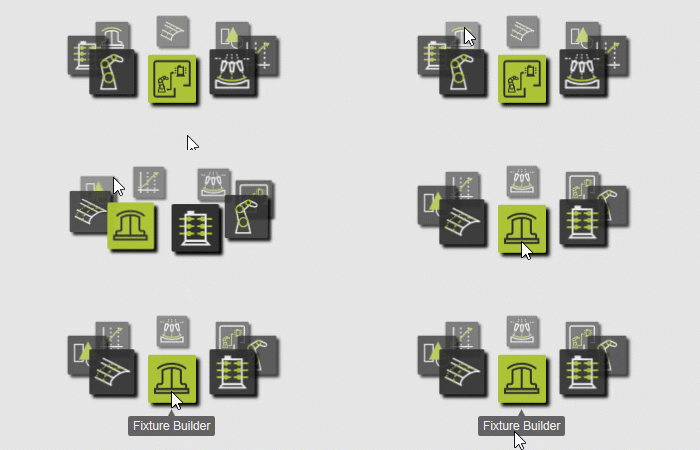
1.2 Create a new empty document (if needed)
If another document is already open in the running session, execute this step. If not, this step can be skipped.

Create a new document
1.3 Open the workpiece
Open the workpiece TrainingPart_2.cenwpc from the training material installation folder.

Open the workpiece
2. Build the fixture
2.1 Configure fixture default parameters
Open the Fixture default parameters panel and set the global values to start the fixture design:
- Plate thickness:
3 mm - Supporting plates:
2in X and2in Y - Automatic weight reduction:
off

Fixture default parameters
2.2 Position the fixture base plate
Activate the Create/Edit Fixture command. Move the manipulator under the workpiece. The manipulator XY plane defines the base plate position and orientation relative to the workpiece.

Position the base plate
2.3 Create the base fixture
Select the workpiece, open the pie menu at the manipulator center, and execute Create a fixture.

Create a fixture
3. Save the fixture (temporary)
To store your progress and continue this course later, save your data in a .cendoc document file. This single package file includes all data from the current session.
For more details about document files, see Document types.
3.1 Save the session
In the File menu, execute Save as, choose the location, and give the document a proper name.

Save the session