Session data recording
Data recording
To improve usage, performance and other important behavior of the application, with the release of R2023.2 the system collects data of the running FASTSUITE Edition 2 session. This data is recorded completely anonymous.
In the General settings the user can allow or deny the recording.
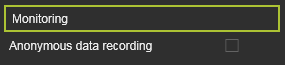
The recorded data will be sent encrypted via HTTPS to Microsoft Application Insights

Data collection, retention, and storage in Application Insights
Local storage of recoded data
When the Internet or the endpoint cannot be reached, then the recorded data is stored in …\AppData\Local\Microsoft\ApplicationInsights. But these files are unreadable. More information can be found in the link below.
Local storage of collected data
What data is recorded?
The following data of the session is recorded:
Used Hardware:
- CPU
- GPU
- GPU driver
- RAM
- Windows Version
- Country (Set country in Windows settings)
Data about Edition 2:
-
Language set in application
-
Application version
-
Application license configuration
-
Duration of session
Recorded events:
General:
-
Start of E2
-
Exit of E2 and Exit-Code
-
Occurrence of crashes/software errors
-
Opening and closing dashboards, as well as the duration of how long it was opened.
-
Current active technology
-
Active micro-environment
-
Active workspace and duration of how long one was working in it
-
Loading of a scenario (scenario or document itself not, only the fact that one is loaded is recorded)
-
New document
Settings:
- Opening of settings and duration how long they were open:
- General settings
- Material editor
- Color settings
- External device settings
- Keyboard settings
- Additional paths (without duration)
- Enabling/disabling display filters.
- Resetting the keyboard shortcuts
- Turn off data logging (assuming it was turned on before)
- Switching on/off the 3D-HeadUp
Features:
- Use of a keyboard shortcut and which
- Using the F1-Help
- Multipoint/three-point/least square calibration
Simulation:
- Starting a simulation
- Start a partial simulation
- Pause a simulation
- Step forward/backward
- Reset
- Opening the simulation settings
- Switching on/off the collision check
- Switching process simulation on/off
- Switching trace on/off
- Execution of Python scripts
- Touch Sensing calculation
- APO (Automatic Path Optimization) calculation
- Side tangent calculation