Build a robot with kinematic behavior
Purpose
Use the Resource Builder workbench to define a robot resource, including kinematics and configuration for reliable simulation.
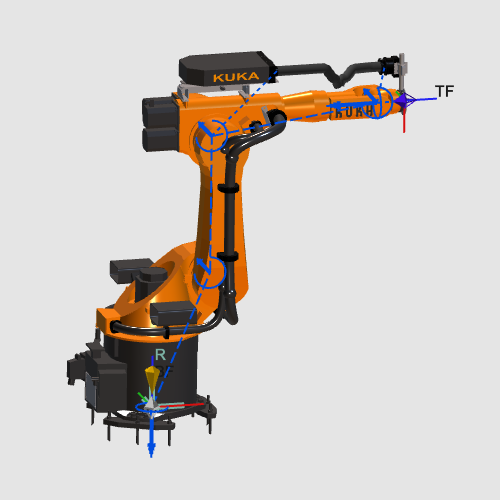
The robot resource is created from imported geometry, completed with a kinematic skeleton, and finalized with frames and properties.
Steps
1. Preparation
1.1 Create a new empty document (if needed)
If another document is already open in the running session, create a new empty document. If no document is open, you can skip this step.

Create a new document
Open the File menu and select New. If prompted, choose whether to save the currently open document, close it without saving, or cancel.
1.2 Switch to the Resource Builder workbench

Switch to Resource Builder
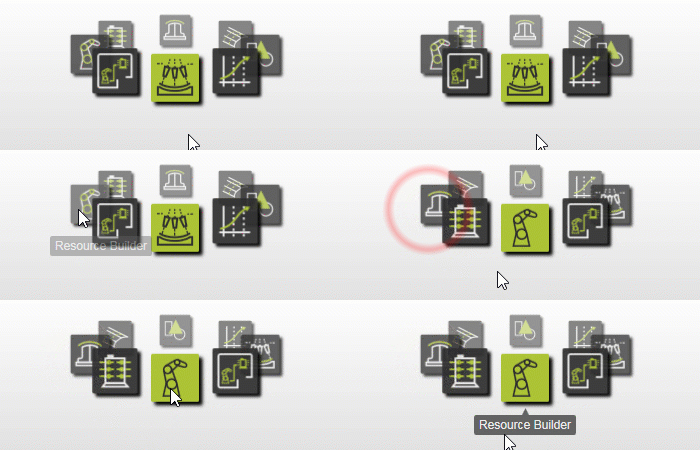
2. Define the robot resource
2.1 Import robot geometry
Import the robot geometry from the training file set.

Import geometry
2.2 Create the production resource
Create a new production type resource for the imported geometry.

Create production resource
3. Build the robot kinematics
3.1 Define rotational joints for axes 1-6
Define axes 1 to 6 as rotational driven joints according to the available robot data.

Define joint axes
4. Attach geometry and configure properties
4.1 Attach geometry to root and axis frames
Attach imported geometry to the root and corresponding axis frames.

Attach geometry
4.2 Configure TCP, frames, and robot properties
Define the tool center point, configure axis parameters, and complete adapter and frame properties.

Configure robot properties
5. Save and verify
5.1 Save the robot resource

Save resource
5.2 Reload and verify the setup
Open the saved resource and verify behavior in simulation.

Open and verify