Automatic cutting path optimization
Purpose
Learn to use some features to automate the programming.
Load the project from the previous paragraph, or load Training_LaserCutFeatures.cendoc from the Projects folder of this tutorial library.
Steps
1. Analyze incidents
1.1 Verify incidents in Toolpath dashboard
Open the Toolpath dashboard and verify that incidents are displayed.

Toolpath dashboard
1.2 Inspect incident details
Use Create and edit events, then hover over incident-colored path elements to open the incident information pop-up.

Incident details
2. Automatic toolpath optimization
2.1 Configure optimization attributes
Open Active program and select Toolpath quality. If not visible, select the top-level program in the workflow diagram. In Variation space and Optimization control, configure optimization attributes and criteria. Set Quality cutback to 10 as a balance between result quality and computation time.

Optimization attributes
2.2 Run automatic toolpath optimization
Re-open Toolpath dashboard and check program costs. Execute Automatic toolpath optimization and monitor the progress window.

Run optimization
2.3 Review optimization results
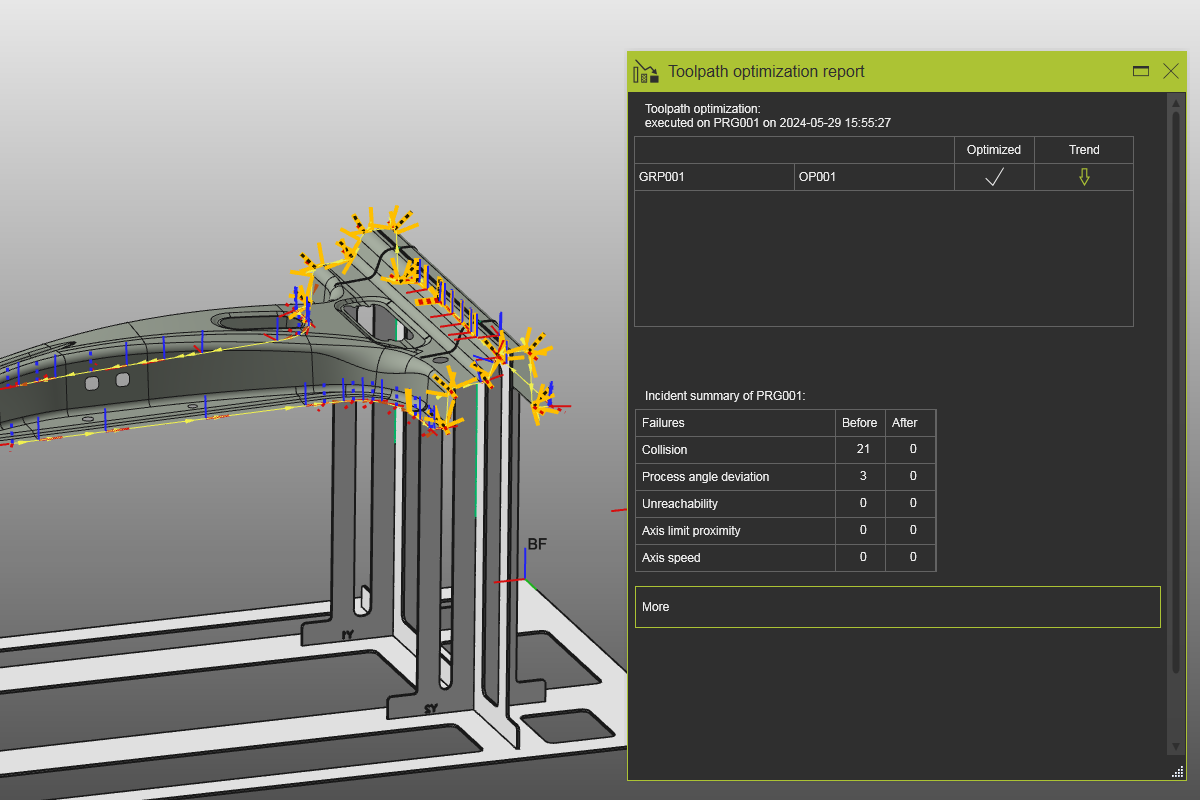
When optimization completes, review the report window and updated Toolpath dashboard results.
Optimization results