Validating Your NC Code
Purpose
Validation is the final safety check before executing an NC program on the real machine.
In Shopfloor Assistant, validation is performed using a Virtual Controller that simulates the machining process using:
- real machine limits
- axis constraints
- collision geometry
This ensures the NC program is:
- safe
- reachable
- ready for execution
before running it on the physical machine.
What the Validation Checks
The Validate Program operation performs several automated checks.
Collision Detection
Ensures the tool does not collide with:
- the workpiece
- fixtures
- machine components
Reachability Analysis
Verifies that all points in the NC program are within the machine’s kinematic limits.
Syntax and Structure Validation
Detects issues such as:
- invalid command formatting
- missing parameter values
- unsupported NC instructions
Before You Begin
Important
The NC program must be saved before running validation.
Validation always runs on the last saved version of the program.
Unsaved edits will not be included in the validation process.
Running the Validation
Step 1 — Open the Validation Window
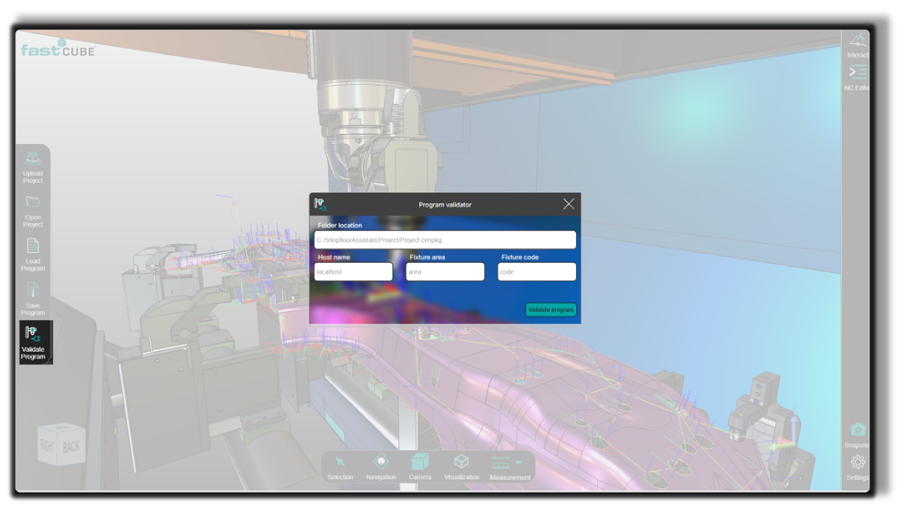
Click Validate Program in the left-side panel.

This opens the Validation Setup Window.
Step 2 — Provide the Required Information
Fill in the required fields so the Virtual Controller can simulate the NC program correctly.
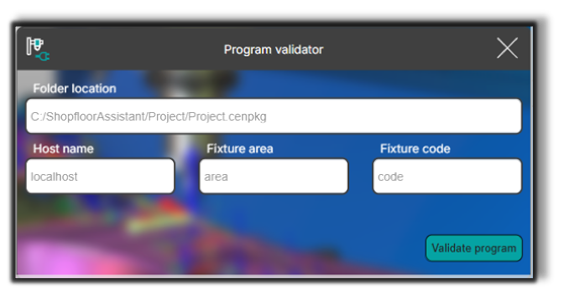
Folder Location
Directory containing the project data (cenpkg file) used by the validation engine.
This field is filled automatically but can be changed.
Host Name
Hostname or IP address of the machine running the validation service.
This value can also be configured in:
- the Installation window
- the Launcher Settings
Fixture Configuration
If the NC program contains fixture data, Shopfloor Assistant automatically detects and loads it.
💡 Tip
The Validate Program button becomes active only after all required fields are completed.
Step 3 — Start the Validation
Press Validate Program to start the Virtual Controller simulation.
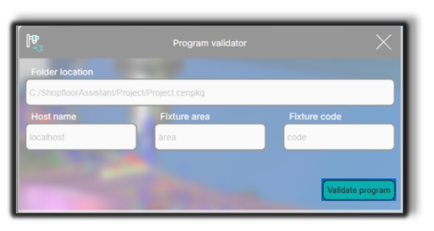
The system will execute the validation process and analyze the NC program.
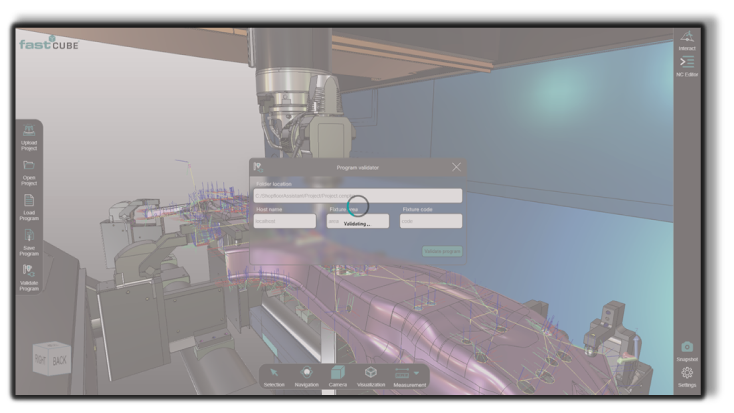
During validation, the Shopfloor Assistant interface is temporarily disabled to prevent interaction while the simulation is running.
Validation Results
Once validation completes, the system displays a status notification.
Two possible outcomes may occur.
Validation Failed
Displayed when the Virtual Controller detects errors or cannot complete the simulation.

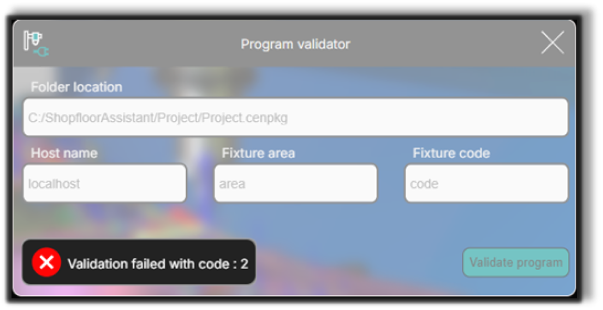
Error Exit Codes
| Code | Meaning |
|---|---|
| 0 | FastSuite E2 closed normally from the X button |
| 1 | FastSuite E2 closed unexpectedly |
| 2 | Unexpected errors (communication error or bad request) |
| 3 | Shopfloor Assistant internal error |
| 200 | License validation failed |
| 4001 | Automatic program validation timeout |
| 4002 | Automatic program validation generic error |
Validation Completed Successfully
Displayed when the validation engine returns exit code 4000.

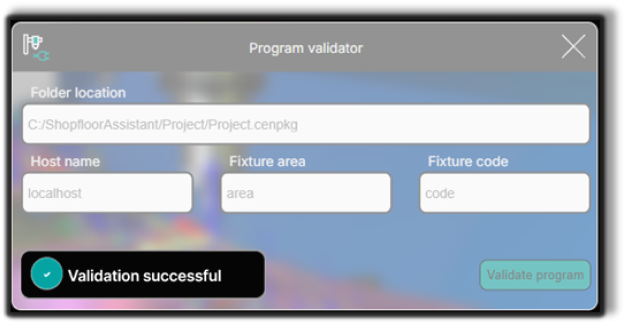
This confirms the NC program passed all validation checks.
Notes for Operators
- Always save the NC program before validation.
- Only the saved program version is used by the Virtual Controller.
- Verify Folder Location, Host Name, and Fixture Configuration before starting validation.
- Avoid interacting with the interface while validation is running.
- Run validation after major edits or transformations to ensure program safety.
- If validation fails, review the error code and logs before executing the program on the machine.