Single-Point Selection
Purpose
Single-point selection allows operators to select and inspect individual NC motion points within the machining program.
Selecting a point activates the available editing tools, the TCP manipulator, and the related visual feedback in the 3D Viewer.
Because of this, selection is the starting point for all editing operations, including coordinate adjustments, rototranslations, and geometry modifications.
Selection Behavior
Selection in Shopfloor Assistant is fully bi-directional between the NC Editor and the 3D Viewer.
Selecting an element in one interface automatically synchronizes the other.
The resulting system behavior depends on:
- the source of the selection
- the type of NC element selected
This allows operators to work from the interface that best fits their workflow.
Step 1 — Select from the NC Editor
Clicking a motion line in the NC Editor automatically highlights the corresponding point or points in the 3D Viewer, moves the machine to that position, and activates the TCP manipulator when TCP reference is active.
You can select several motion types directly from the NC Editor.
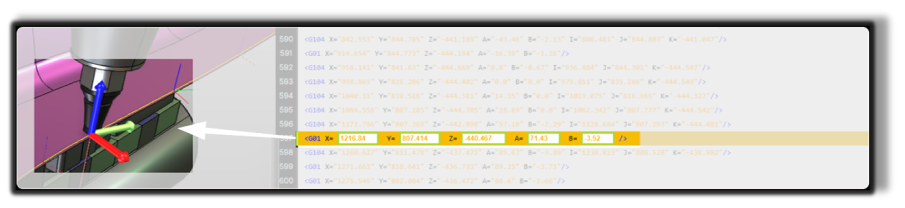
Linear Motion (G01)
Selecting a G01 line highlights the corresponding point in the 3D Viewer.
The machine and the manipulator are positioned directly at the coordinates of that point.
Circular Motion (G104)
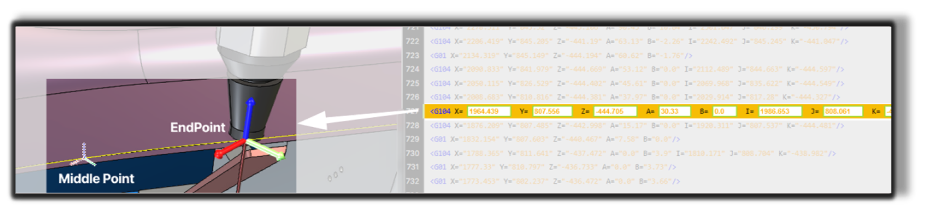
Selecting a G104 arc line activates both defining points of the arc:
- the via point
- the end point
Both points are highlighted in the 3D Viewer to visualize the arc segment.
The machine and the manipulator are positioned at the end point of the arc.
Note
For circular motions, Shopfloor Assistant highlights the full geometric definition of the arc, not just a single visual point.
Regshape Blocks
Selecting a regshape line such as a hole, slot, rectangle, keyhole, or hexagon activates the complete regshape structure.
This may include:
- the approach point
- the retract point
- the internal shape points
When selecting a regshape:
- the machine moves to the start point of the regshape
- the manipulator is positioned at the center of the regshape
- all related points are highlighted as a grouped feature

Note
Regshape elements are treated as a single structured feature.
Editing operations applied to the selection affect the entire regshape block.
Step 2 — Select from the 3D Viewer
Points can also be selected directly from the 3D Viewer.
When a toolpath point is clicked:
- the corresponding NC motion line is highlighted in the NC Editor
- the machine moves to the selected position
- the TCP manipulator appears at that location when TCP reference is active
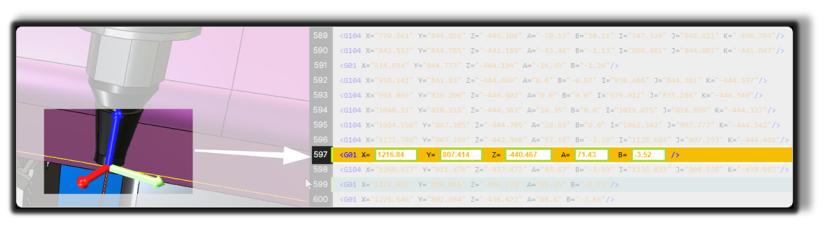
Linear Motion Point (G01)
Clicking a point in the 3D Viewer selects the corresponding G01 motion line in the NC Editor.
The machine moves to that position and the manipulator aligns with the selected point.
Circular Motion Points (G104)
For circular motions, the 3D Viewer allows selecting the individual points that define the arc.
You can select the following arc points.
Arc End Point
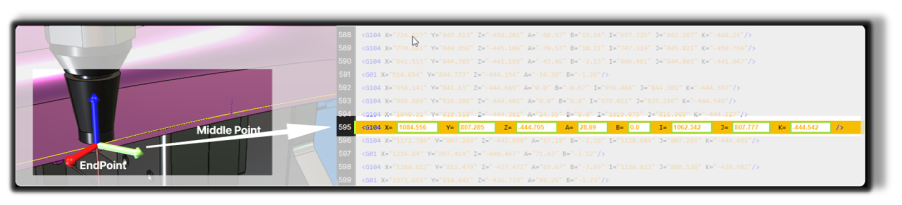
Arc Via Point
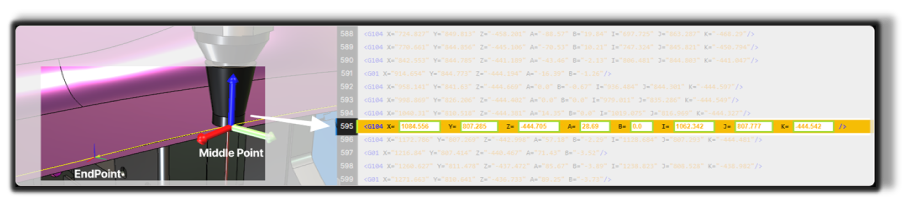
Selecting either point highlights the associated G104 NC line and positions the machine and manipulator at the selected location.
Individual Points Inside a Regshape
Each point belonging to a regshape block can be selected individually in the 3D Viewer.
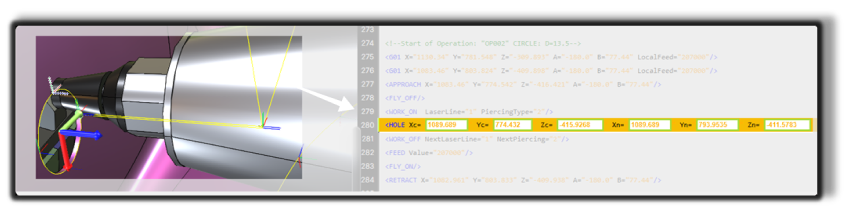
When selecting a regshape point:
- the machine moves to the selected point
- the manipulator snaps to the center of the regshape
This reflects the fact that the regshape is treated as a single grouped feature with a central pivot.
Note
Even when an individual regshape point is selected, the pivot behavior remains regshape-based, not point-based.
Step 3 — Review the Result After Selection
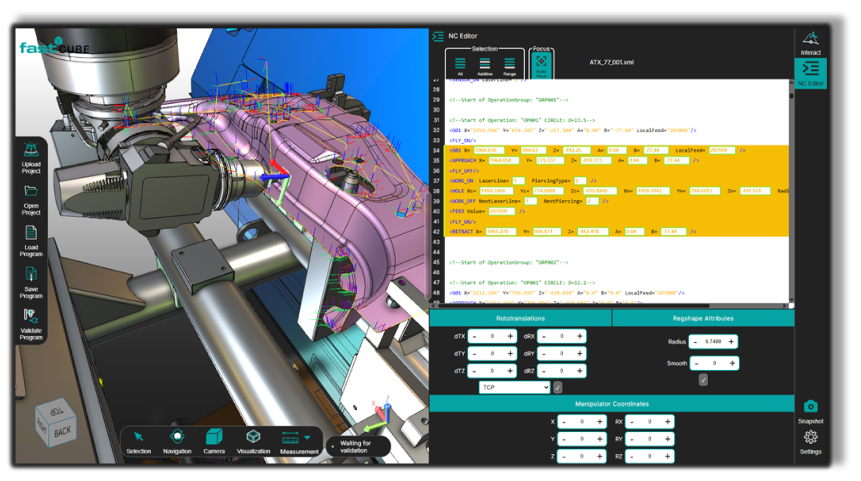
Once a point is selected, either from the NC Editor or from the 3D Viewer, Shopfloor Assistant automatically synchronizes both interfaces.
The following actions occur:
- the corresponding NC line is highlighted in the NC Editor
- the selected point is highlighted in the 3D Viewer
- the machine moves to the selected position
- the TCP manipulator appears at the corresponding location when TCP reference is active
Notes for Operators
- Selection is fully bi-directional between the NC Editor and the 3D Viewer.
- The machine automatically moves to the selected position.
- The TCP manipulator appears after the first selection when the TCP reference is active.
- Selection activates the editing tools relevant to the selected NC element.
- Regshape selections preserve the behavior of the complete structured feature, even when only one internal point is clicked.