Loading an NC Program
Purpose
Loading an NC program imports the toolpath instructions into the active project.
After loading, the program becomes available in the:
- NC Editor for line-by-line inspection and editing
- 3D Viewer for toolpath visualization and machine positioning
If a machine model is already loaded, the NC program is interpreted in the context of the configured machine and workpiece geometry.
Procedure
Step 1 — Open the Load Program Command
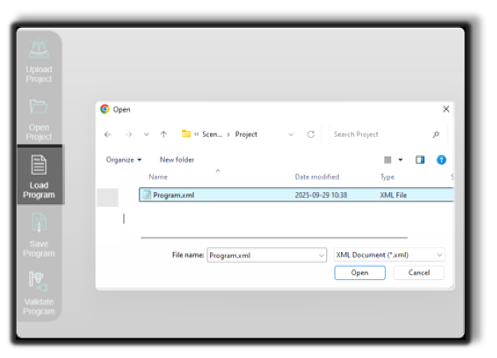
Click the Load Program button located in the left-side panel of the Shopfloor Assistant interface.
Step 2 — Select the NC File
Choose the NC program file to load.
Supported formats depend on the configured controller (for example SINUMERIK ONE or other supported controllers).
Step 3 — Confirm the Selection
The system parses the NC file and begins loading the program.
Step 4 — Wait for Program Initialization
After loading is complete:
- the NC Editor displays the program line-by-line
- the 3D Viewer visualizes the corresponding toolpath geometry
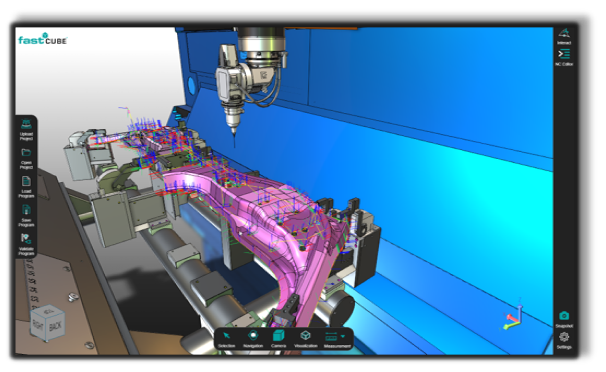
NC Program with Machine Geometry
The NC program is loaded together with the machine model, fixtures, and workpiece.
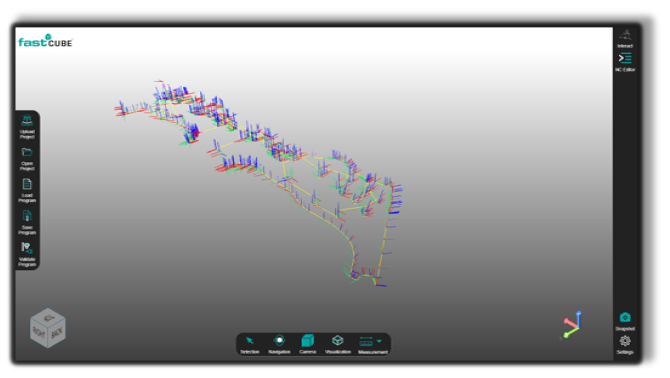
NC Program without Machine Geometry
The NC program can also be loaded independently, without a machine model.
Notes for Operators
- Each NC point is visually represented in the 3D Viewer, enabling two-way selection between the NC Editor and the 3D scene.
- NC programs can be loaded and edited independently, even without a machine model from a
.cenpkgproject. - Use the 3D Viewer to inspect and verify toolpaths before applying edits.