Interaction with Machine Joints
Purpose
The Interact Panel allows operators to manually control the machine joints in order to inspect machine positions and verify reachability directly in the 3D Viewer.
The panel is located in the top-right corner of the Shopfloor Assistant interface.
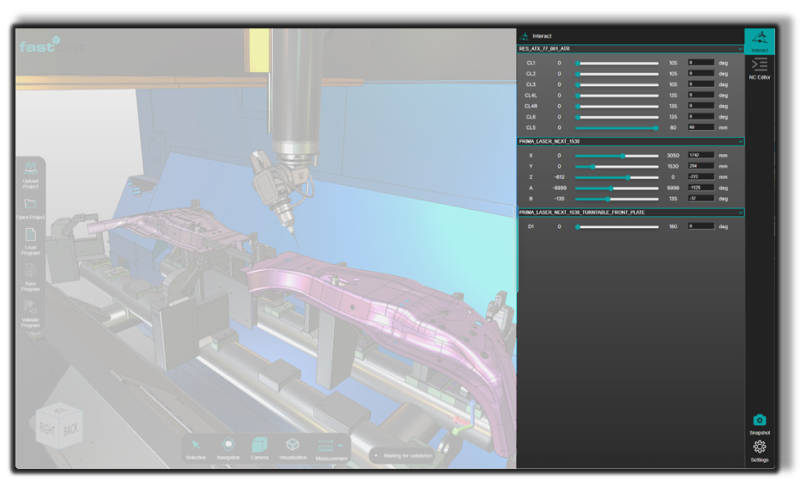
The Interact Panel enables manual manipulation of machine axes, including:
- standard axes (X, Y, Z, A, B)
- additional axes such as rotary tables or external machine axes
Typical use cases include:
- reachability verification
- inspection of machine posture
- forward kinematics checks
- manual collision testing
System Behavior
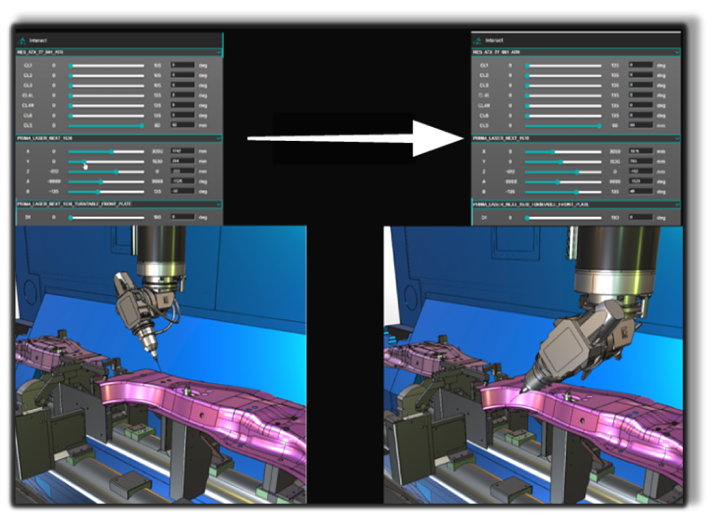
When a joint value is modified in the Interact Panel, the machine model updates immediately in the 3D Viewer.
The viewer provides real-time visual feedback, allowing the operator to observe:
- tool orientation
- part accessibility
- fixture interaction
- potential collision situations
The machine motion shown in the viewer reflects the current joint configuration defined in the Interact Panel.
Procedure
Step 1 — Open the Interact Panel
Click the Interact Panel button located in the top-right corner of the interface.
Step 2 — Select a Joint
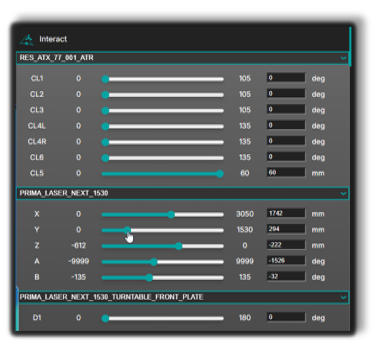
Choose the machine axis you want to manipulate.
Available axes may include:
- standard axes (X, Y, Z, A, B)
- custom axes defined in the machine configuration
Step 3 — Adjust the Joint Position
Modify the joint value using the available sliders or input fields.
The machine model updates immediately in the 3D Viewer.
Step 4 — Inspect the Machine Configuration
Observe the machine behavior in the 3D Viewer while adjusting joint positions.
Evaluate:
- reachability
- tool orientation
- fixture clearance
- potential collision situations
Notes for Operators
- The Interact Panel is intended for manual inspection and setup verification.
- It does not modify the NC program.
- Use the panel together with the 3D Viewer to analyze machine movements and spatial constraints.
- Manual joint movement is useful for verifying whether a machine position is reachable before executing or modifying an NC program.