Regshape Attributes Panel
Shopfloor Assistant supports regshape logic for a wide range of structured machining features, including:
- Holes
- Slots
- Rectangles
- Hexagons
- Keyholes
The Regshape Attributes Panel is located on the bottom-right side of the NC Editor and becomes active whenever a regshape block is selected.
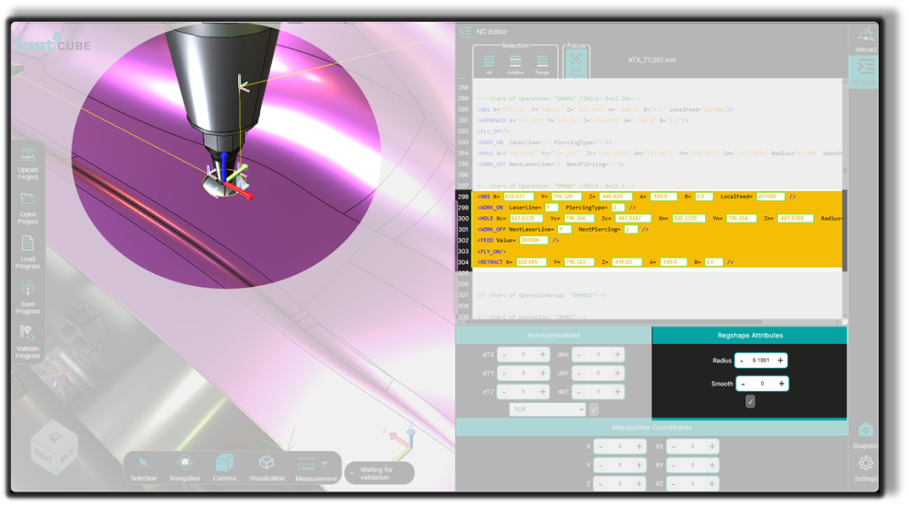
This panel allows operators to edit geometric parameters in a controlled way, with changes instantly synchronized between:
- the NC Editor
- the 3D Viewer
Key Features
Bi-directional updates
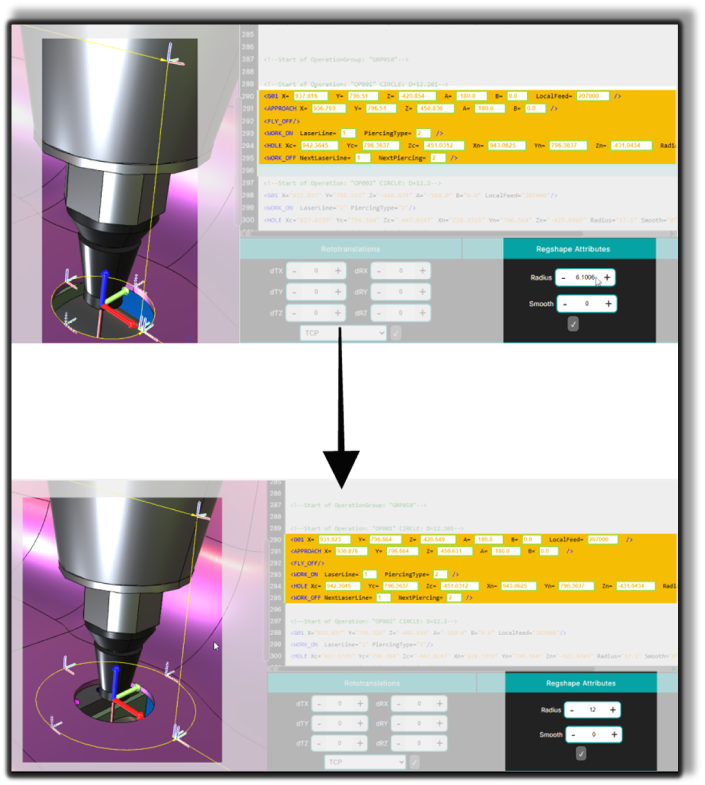
Any modification applied in the panel is immediately reflected in both the NC Editor and the 3D Viewer.
Context-sensitive parameters
The displayed parameters automatically adapt depending on the selected regshape type, ensuring that only relevant controls are visible.
How to Use the Regshape Attributes Panel
Step 1 — Select a Regshape
Select a regshape line in the NC Editor
or click any point belonging to the regshape in the 3D Viewer.
This activates the Regshape Attributes Panel and highlights the entire regshape structure.
Step 2 — Review the Attribute Fields
The panel automatically displays only the parameters relevant to the selected regshape type, such as:
- hole
- slot
- rectangle
- hexagon
- keyhole
This prevents invalid edits and simplifies the editing process.
Step 3 — Modify the Desired Attributes
Enter new values for the geometric parameters, for example:
- Radius
- Length
- Width
- Corner Radius
- Smoothness
Values can be:
- typed directly into the fields
- adjusted incrementally
Step 4 — Apply the Changes
Press Accept to apply the modifications.
After applying the change:
- The NC Editor updates the regshape block
- The 3D Viewer regenerates the geometry
- The machine and manipulator move to the regshape center for spatial context
Step 5 — Inspect the Updated Geometry
Use the 3D Viewer navigation tools to verify the result:
- rotate
- zoom
- pan
Check that:
- the geometry matches the intended dimensions
- structured paths remain consistent
- approach and retract movements remain valid
Regshape-Specific Attributes
Hole
Parameters available for hole regshapes:
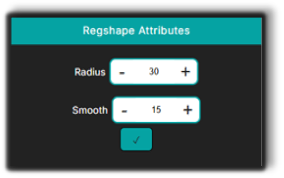
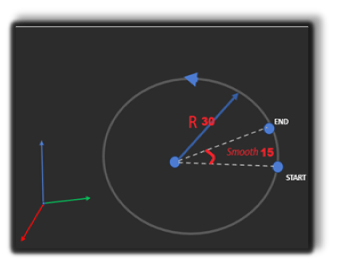
- Radius — defines the circle radius
- Smoothness — controls the overlap of the cutting trajectory
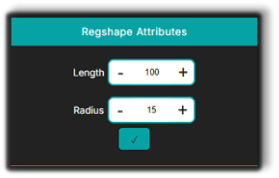
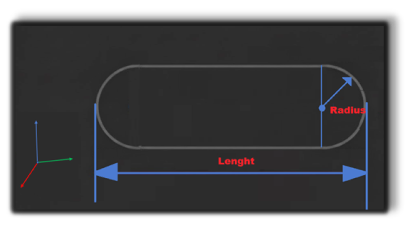
Slot
Parameters available for slot regshapes:
- Length — total slot length
- Radius — radius of the slot end arcs
Rectangle
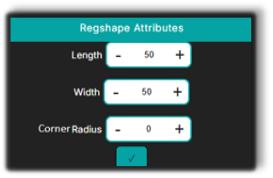
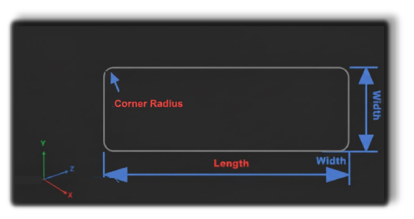
Parameters available for rectangle regshapes:
- Length — horizontal dimension
- Width — vertical dimension
- Corner Radius — rounding of rectangle corners
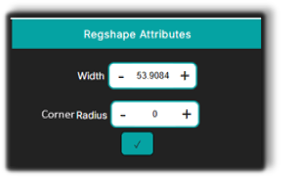
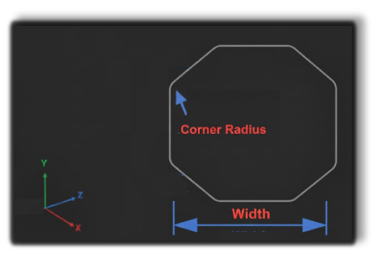
Hexagon
Parameters available for hexagon regshapes:
- Width — distance between two opposite faces
- Corner Radius — rounding of the vertices
Operator Notes
- Regshape editing modifies the entire feature, ensuring geometric consistency across all associated toolpath points.
- The panel automatically shows only the parameters relevant to the selected regshape, reducing confusion.
- Changes are synchronized instantly between the NC Editor and the 3D Viewer.
- Editing regshapes is much faster and safer than modifying individual NC points.
- Always press Accept after editing parameters to commit the changes to the NC program.