Manipulator and Manipulator Coordinates Panel
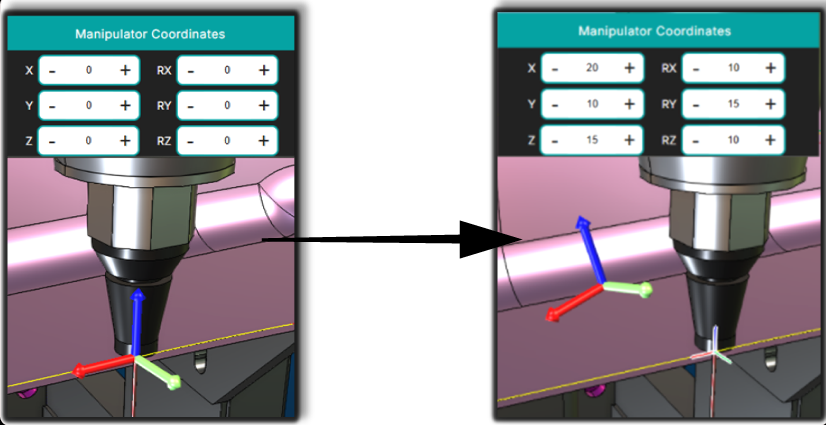
The Manipulator is a visual control element displayed in the 3D Viewer when a motion point is selected in the NC Editor or directly in the 3D scene.
It represents the exact position and orientation of the selected toolpath point and acts as the pivot reference for Rototranslation operations.
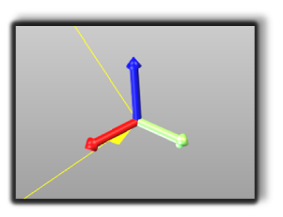
The manipulator provides immediate visual feedback, allowing the operator to clearly understand:
- the current toolpath position
- the tool orientation
- the pivot point used for transformations
Manipulator Coordinates Panel
The Manipulator Coordinates Panel is located at the bottom of the NC Editor panel.
It becomes active as soon as one or more points, or an entire Regshape block, are selected either in the NC Editor or in the 3D Viewer.
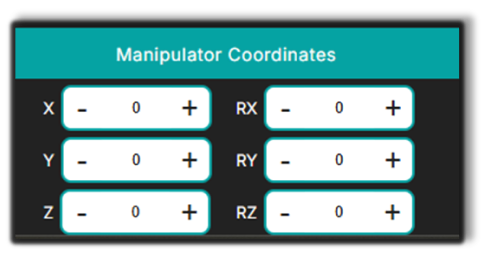
The panel allows the operator to precisely adjust the manipulator position and orientation before applying any transformation.
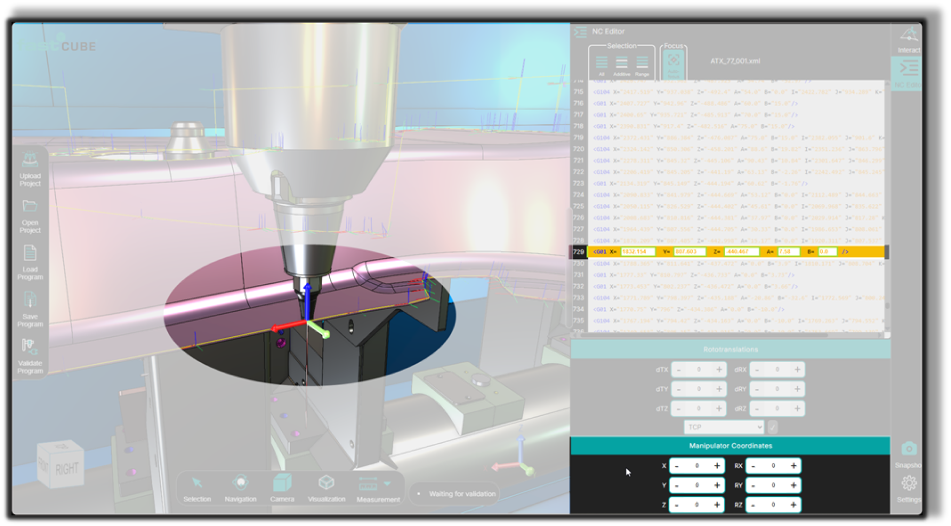
All translations and rotations defined in this panel are relative to the manipulator’s initial position.
Relationship with the Rototranslation Panel
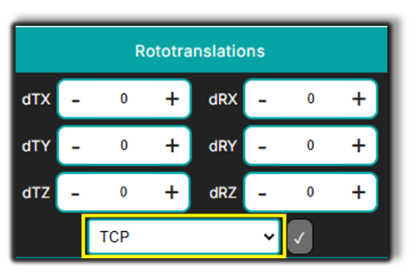
The Manipulator works together with the Rototranslation Panel.
When the reference system is set to TCP (Tool Center Point):
- the manipulator is visible in the 3D Viewer
- all offsets and rotations are visually applied through it
If the reference system is switched to another frame, for example:
- Base Frame
- G93 frame
the Manipulator and its panel are hidden, because transformations are applied relative to that frame instead of the tool.
How to Use the Manipulator
Step 1 — Select a point or Regshape
Select a motion point or a Regshape block in either:
- the NC Editor
- the 3D Viewer
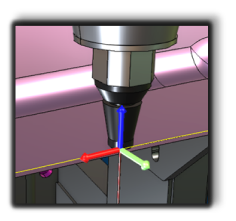
Step 2 — The manipulator appears in the 3D Viewer
Once the point is selected, the Manipulator appears automatically at the exact location of the selected toolpath point.
This indicates the pivot point that will be used for transformations.
Step 3 — Adjust the Manipulator Coordinates
Use the Manipulator Coordinates Panel to define the pivot position and orientation.
You can:
- Translate the manipulator to a new position
- Rotate the manipulator to adjust the orientation
All changes are displayed immediately in the 3D Viewer.
Step 4 — Observe the changes in the 3D Viewer
As the manipulator values change, the 3D scene updates in real time, allowing the operator to verify:
- tool orientation
- position adjustments
- reachability
Step 5 — Apply the transformation
To apply the transformation, use the Rototranslation Panel.
The reference must be set to TCP (Tool Center Point) for the manipulator to act as the pivot.
Notes for Operators
- The Manipulator updates instantly when a different point is selected.
- To reset the Manipulator Panel values, simply select another point in the NC Editor or the 3D Viewer.
- After a Rototranslation is applied, the manipulator automatically moves to the new position and the panel values are reset.
- The manipulator is especially useful for analyzing difficult tool positions, adjusting orientation, and validating the trajectory directly in the 3D environment.