Opening Projects
Purpose
The Open Project function loads a previously uploaded machining scenario into Shopfloor Assistant.
A project contains the complete machining context, including:
- machine configuration
- workpiece geometry
- fixtures
- NC program data
Once loaded, the project can be inspected and analyzed using the available tools such as the 3D Viewer, NC Editor, and Interact Panel.
Procedure
Step 1 — Open the Open Project Command
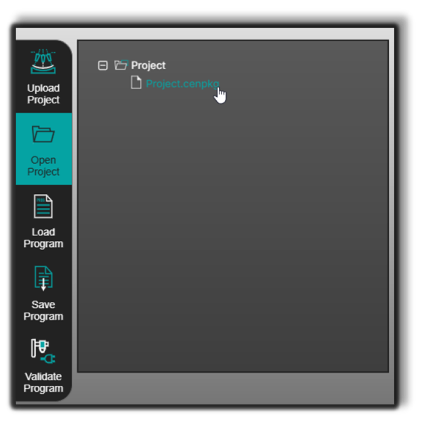
Click the Open Project button located in the left-side panel of the Shopfloor Assistant interface.
Step 2 — Select the Project Package
Choose a previously uploaded .cenpkg project file.
Step 3 — Confirm the Selection
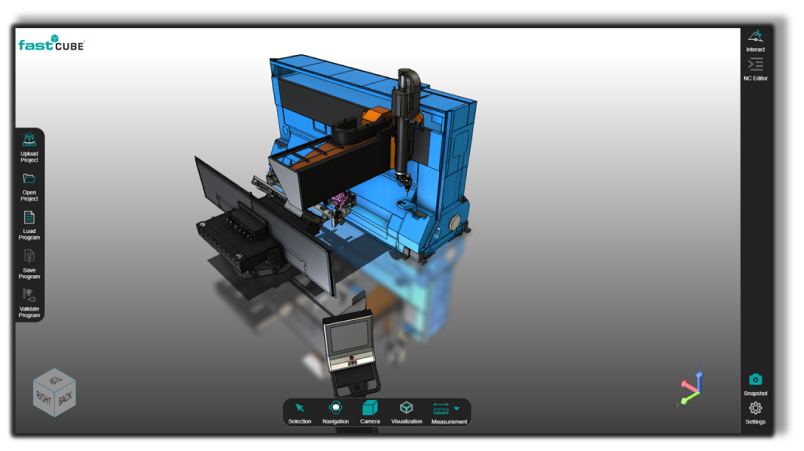
The system begins loading the project and initializes the 3D Viewer.
Step 4 — Wait for the Scene to Load
After loading is complete, the machining environment becomes visible in the 3D Viewer.
The scene includes:
- machine components
- fixtures
- workpiece geometry
Notes for Operators
- The Open Project function is optimized for fast loading and full workspace restoration.
- After the project has been opened once, subsequent openings are typically faster.
- Use consistent file naming to easily identify machining scenarios.
- After opening a project, verify geometry alignment and fixture placement in the 3D Viewer.
- Opening a project restores the complete machining context, including geometry, machine configuration, and workpiece.
Was this page helpful?