Perspective mode
Using perspective mode, it is possible to rotate around the fixture, zoom in and out and pan. The 3D projection is set to a perspective using a 35deg camera angle.

Navigate using the mouse in perspective mode
Provides free navigation inside the scene.
| Control | Action |
|---|---|
| Left mouse button (hold) + drag | Rotate the view |
| Mouse wheel | Zoom in/out towards the cursor |
| Mouse wheel (hold) + drag | Pan the scene |
| Right mouse button (hold) + drag | Dolly zoom |
Orthographic lock mode
Using the orthographic lock mode, it is possible only to zoom in and out the scene, and the view can be changed using the navigation cube.
Navigation Cube
The Navigation Cube, located in the bottom-left corner of the 3D Viewer, provides quick orientation control for your view. By clicking on the cube, you can instantly switch the camera to predefined orientations, making navigation easier and more efficient.
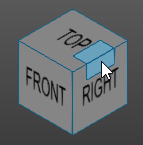
How to use the Navigation Cube:
Click a face – Switches to standard views: Top, Bottom, Front, Back, Left, or Right.
Click an edge or corner – Switches to the corresponding angled view for a more precise perspective.
Notes for Operators
Click on the FastCube icon in the top-left corner to instantly reset the view to the default orientation.
Double-clicking in the empty 3D space recenters the view.